AWS Load Balancer and Auto Scaling Group: A Complete Demo
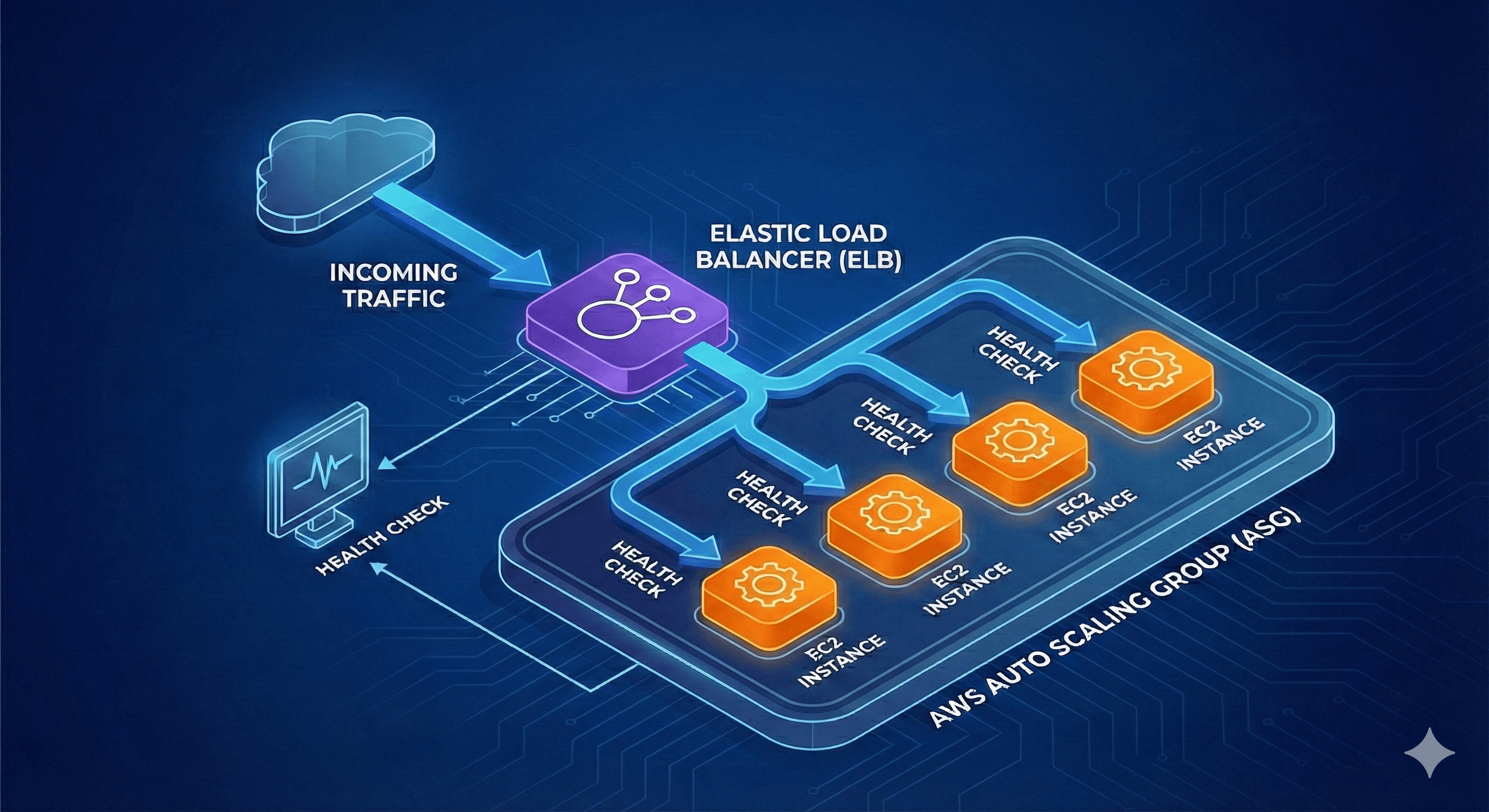
Complete AWS Auto Scaling with Load Balancer: A Step-by-Step Guide
In this comprehensive tutorial, I'll walk you through setting up a complete auto-scaling solution on AWS. We'll create security groups, launch templates, load balancers, and configure auto-scaling groups that automatically add or remove instances based on CPU utilization.
Step 1: Sign in to the AWS Console
Begin by navigating to aws.amazon.com and clicking Sign In to the Console. Enter your AWS account credentials to access the AWS Management Console. If you don't have an account, you can create one—new users get access to the Free Tier for 12 months, which is sufficient for this tutorial.
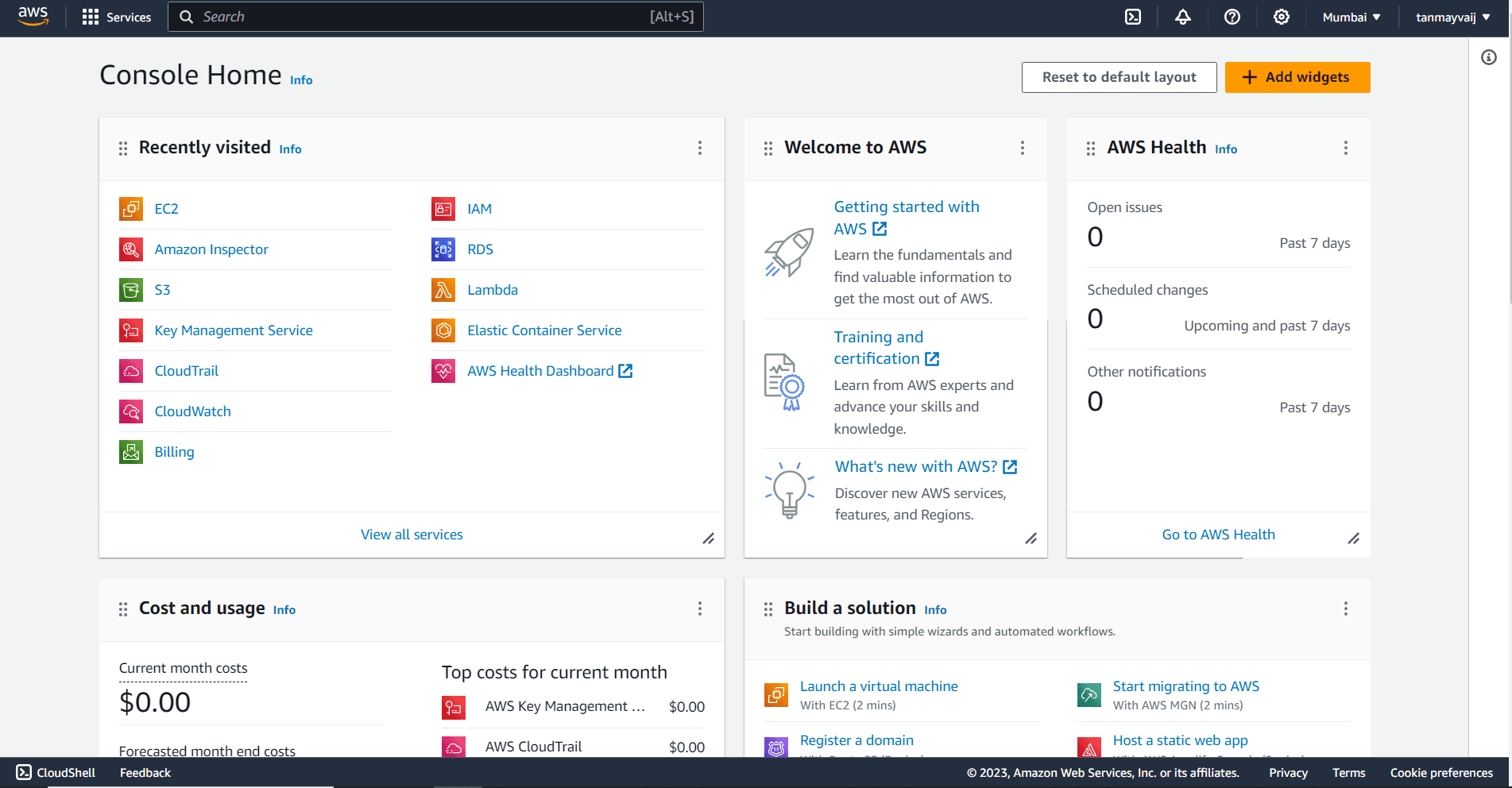
Step 2: Search and Select EC2
Once logged in, you'll see the AWS Management Console dashboard. In the top search bar, type EC2 and select EC2 from the dropdown menu under Services. This will take you to the EC2 dashboard where you can manage your virtual servers.
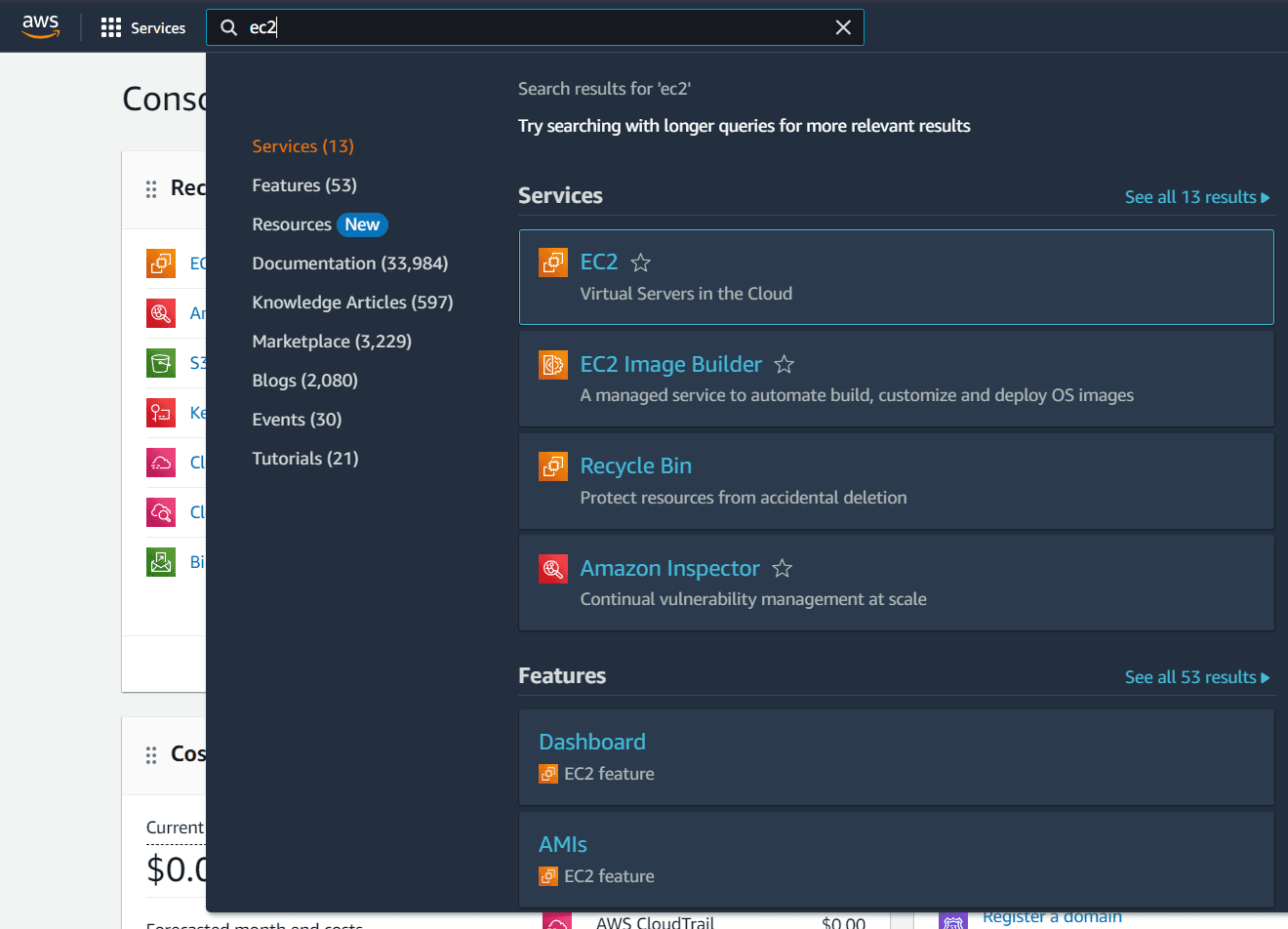
Step 3: Navigate to Security Groups
From the EC2 dashboard sidebar, under Network & Security, click on Security Groups. Security groups act as virtual firewalls for your instances to control inbound and outbound traffic.
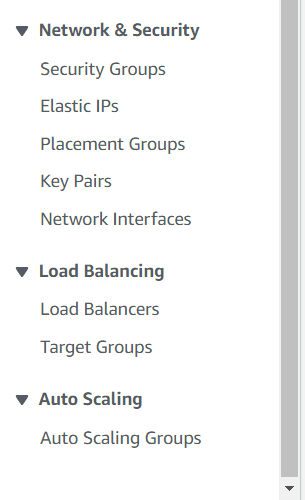
Step 4: Create Security Group for Load Balancer
Click the orange Create security group button in the top-right corner to create your first security group for the load balancer.

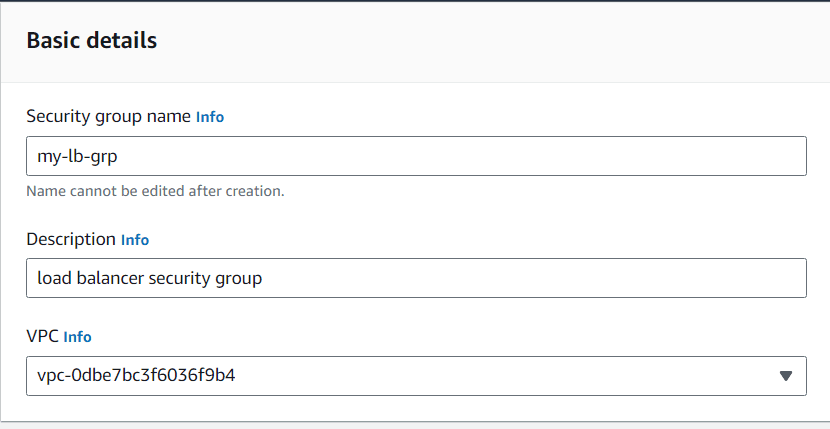
Step 5: Configure Load Balancer Security Group Details
Under Basic details, provide the following information:
- Security group name:
my-lb-grp - Description:
load balancer security group - VPC: Keep the default VPC or select your existing VPC
Important: The security group name cannot be edited after creation.
Step 6: Configure Inbound Rules for Load Balancer Security Group
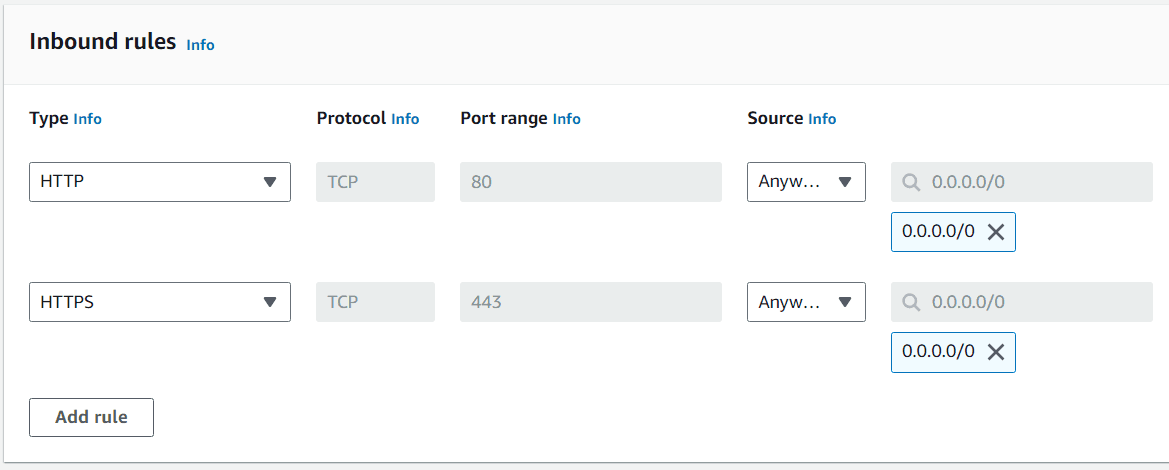
In the Inbound rules section, add the following rules to allow web traffic:
| Type | Protocol | Port Range | Source | Description |
|---|---|---|---|---|
| HTTP | TCP | 80 | Anywhere | Web traffic |
| HTTPS | TCP | 443 | Anywhere | Secure web traffic |
Set the source for both rules to Anywhere (0.0.0.0/0) to allow traffic from the internet.
Step 7: Create Security Group for Launch Template
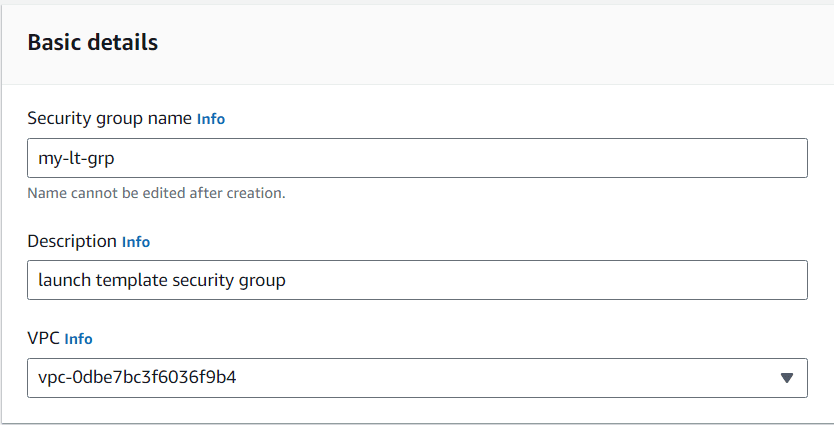
Click Create security group again to create a second security group for your instances (launch template). Configure the basic details:
- Security group name:
my-lt-grp - Description:
Launch template security group - VPC: Same VPC as the load balancer security group
Step 8: Configure Inbound Rules for Launch Template Security Group
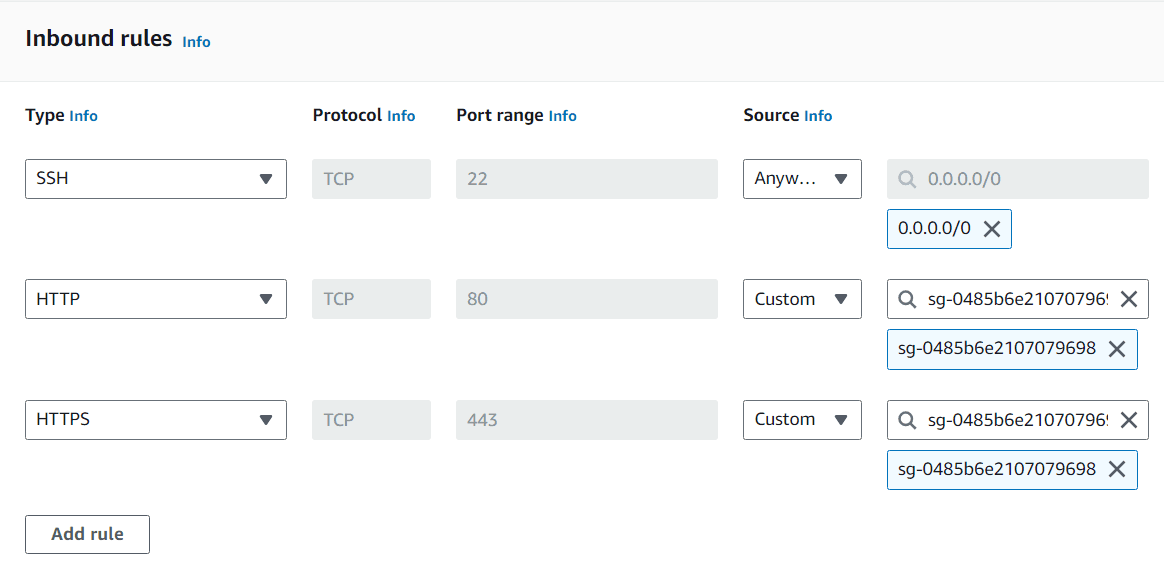
For the launch template security group, add the following inbound rules:
| Type | Protocol | Port Range | Source | Description |
|---|---|---|---|---|
| SSH | TCP | 22 | Anywhere | SSH access |
| HTTP | TCP | 80 | Security Group: my-lb-grp | Web traffic from LB |
| HTTPS | TCP | 443 | Security Group: my-lb-grp | Secure web from LB |
Important: For HTTP and HTTPS, set the source to the load balancer security group (my-lb-grp) instead of "Anywhere." This ensures only the load balancer can communicate with your instances on these ports.
Step 9: Navigate to Launch Templates
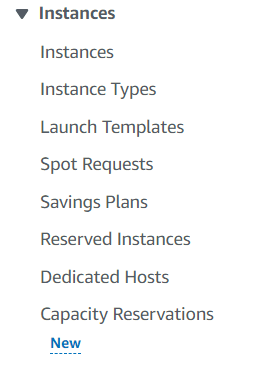
From the EC2 dashboard sidebar, under Instances, click on Launch Templates. Launch templates allow you to store launch parameters so you don't have to specify them every time you launch an instance.
Step 10: Create Launch Template and Configure Basic Settings
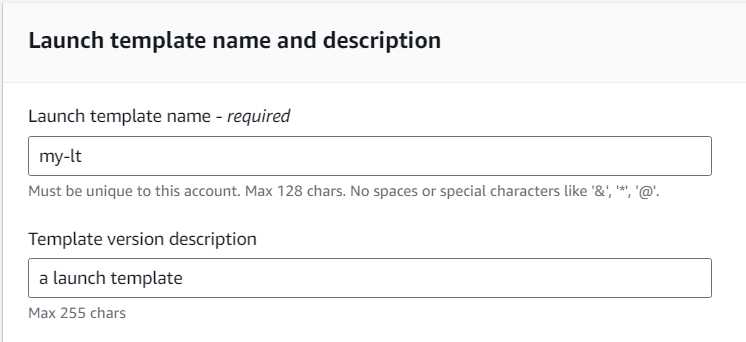
Click Create launch template and provide the following:
- Launch template name:
my-lt - Template version description:
a launch template
Note: The name must be unique to your AWS account, with a maximum of 128 characters, and cannot contain spaces or special characters like '&', '*', '@'.
Step 11: Select Operating System Image
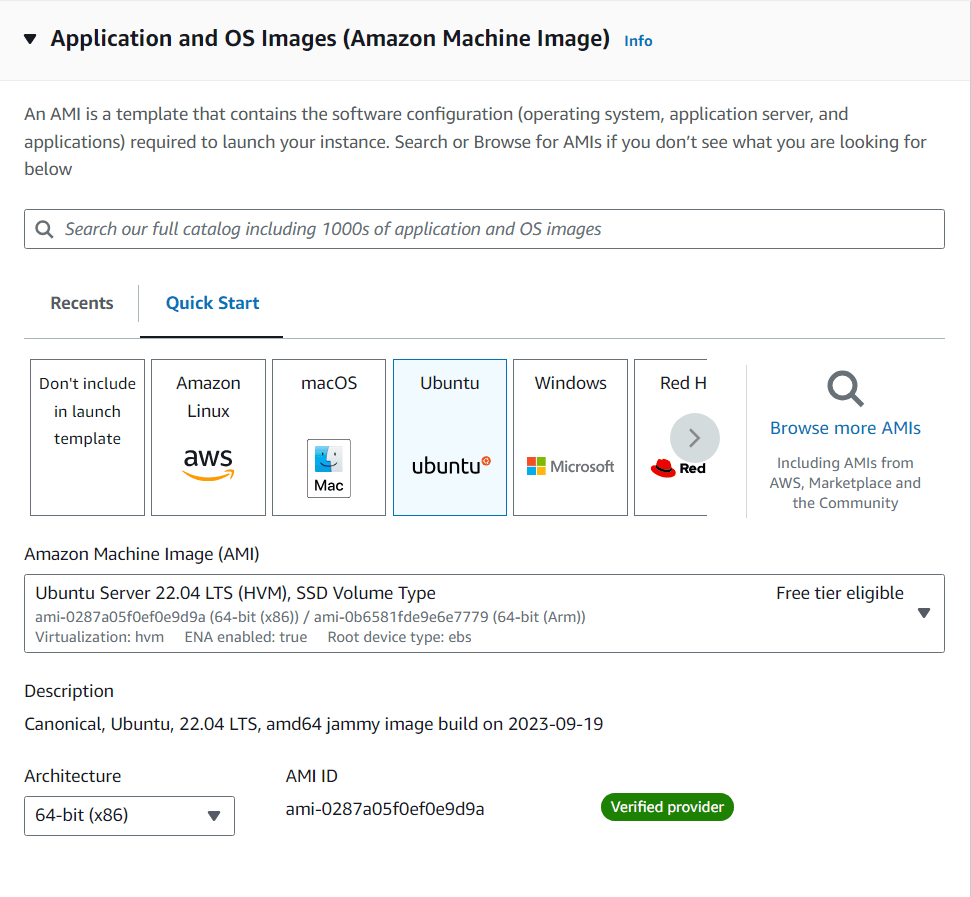
Under Application and OS Images (Amazon Machine Image), select Ubuntu as the OS image. An AMI is a template that contains the software configuration (operating system, application server, and applications) required to launch your instance.
For this guide, select Ubuntu Server 22.04 LTS (HVM), SSD Volume Type.
Step 12: Select Instance Type
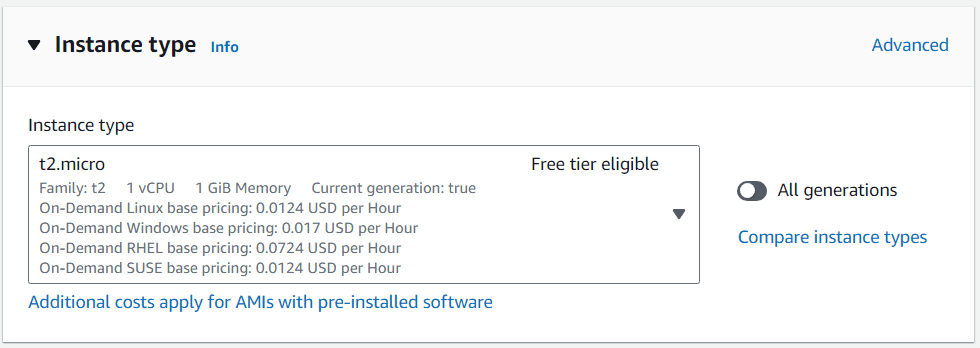
Choose t2.micro as the instance type. This instance type is eligible for the AWS Free Tier, making it ideal for testing and development.
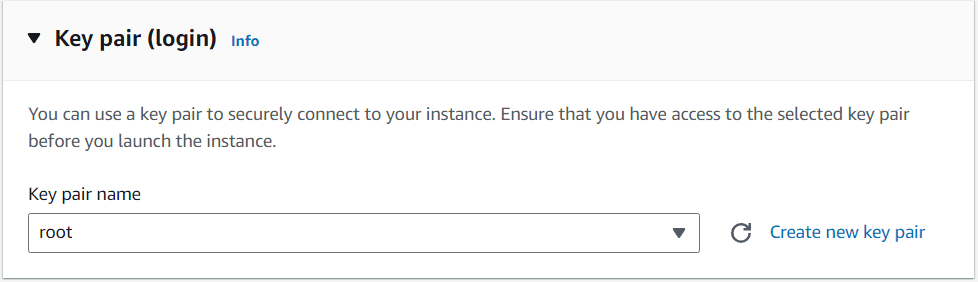
Step 13: Select or Create Key Pair
Choose an existing key pair from the dropdown or create a new one. A key pair is required to securely connect to your instances via SSH.
If creating a new key pair, download the .pem file and store it securely—you'll need it to connect to your instances later.
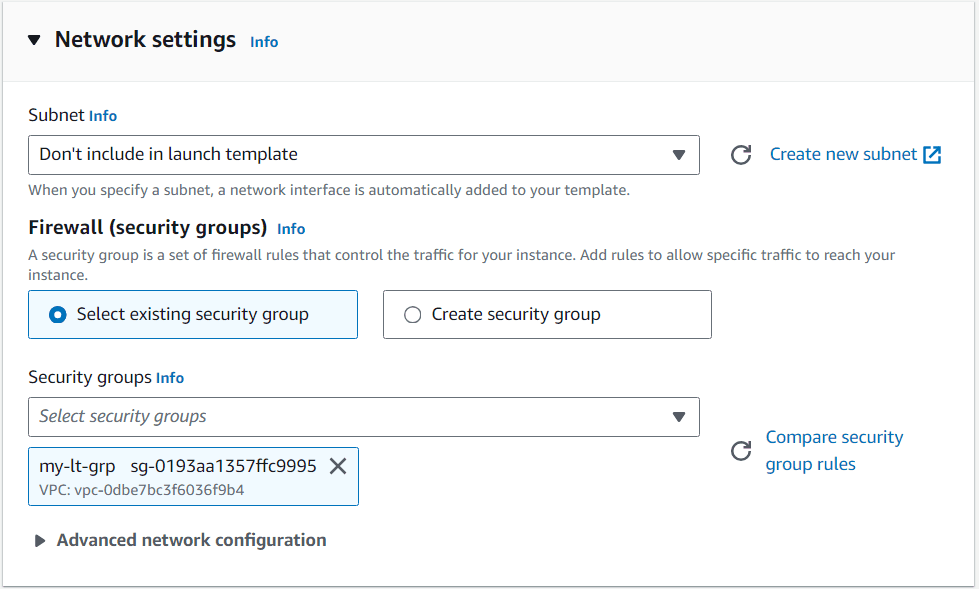
Step 14: Select Security Group for Launch Template
Under Network settings, select the security group you created for the launch template (my-lt-grp). This security group controls inbound and outbound traffic for your instances.
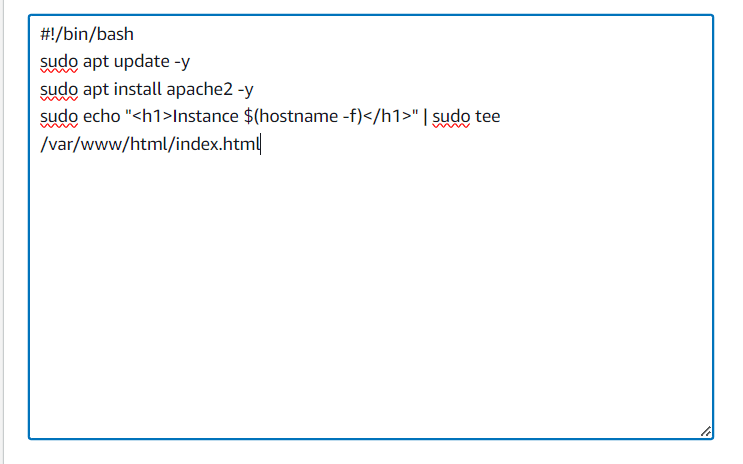
Step 15: Configure Advanced Settings and User Data
Scroll down to Advanced details and find the User data field. This is where you can provide a script that runs when the instance launches. Add the following script to install Apache and create a custom HTML page:
#!/bin/bash
apt-get update -y
apt-get install apache2 -y
systemctl start apache2
systemctl enable apache2
echo "<h1>Instance $(hostname -f) is running</h1>" > /var/www/html/index.html
This script:
- Updates the package repository
- Installs Apache web server
- Starts and enables Apache
- Creates a custom HTML page that displays the instance hostname
Click Create launch template to complete the setup.
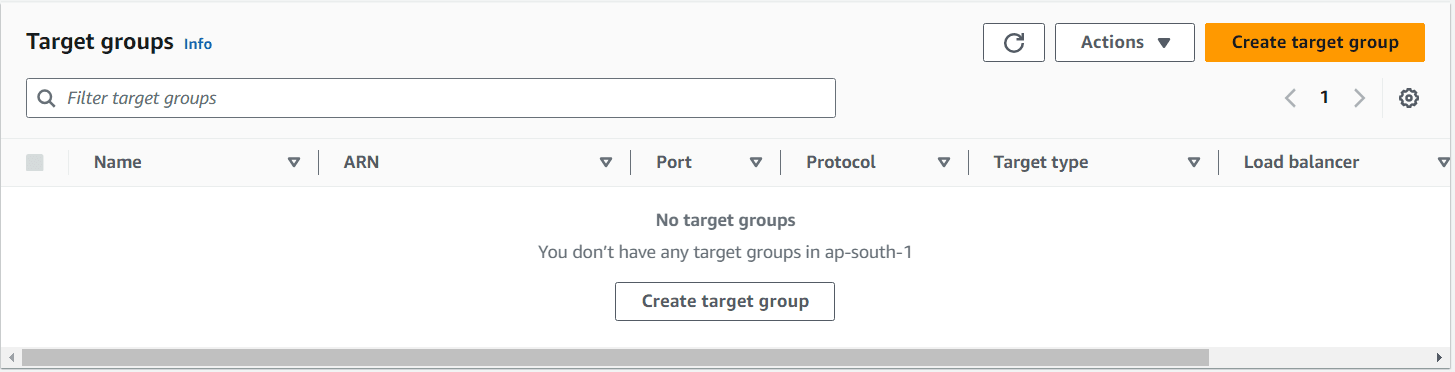
Step 16: Navigate to Target Groups
From the EC2 dashboard sidebar, under Load Balancing, click on Target Groups. Target groups route requests to one or more registered targets (such as EC2 instances) using the protocol and port number you specify.
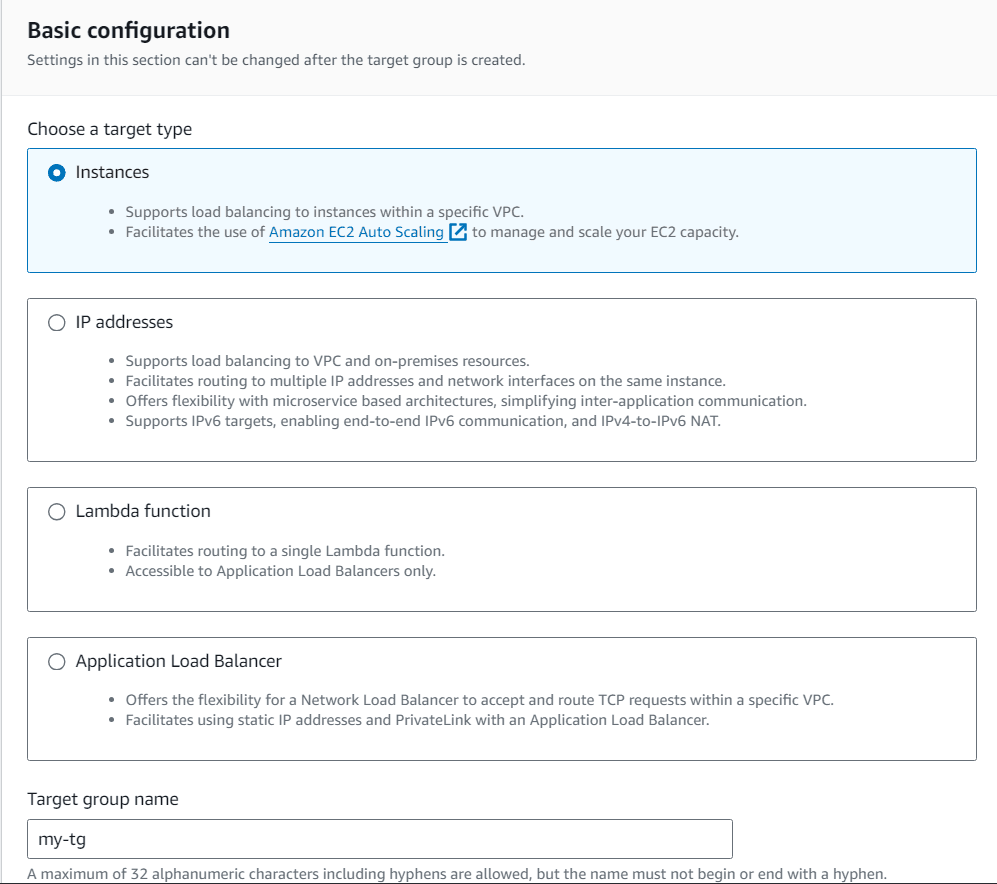
Step 17: Create Target Group
Click Create target group and configure the following:
- Choose a target type: Instances
- This supports load balancing to instances within a specific VPC and facilitates the use of Amazon EC2 Auto Scaling
- Target group name:
my-tg- Maximum 32 alphanumeric characters including hyphens, but cannot begin or end with a hyphen
Click Next through the remaining screens and then Create target group.
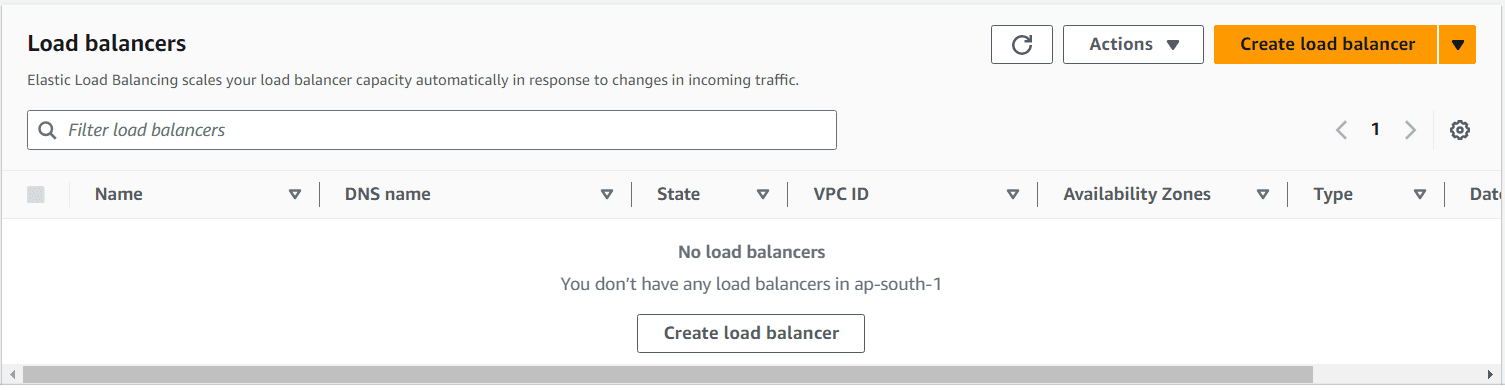
Step 18: Navigate to Load Balancers
From the EC2 dashboard sidebar, under Load Balancing, click on Load Balancers. We'll now create a load balancer to distribute traffic across our instances.
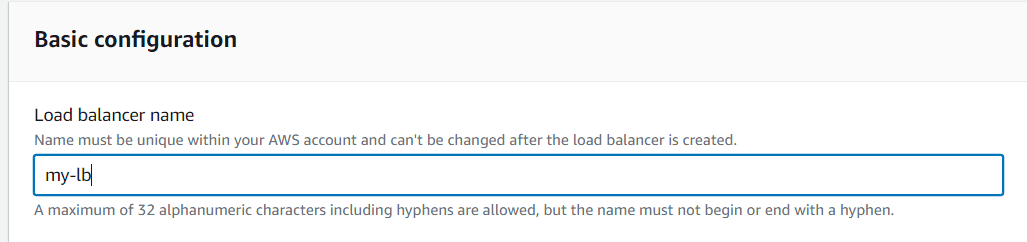
Step 19: Create Load Balancer and Configure Basic Settings
Click Create load balancer, select Application Load Balancer, and configure:
- Load balancer name:
my-lb- Must be unique within your AWS account and cannot be changed after creation
- Maximum 32 alphanumeric characters including hyphens, but cannot begin or end with a hyphen
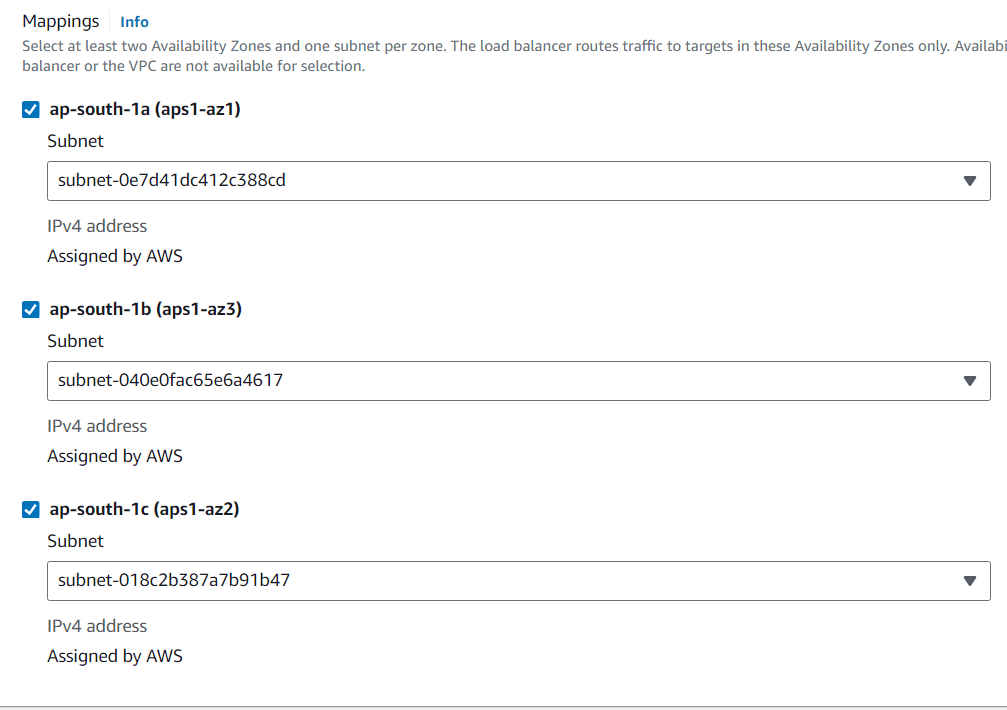
Step 20: Configure Network Mapping
Under Network mapping, select at least two Availability Zones. The load balancer routes traffic to targets in these Availability Zones only. For high availability, we recommend selecting all available zones in your region.
Example selection:
ap-south-1a (aps1-az1)ap-south-1b (aps1-az3)ap-south-1c (aps1-az2)
This ensures that if one availability zone fails, your application remains available.
Step 21: Select Load Balancer Security Group
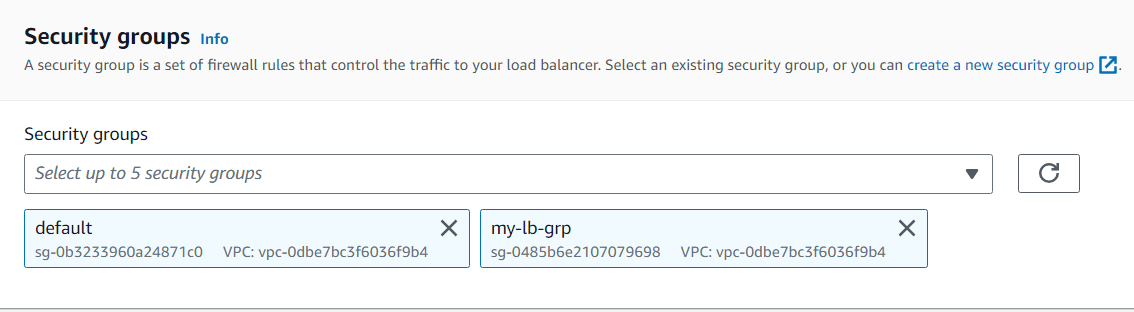
Under Security groups, select the security group you created for the load balancer (my-lb-grp). This security group controls traffic to your load balancer.
Step 22: Configure Listeners and Routing
Under Listeners and routing, configure the default listener (HTTP on port 80) to forward traffic to the target group you created earlier (my-tg).
The default action should be set to:
- Forward to:
my-tg - Target type: Instance, IPv4
Click Create load balancer to complete the setup.

Step 23: Create Auto Scaling Group
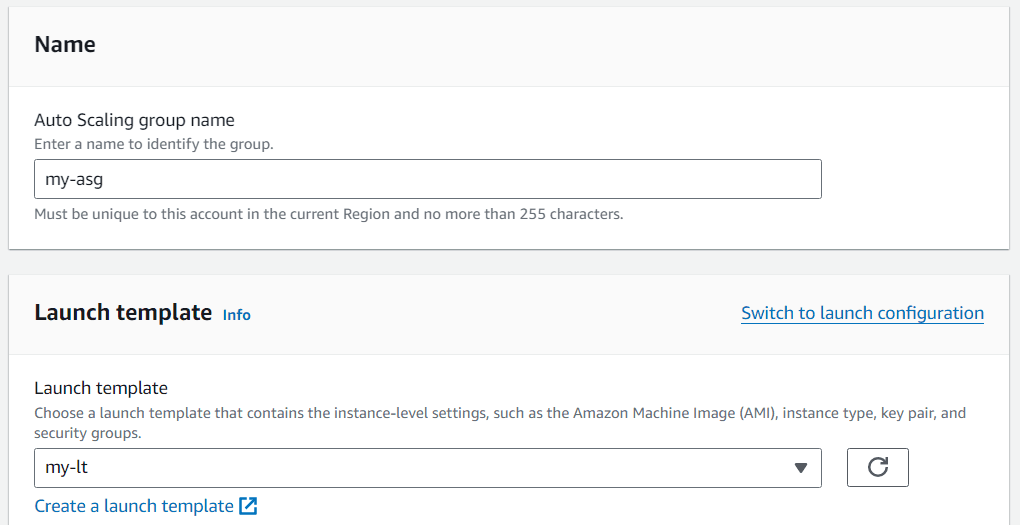
From the EC2 dashboard sidebar, under Auto Scaling, click on Auto Scaling Groups. Then click Create Auto Scaling group and configure:
- Auto Scaling group name:
my-asg- Must be unique to your account in the current region
- Maximum 255 characters
- Launch template: Select the launch template you created earlier (
my-lt)
Step 24: Configure Network Settings
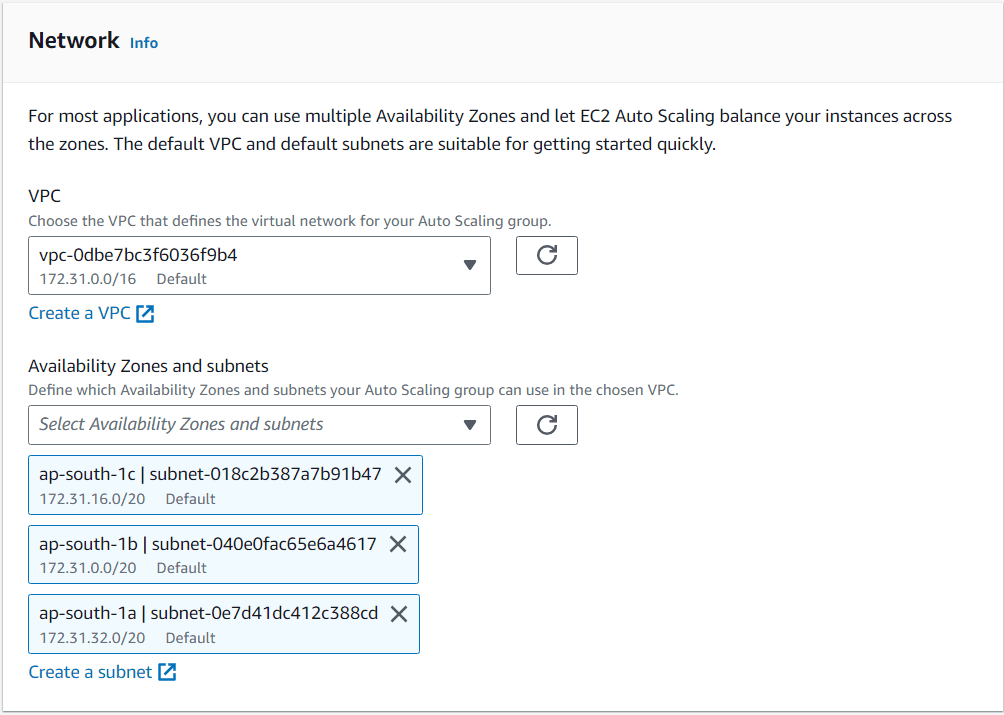
Under Network, select the same VPC as your security groups and select all three Availability Zones you used for the load balancer. This ensures your instances are distributed across multiple zones for high availability.
For most applications, using multiple Availability Zones and letting EC2 Auto Scaling balance your instances across the zones is recommended.
Step 25: Attach to Load Balancer
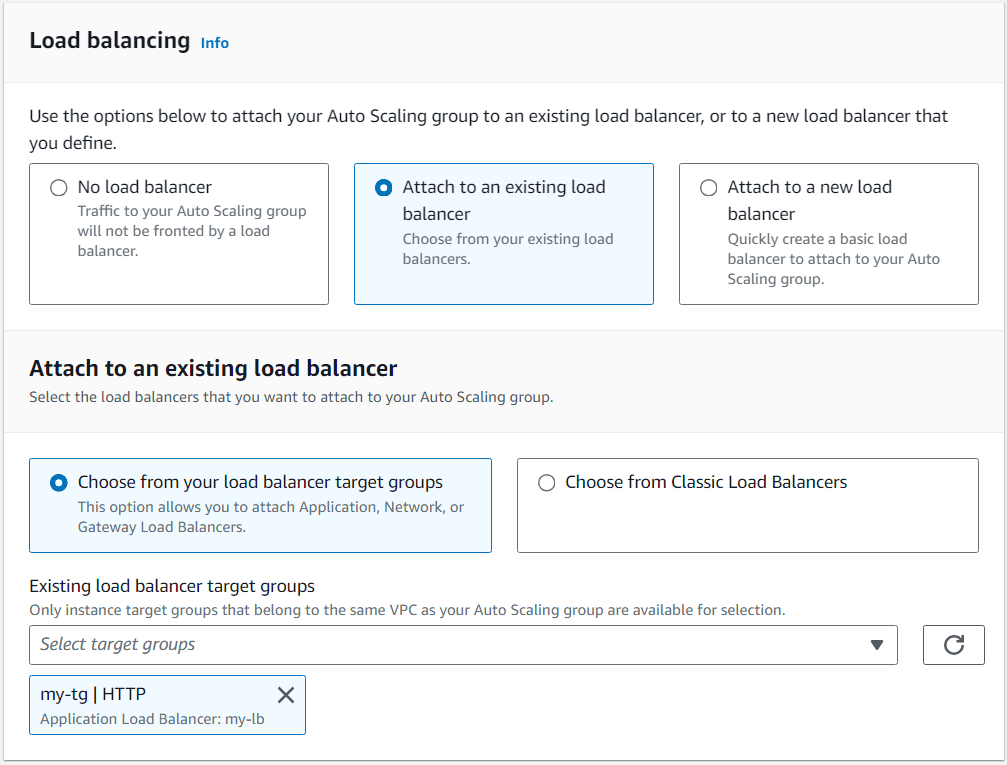
Under Load balancing, select Attach to an existing load balancer and choose the load balancer you created (my-lb).
Select Choose from your load balancer target groups and select the target group you created (my-tg).
This configuration ensures that instances launched by the auto scaling group are automatically registered with the load balancer.
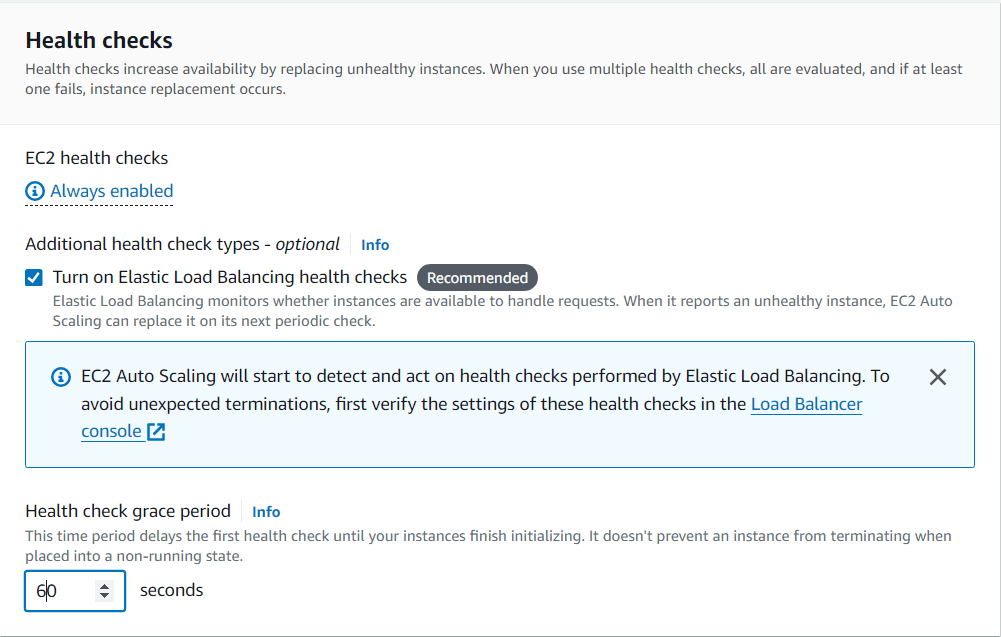
Step 26: Configure Health Checks
Under Health checks, configure the following:
- Turn on Elastic Load Balancing health checks (Recommended)
- Elastic Load Balancing monitors whether instances are available to handle requests
- When it reports an unhealthy instance, EC2 Auto Scaling can replace it
- Health check grace period:
60seconds- This time period delays the first health check until your instances finish initializing
- It doesn't prevent an instance from terminating when placed into a non-running state
Note: EC2 health checks are always enabled. Additional health checks from Elastic Load Balancing provide more comprehensive monitoring.
Step 27: Configure Auto Scaling Policies
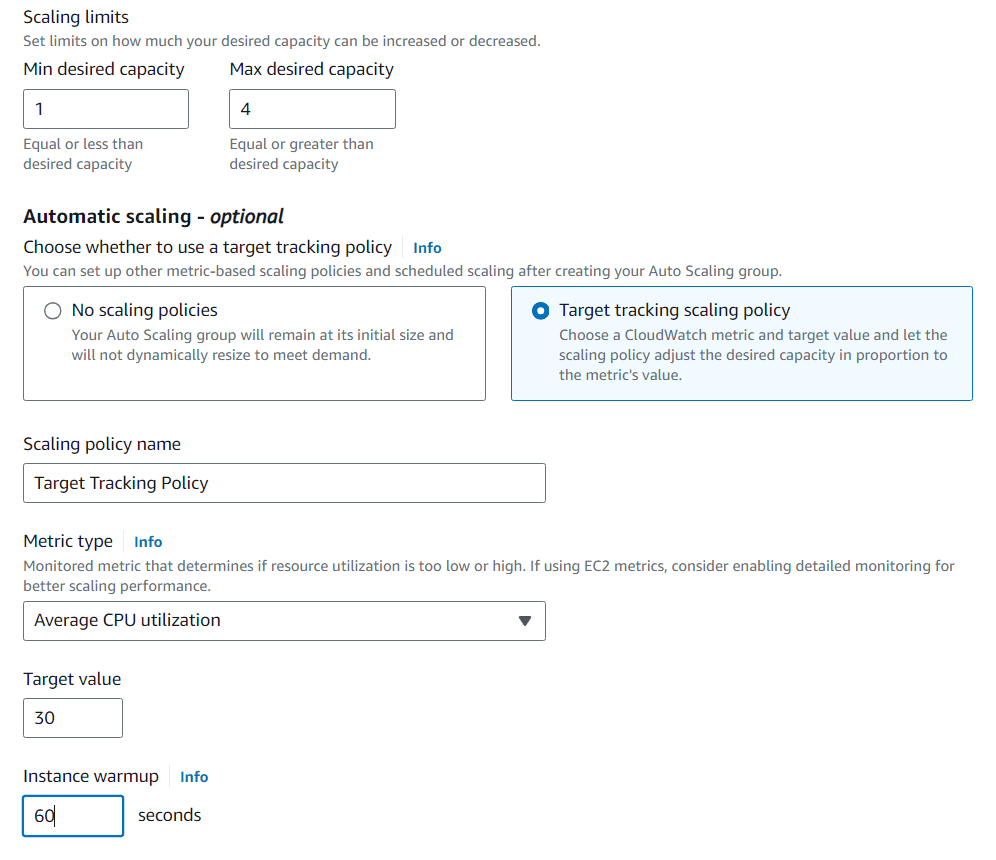
Under Configure group size and scaling policies, set:
- Desired capacity:
1 - Minimum capacity:
1 - Maximum capacity:
4
Then configure automatic scaling:
- Target tracking scaling policy: Enabled
- Scaling policy name:
CPUUtilization-Scaling-Policy - Metric type:
Average CPU utilization - Target value:
30percent - Instance warmup:
60seconds
This configuration means:
- Your auto scaling group will maintain at least 1 instance
- It can scale up to 4 instances when average CPU utilization exceeds 30%
- New instances have a 60-second warmup period before being included in scaling decisions
Click Create Auto Scaling group to complete the setup.
Step 28: Test Auto Scaling - Generate CPU Load
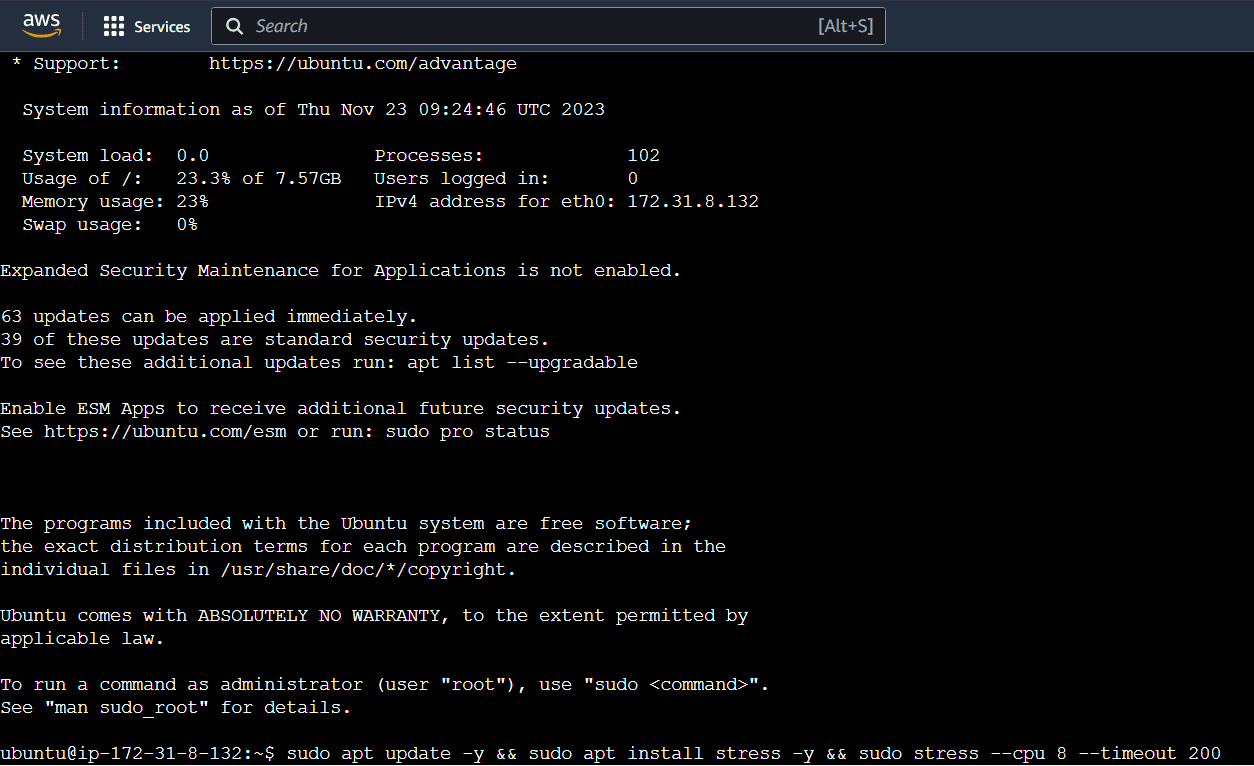
After the auto scaling group is created, it will launch one instance. Connect to this instance via SSH using your key pair and run the following command to generate CPU load:
sudo apt update -y && sudo apt install stress -y && sudo stress --cpu 8 --timeout 200This command:
- Updates the package repository
- Installs the
stressutility - Runs stress on 8 CPU cores for 200 seconds
Since t2.micro instances only have 1 CPU core, this will immediately drive CPU utilization to 100%.
Step 29: Observe Auto Scaling in Action
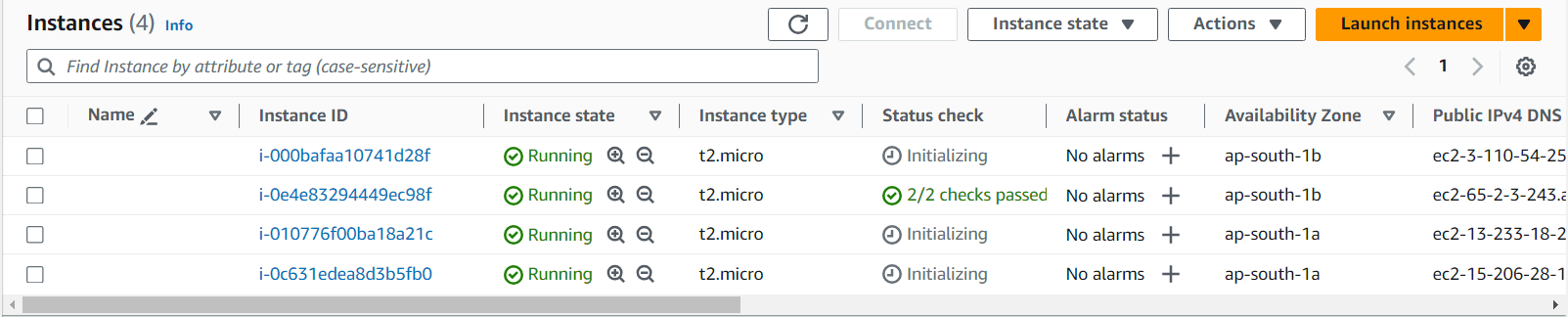
After a few minutes, you'll notice that the auto scaling group launches additional instances. Since we set the maximum capacity to 4 and our CPU utilization is at 100% (well above the 30% threshold), the auto scaling group will scale out to 4 instances.
Monitor the EC2 console to see new instances being launched and registered with the load balancer.
Step 30: Test Load Balancer Distribution
Copy the DNS name of your load balancer from the Load Balancers console and paste it into your web browser. Refresh the page multiple times, and you'll see different instance hostnames displayed as the load balancer distributes traffic across all healthy instances.
Example output you might see:
Instance ip-172-31-44-244.ap-south-1.compute.internal is runningInstance ip-172-31-45-128.ap-south-1.compute.internal is runningInstance ip-172-31-46-72.ap-south-1.compute.internal is runningInstance ip-172-31-47-16.ap-south-1.compute.internal is running

How It All Works Together
- Security Groups: Control traffic flow between the internet, load balancer, and instances
- Launch Template: Defines the instance configuration (AMI, instance type, security groups, user data)
- Load Balancer: Distributes incoming traffic across multiple instances
- Target Group: Routes requests from the load balancer to registered instances
- Auto Scaling Group: Automatically adjusts the number of instances based on CPU utilization
- Scaling Policy: Defines when to scale out (add instances) or scale in (remove instances)
Cleanup Instructions
To avoid unnecessary charges:
- Delete your Auto Scaling Group
- Delete your Load Balancer
- Delete the Target Group
- Delete the Launch Template
- Terminate all EC2 instances
- Delete the Security Groups
Best Practices for Production
- Use HTTPS: Configure SSL/TLS certificates on your load balancer
- Implement Health Checks: Customize health check endpoints for your application
- Set Proper Scaling Policies: Adjust thresholds based on your application's performance characteristics
- Enable Detailed Monitoring: Use CloudWatch for comprehensive monitoring
- Implement Logging: Enable access logs on your load balancer
- Use Multiple Availability Zones: Ensure high availability across zones
Need more help? Check the AWS Auto Scaling Documentation or reach out in the comments below.
Happy scaling! 📈☁️