AWS Application Load Balancer: Complete Setup Guide with Demo

Complete AWS Load Balancer Demo: From EC2 Instances to Application Load Balancer
In this comprehensive guide, I'll walk you through creating a complete load balancing solution on AWS. We'll launch multiple EC2 instances, configure them as web servers, and set up an Application Load Balancer to distribute traffic between them.
Part 1: Setting Up EC2 Instances
Step 1: Sign in to the AWS Console
Begin by navigating to aws.amazon.com and clicking Sign In to the Console. Enter your AWS account credentials to access the AWS Management Console. If you don't have an account, you can create one—new users get access to the Free Tier for 12 months, which is sufficient for this tutorial.
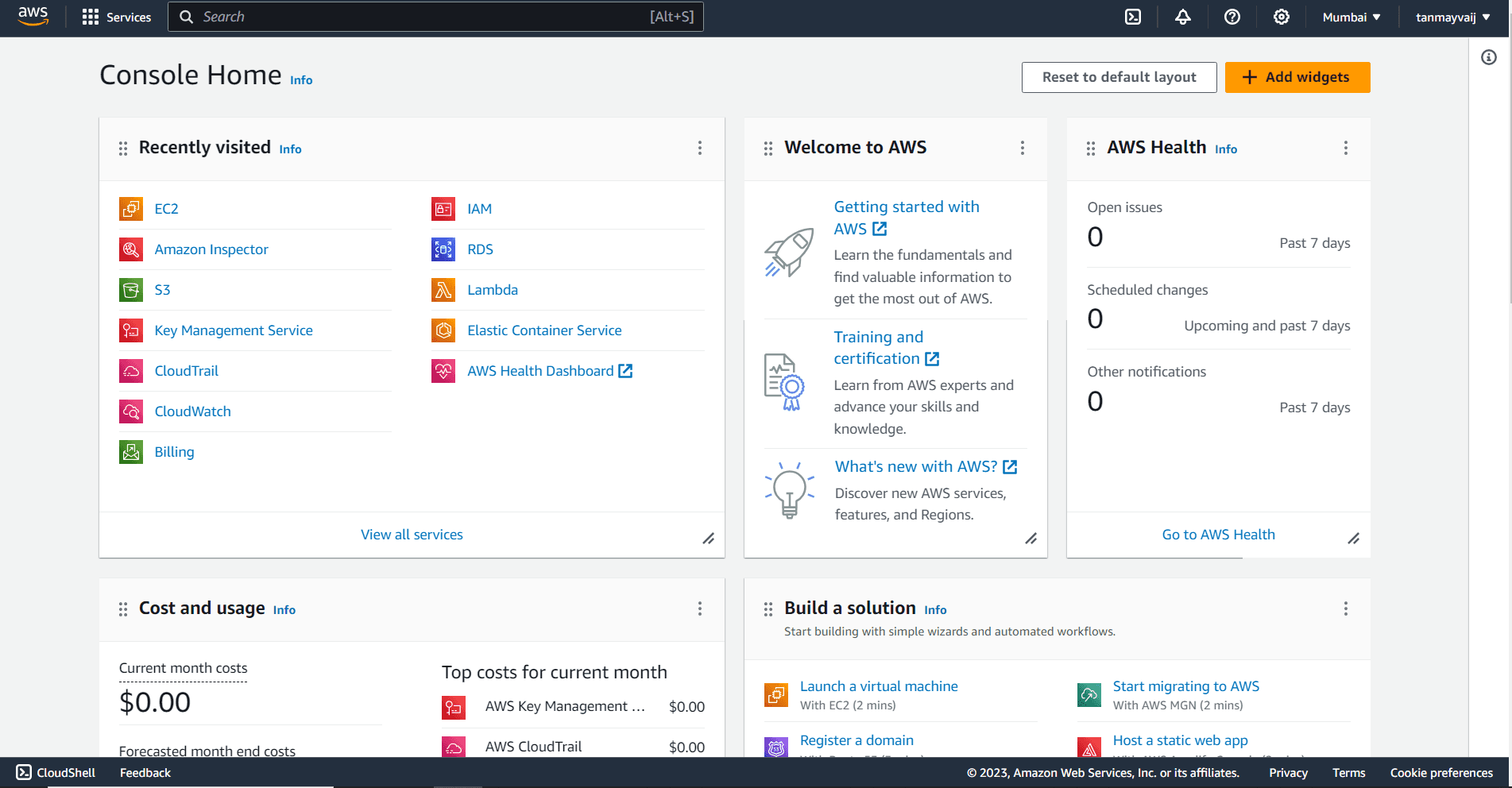
Step 2: Search for EC2
Once logged in, you'll see the AWS Management Console dashboard with all available services. In the top search bar, type EC2 and select EC2 from the dropdown menu under Services. This will take you to the EC2 dashboard where you can manage your virtual servers.
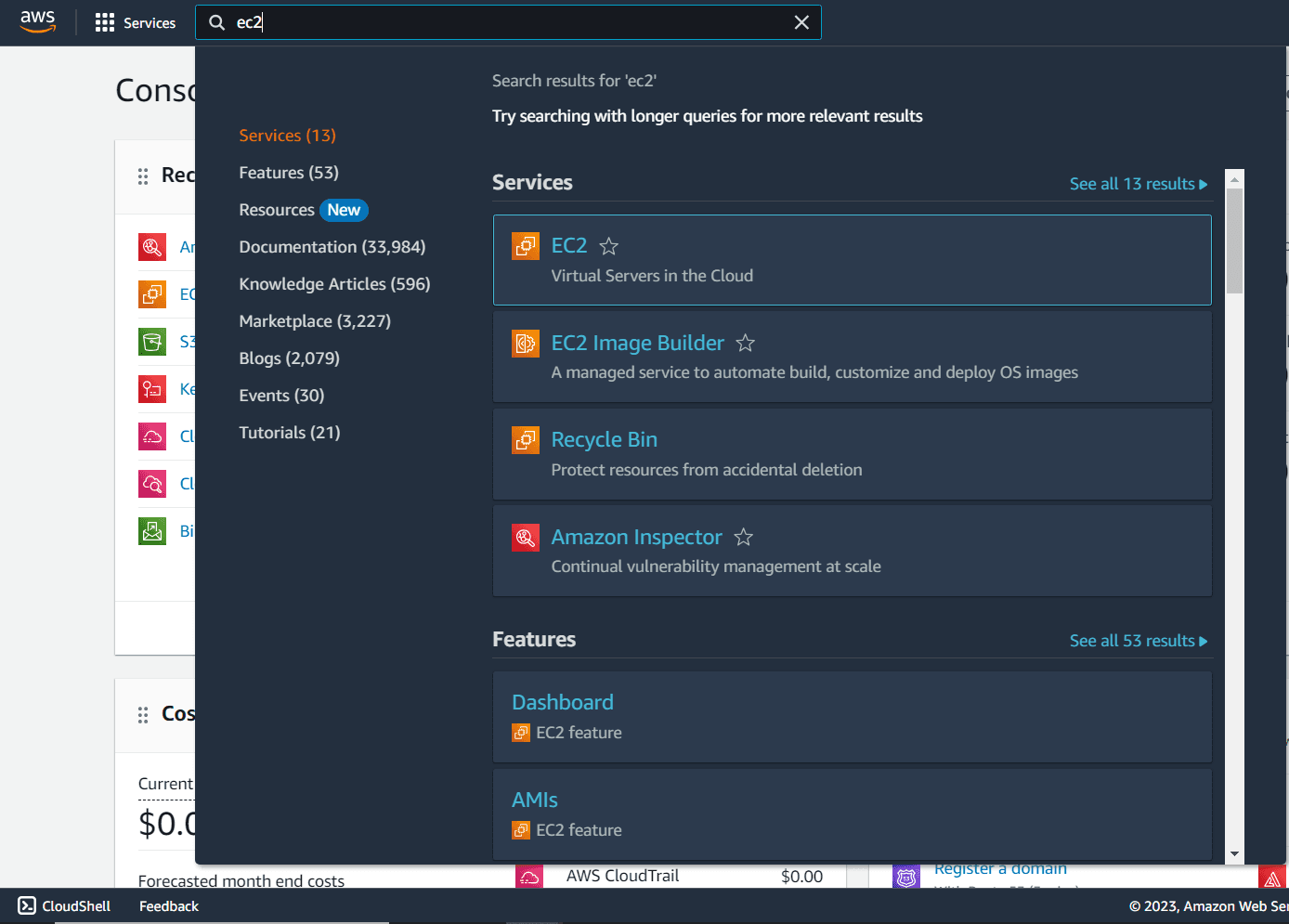
Step 3: Open the EC2 Instance Dashboard
In the EC2 dashboard, locate the Resources card on the right side of the screen. Click on Instances (running) to open the instance management page. This is where you'll see all your existing instances and launch new ones.
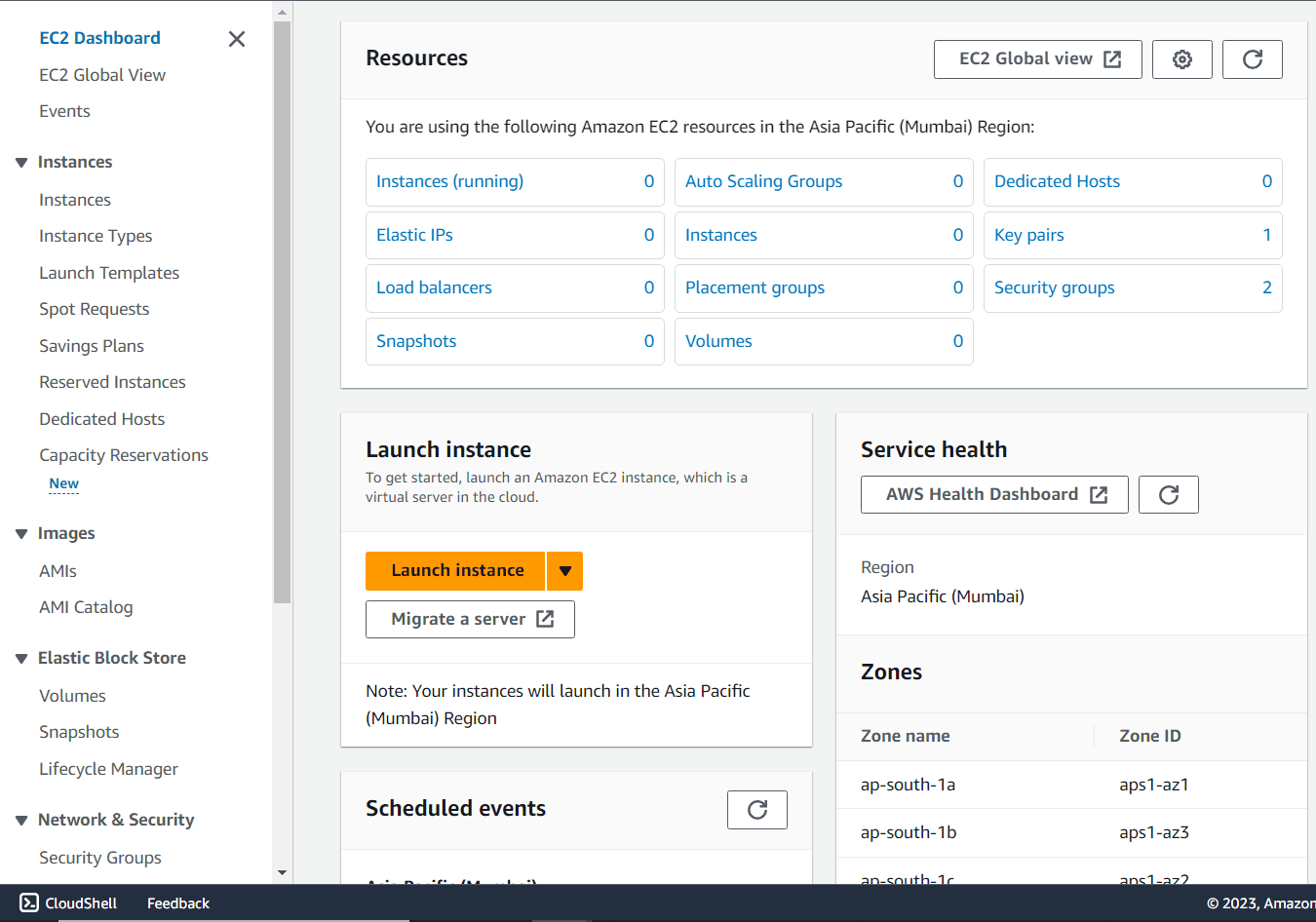
Step 4: Click "Launch Instances"
On the Instances page, click the orange Launch Instances button in the top-right corner. This begins the instance creation wizard that will guide you through configuring your EC2 instance.

Step 5: Name Your Instance
In the Name and tags section, give your instance a descriptive name. This helps you identify it later in the EC2 dashboard. For this demo, we'll create three instances, so you might name them sequentially like "Web-Server-1", "Web-Server-2", etc.
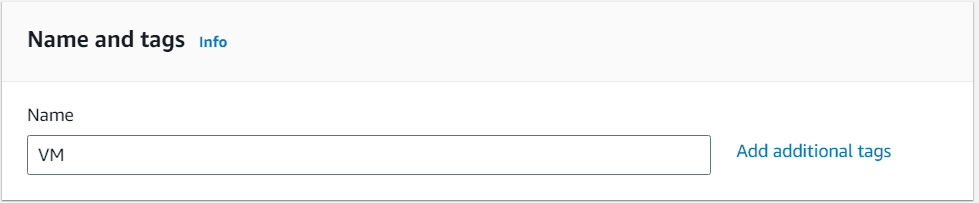
Step 6: Select an AMI (Amazon Machine Image)
An AMI is a template that contains the software configuration (operating system, application server, and applications) required to launch your instance. Under Application and OS Images, you can search or browse for AMIs.
For this guide, select:
- Ubuntu Server 22.04 LTS (HVM), SSD Volume Type
The description should read: "Canonical, Ubuntu, 22.04 LTS, amd64 jammy image build on 2023-09-19"
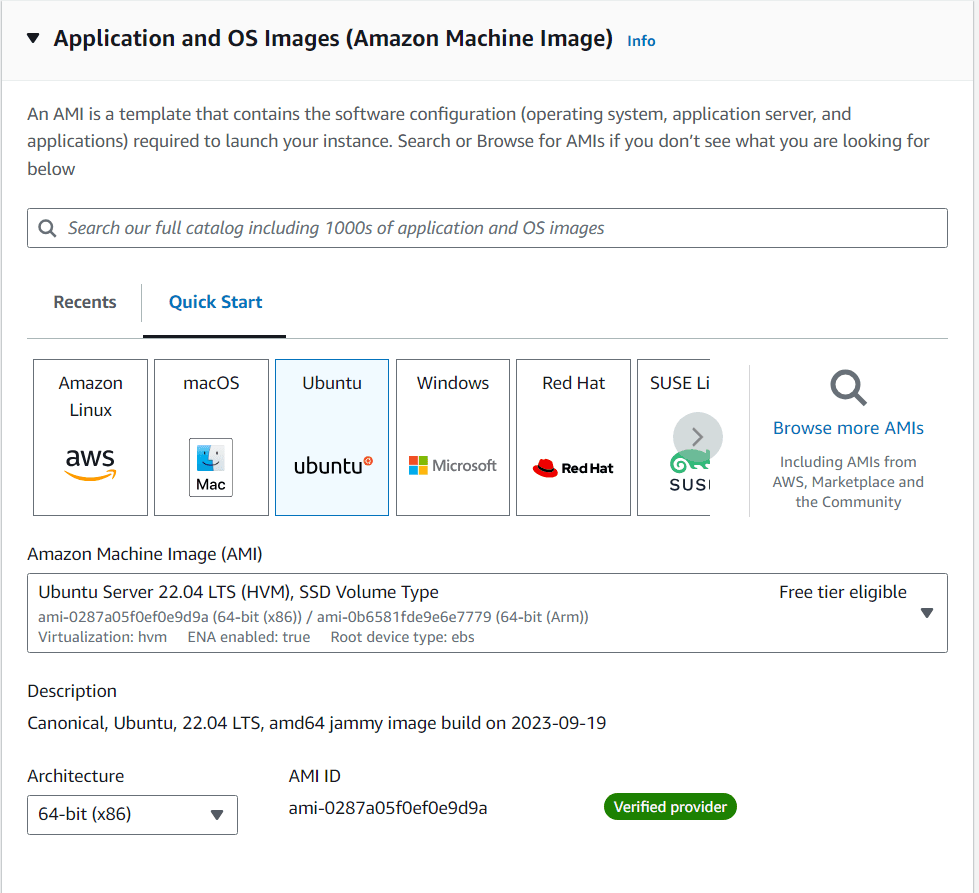
Step 7: Create or Select a Key Pair
A key pair is used to securely connect to your EC2 instance via SSH. Under Key pair (login), you can either:
- Choose an existing key pair from the dropdown
- Create a new one by clicking Create new key pair
Important: Ensure you have access to the selected key pair before launching the instance. If creating new, download the .pem file and store it securely—you'll need it to connect via SSH later.
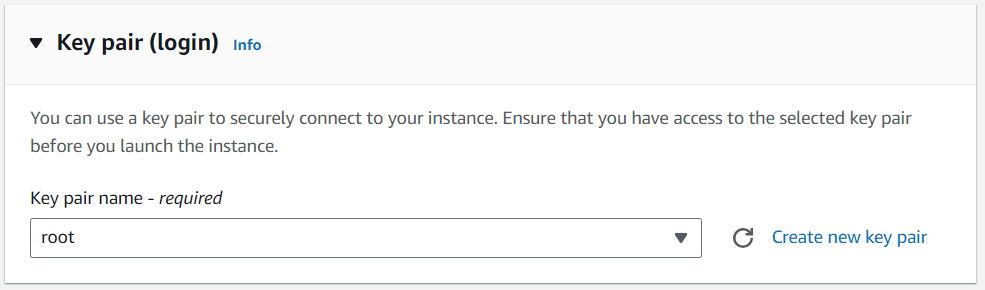
Step 8: Configure Security Group
A security group acts as a virtual firewall for your instance. Create a new security group or select an existing one. For a web server that we'll access via load balancer, allow the following inbound rules:
| Type | Protocol | Port Range | Source | Description |
|---|---|---|---|---|
| SSH | TCP | 22 | My IP | Secure Shell access |
| HTTP | TCP | 80 | Anywhere | Web traffic |
| HTTPS | TCP | 443 | Anywhere | Secure web traffic |
This configuration allows SSH access from your IP address and web traffic from anywhere (which the load balancer will use).
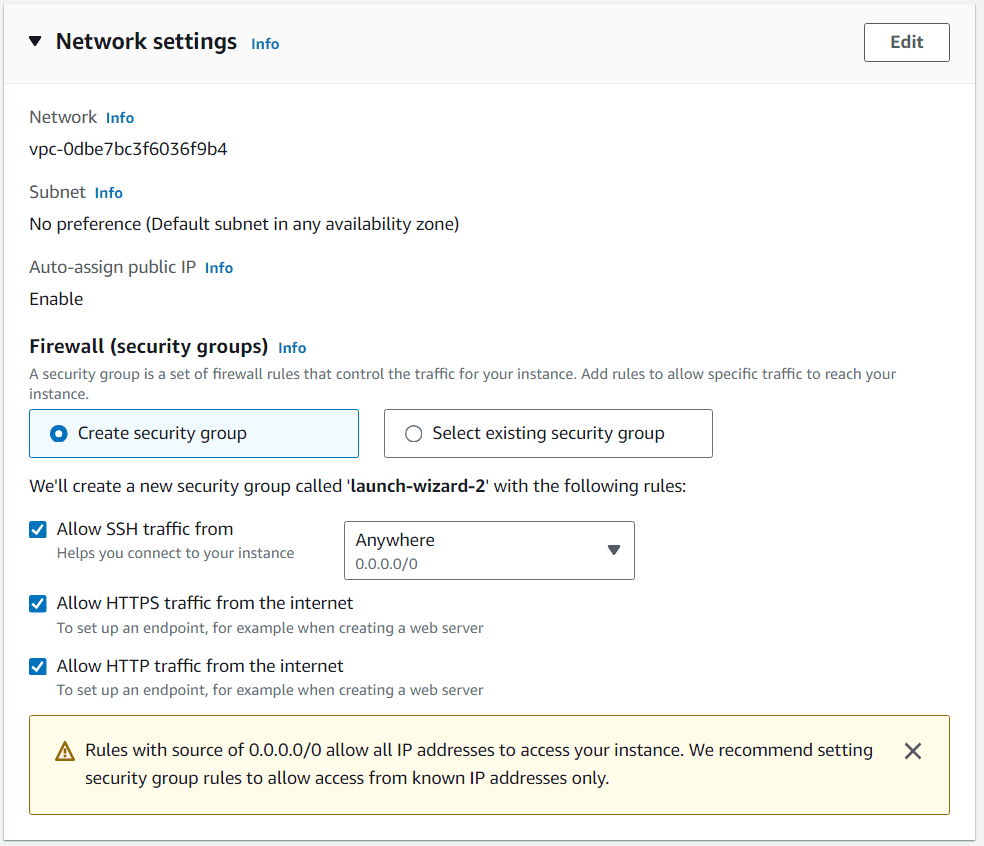
Step 9: Configure Number of Instances
Under Number of instances, specify how many instances to launch. For this load balancing demo, set this to 3 since we want multiple instances behind our load balancer.
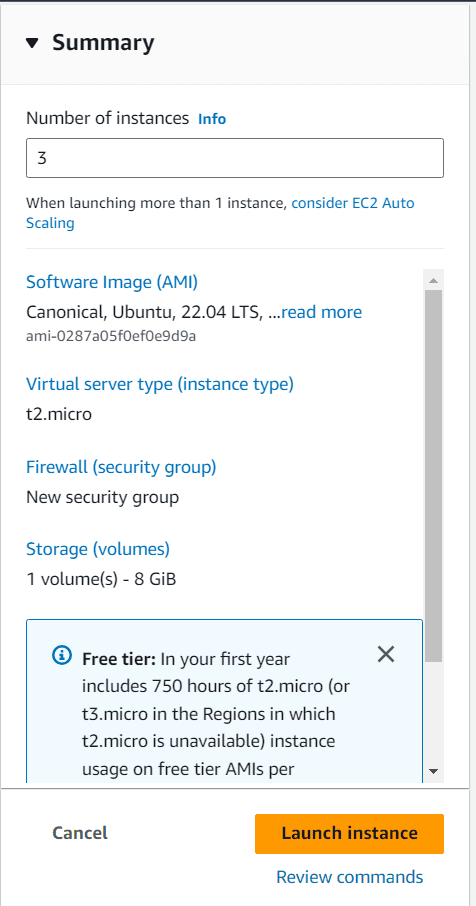
Step 10: Launch and Connect to Instances
Review your configuration summary and click Launch Instance. Wait a few minutes until all three instances show:
- Instance State: Running
- Status Check: 2/2 checks passed
Once they're running, select each instance one by one and click Connect to access them.

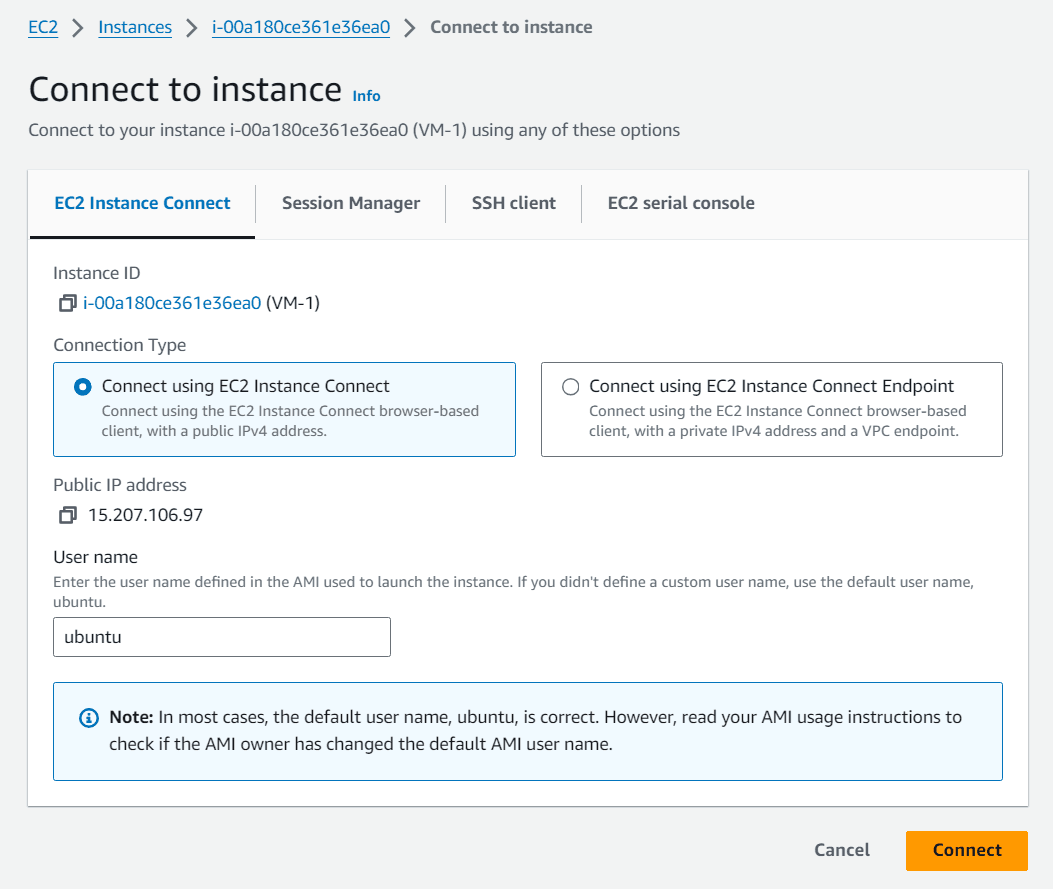
Step 11: Connect to Your Instance
When you click Connect, you'll see several connection options. For Linux instances, you can use:
- EC2 Instance Connect (browser-based SSH)
- SSH Client (using the key pair you downloaded)
For simplicity, use EC2 Instance Connect which opens a terminal directly in your browser.
Step 12: Install Apache and Configure Unique Pages
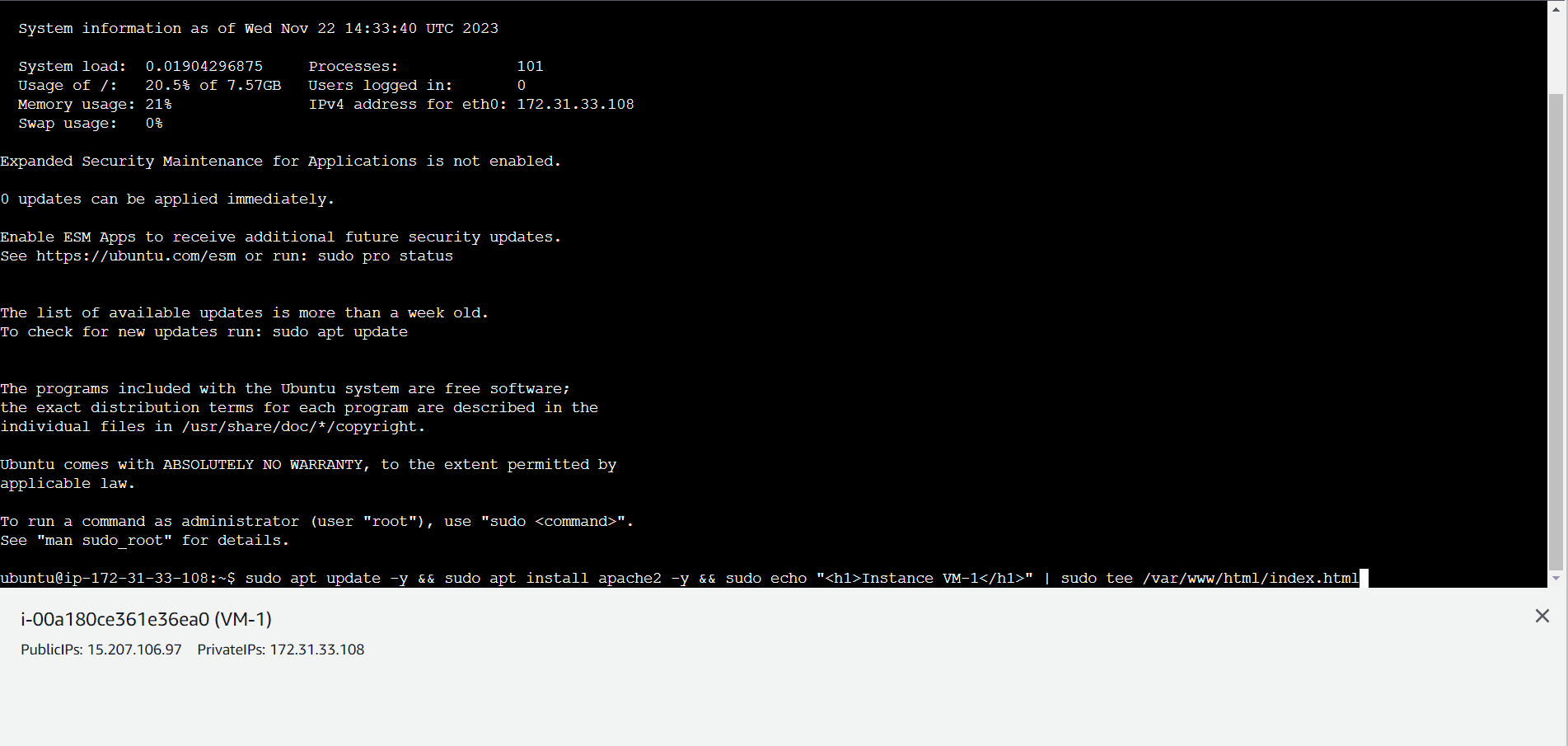
Once connected to each instance via SSH or EC2 Instance Connect, run the following commands:
For Instance 1:
sudo apt update -y
sudo apt install apache2 -y
sudo echo "<h1>Instance VM-1</h1>" | sudo tee /var/www/html/index.html
For Instance 2:
sudo apt update -y
sudo apt install apache2 -y
sudo echo "<h1>Instance VM-2</h1>" | sudo tee /var/www/html/index.html
For Instance 3:
sudo apt update -y
sudo apt install apache2 -y
sudo echo "<h1>Instance VM-3</h1>" | sudo tee /var/www/html/index.html
This installs Apache web server on each instance and creates a unique HTML page so you can identify which instance is serving your request.
Part 2: Setting Up Application Load Balancer
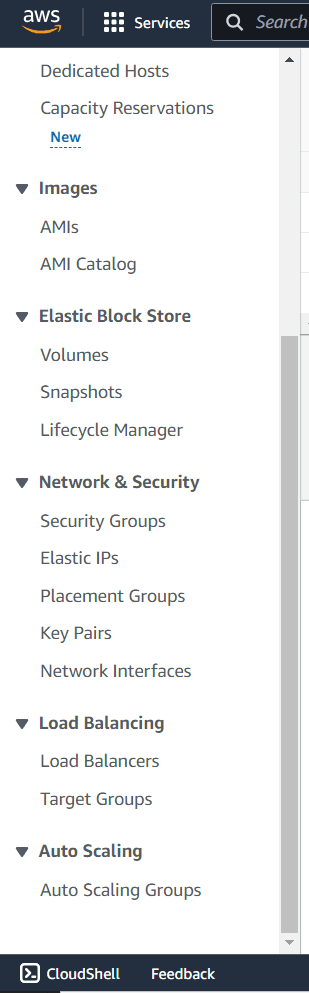
Step 13: Navigate to Load Balancers
From the EC2 dashboard sidebar, under Load Balancing, click on Load Balancers. This will take you to the load balancer management page.
Step 14: Create Load Balancer
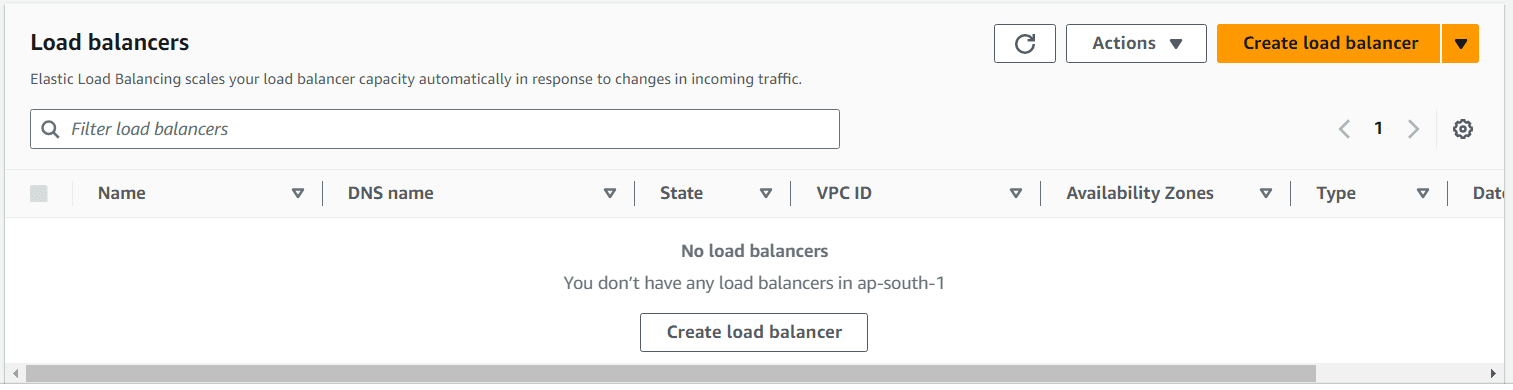
Click the orange Create Load Balancer button to begin the load balancer creation process.
Step 15: Select Load Balancer Type
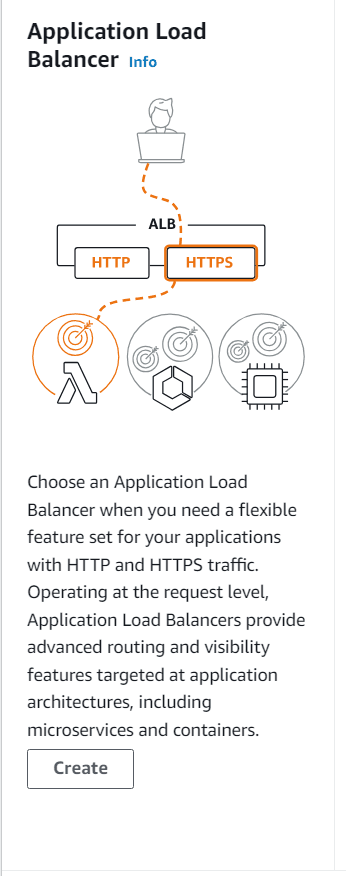
You'll see three types of load balancers. For this demo, select Application Load Balancer (the top option).
Why Application Load Balancer? Choose an Application Load Balancer when you need a flexible feature set for your applications with HTTP and HTTPS traffic. Operating at the request level, Application Load Balancers provide advanced routing and visibility features targeted at application architectures, including microservices and containers.
Step 16: Configure Basic Settings
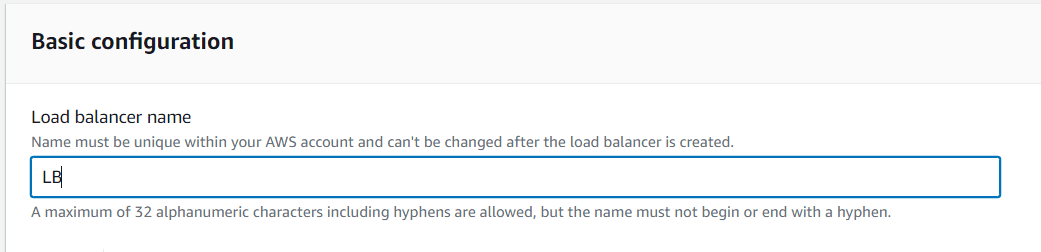
Under Basic configuration, give your load balancer a name (e.g., "MyWebApp-LB").
Important: The name must be unique within your AWS account and cannot be changed after creation. Use only alphanumeric characters and hyphens (up to 32 characters), but don't start or end with a hyphen.
Step 17: Configure Network Mapping
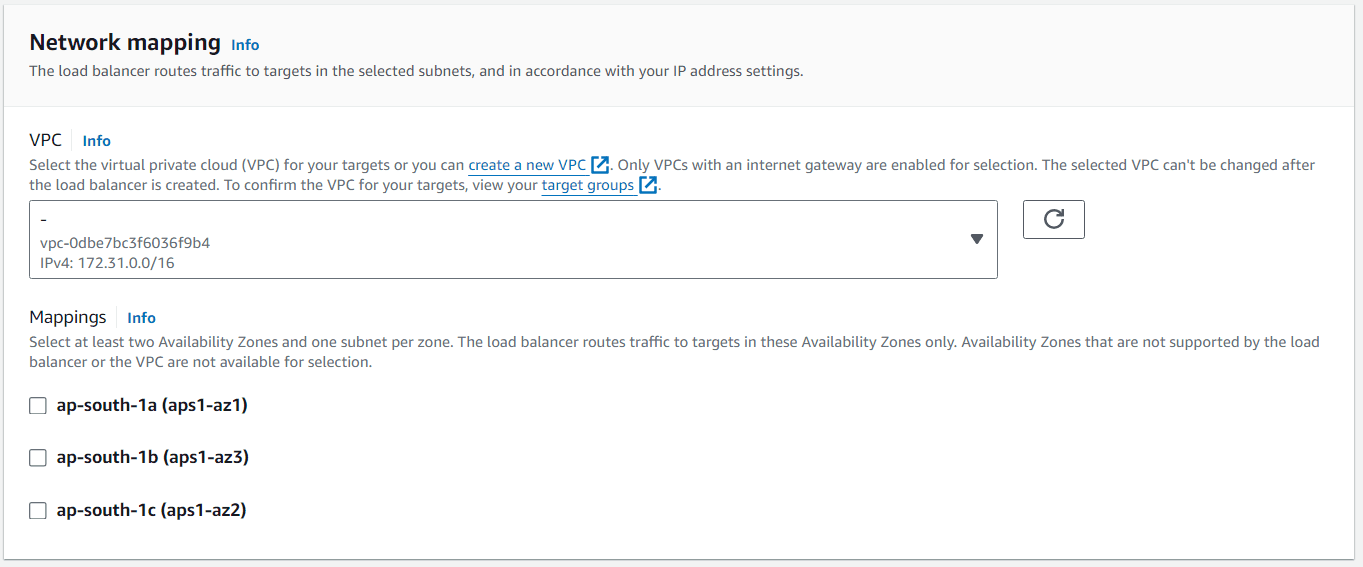
Under Network mapping, you need to select at least two Availability Zones. The load balancer routes traffic to targets in these Availability Zones only.
How it works: The load balancer routes traffic to targets in the selected subnets. Select your VPC (Virtual Private Cloud), then choose at least two Availability Zones (e.g., ap-south-1a and ap-south-1b). This ensures high availability—if one zone fails, traffic routes to instances in another zone.
Step 18: Configure Security Groups
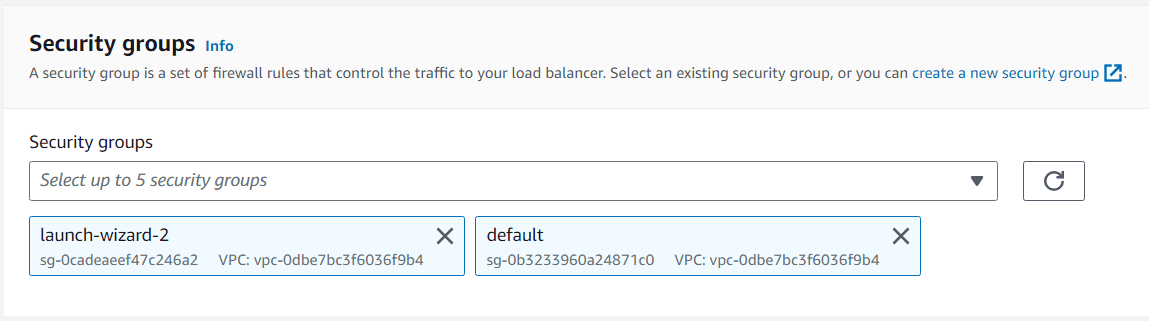
Select the same security group you created for your EC2 instances (the one with HTTP, HTTPS, and SSH access). This security group controls traffic to your load balancer.
Note: You can select up to 5 security groups. For simplicity, we'll use the same security group for both instances and load balancer.
Step 19: Configure Listeners and Routing
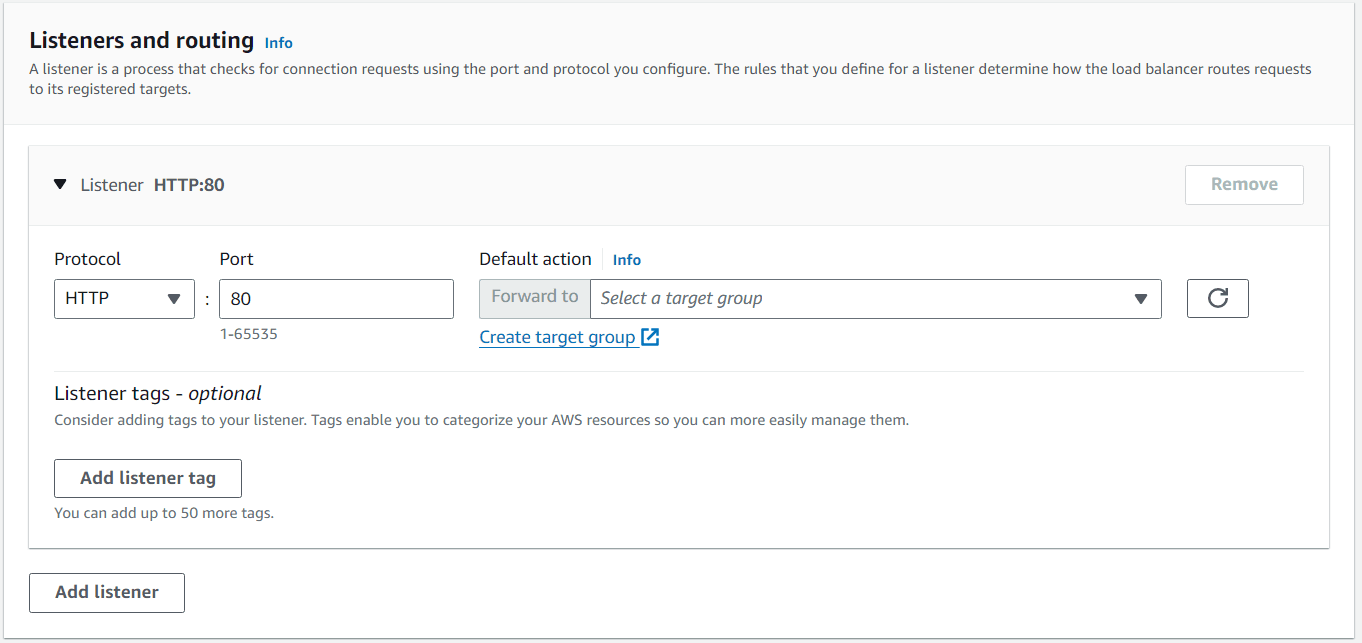
A listener is a process that checks for connection requests on the port and protocol you configure. By default, an HTTP listener on port 80 is created.
Under Listeners and routing, you need to create a target group that tells the load balancer where to route traffic. Click Create target group next to the default listener.
Step 20: Configure Target Group - Basic Settings
In the target group creation page:
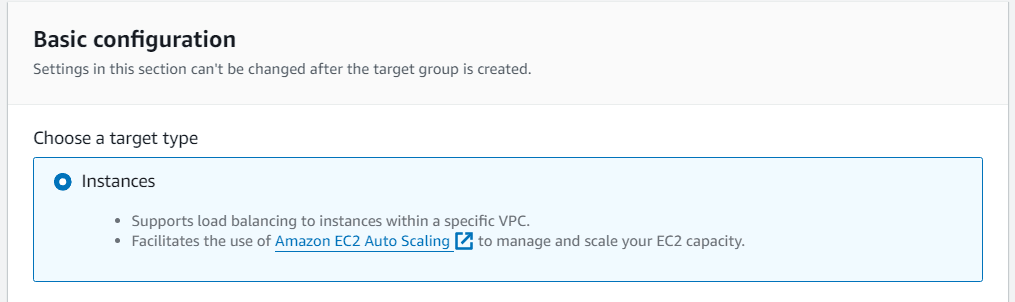
- Choose target type: Select Instances
- This supports load balancing to instances within a specific VPC
- Facilitates the use of Amazon EC2 Auto Scaling to manage and scale your EC2 capacity
Step 21: Name Your Target Group
Give your target group a name (e.g., "MyWebApp-TG"). Like the load balancer name, it must follow naming conventions: maximum 32 alphanumeric characters including hyphens, but cannot begin or end with a hyphen.

Step 22: Register Targets
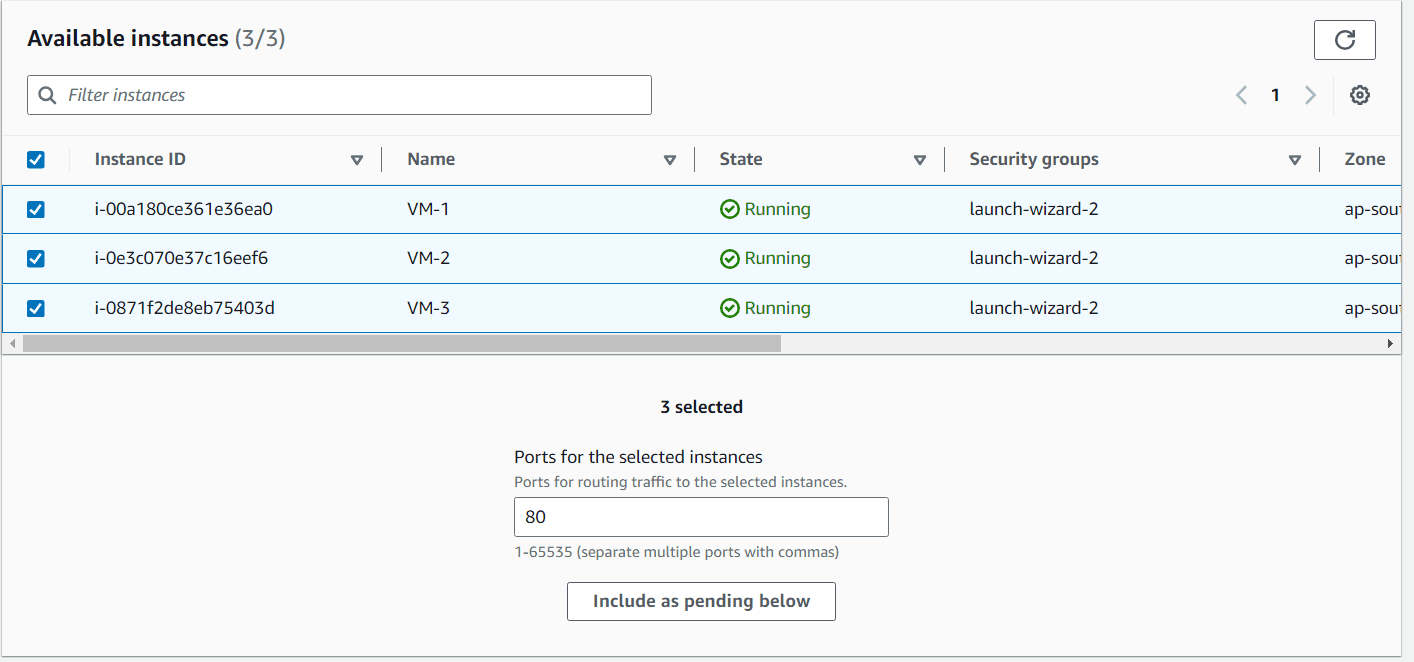
Scroll down to find your running instances. Select all three instances you created earlier and click Include as pending below. This registers them as targets for the load balancer.
How it works: The load balancer will periodically check the health of these instances and route traffic only to healthy instances.
Step 23: Complete Target Group Creation
Review your target group settings and click Create target group. Once created, return to the load balancer creation page and select your newly created target group from the dropdown in the Default action section.

Step 24: Create Load Balancer and Wait
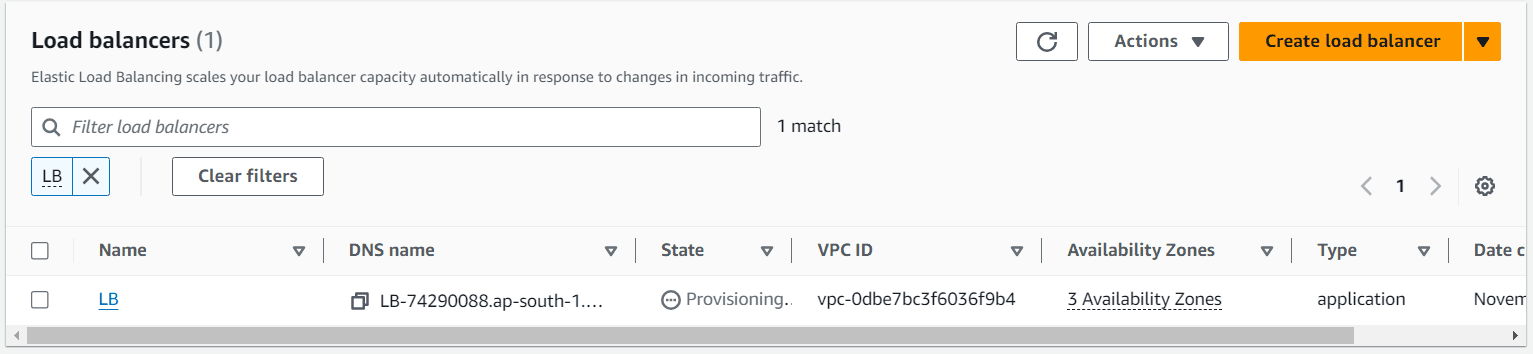
Click Create load balancer at the bottom of the page. The load balancer will now be provisioned. Wait a few minutes until the State changes from Provisioning to Active.
Step 25: Test Your Load Balancer
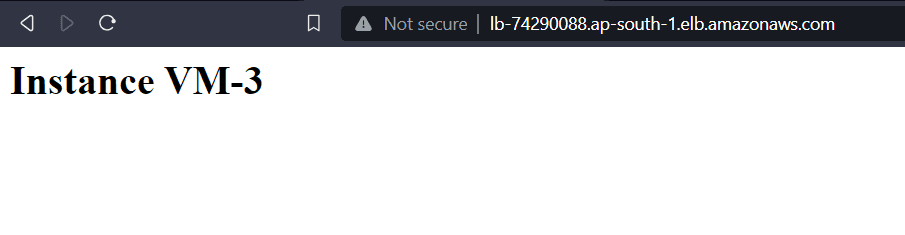
Once the load balancer is active, copy its DNS name from the load balancer details page. Paste this DNS name into your web browser and keep refreshing the page.
What you should see: The page should alternate between showing "Instance VM-1", "Instance VM-2", and "Instance VM-3" as the load balancer distributes traffic across your three instances.
Step 26: Test High Availability
To demonstrate high availability:
- Stop or terminate one of your instances
- Continue refreshing the load balancer DNS in your browser
- Notice that traffic is automatically diverted to the remaining healthy instances
This demonstrates the load balancer's ability to detect unhealthy instances and route traffic only to healthy ones.
Conclusion
You've successfully set up a complete load balancing solution on AWS! Here's what you accomplished:
- Launched three EC2 instances with Apache web server
- Created an Application Load Balancer to distribute traffic
- Configured a target group to route traffic to your instances
- Tested load distribution and high availability
This setup provides:
- Scalability: Easily add more instances behind the load balancer
- High Availability: Traffic routes to healthy instances only
- Fault Tolerance: If one instance fails, others continue serving traffic
Cleanup Instructions
To avoid unnecessary charges:
- Delete your Load Balancer
- Delete the Target Group
- Terminate all EC2 instances
- Delete the Security Group (if no longer needed)
Next Steps
Now that you have a working load balancer, consider:
- Adding an SSL certificate for HTTPS
- Setting up Auto Scaling to automatically adjust instance count based on traffic
- Configuring CloudWatch alarms for monitoring
- Setting up Route 53 for custom domain names
Need more help? Check the AWS ELB Documentation or reach out in the comments below.
Happy load balancing! ⚖️☁️