Mastering AWS IAM: Users, Groups, and Granular Access Policies

AWS IAM Hands-On: Creating Users and Testing Permissions
In this tutorial, we'll walk through AWS Identity and Access Management (IAM) by creating three users with different permission sets and testing what they can and cannot do. This hands-on demo will help you understand how IAM policies control access to AWS resources.
Step 1: Sign into the AWS Console
Navigate to aws.amazon.com and click Sign In to the Console. Enter your root user or administrator credentials to access the AWS Management Console.
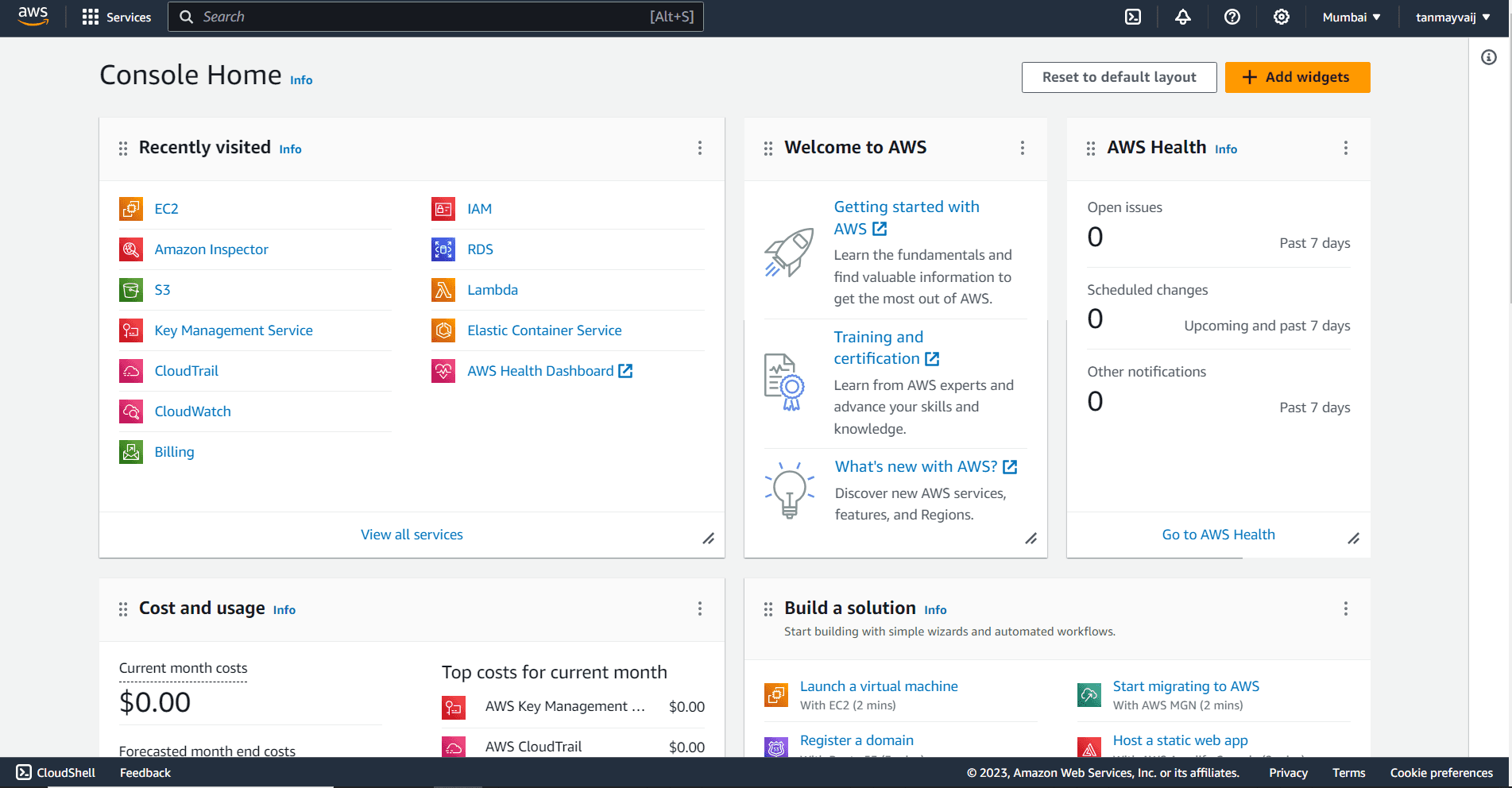
Step 2: Search and Open IAM Dashboard
In the top search bar, type IAM and select IAM from the dropdown menu under Services. This opens the IAM dashboard where you can manage users, groups, roles, and policies.
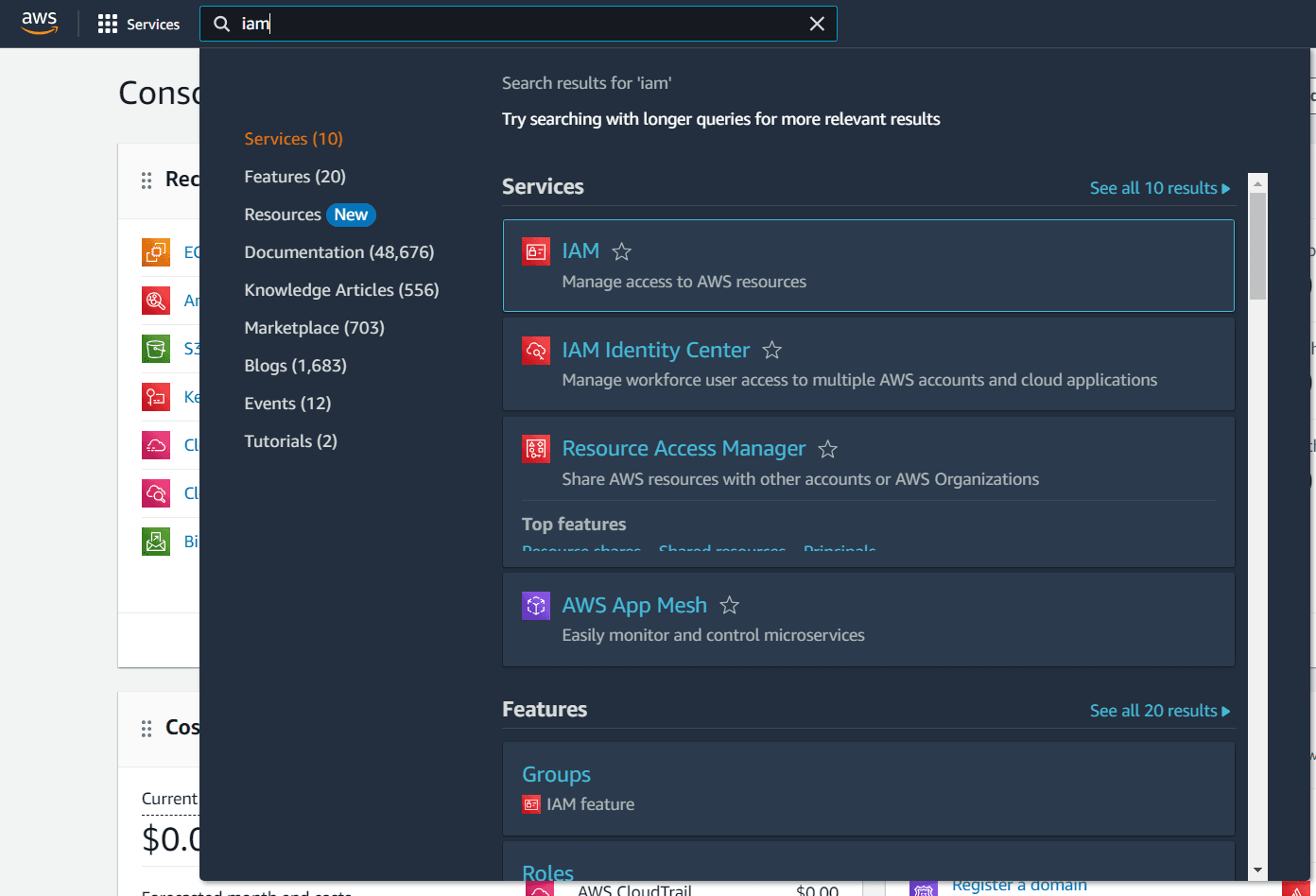
Step 3: Click on "Users" in the Side Menu
In the left navigation pane, under Access management, click Users. This will show you a list of existing IAM users (if any) and provide options to create new users.
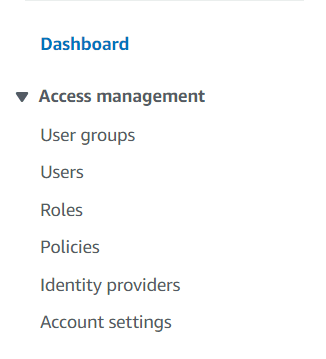
Step 4: Click on "Create User"
Click the orange Create user button to start creating your first IAM user.
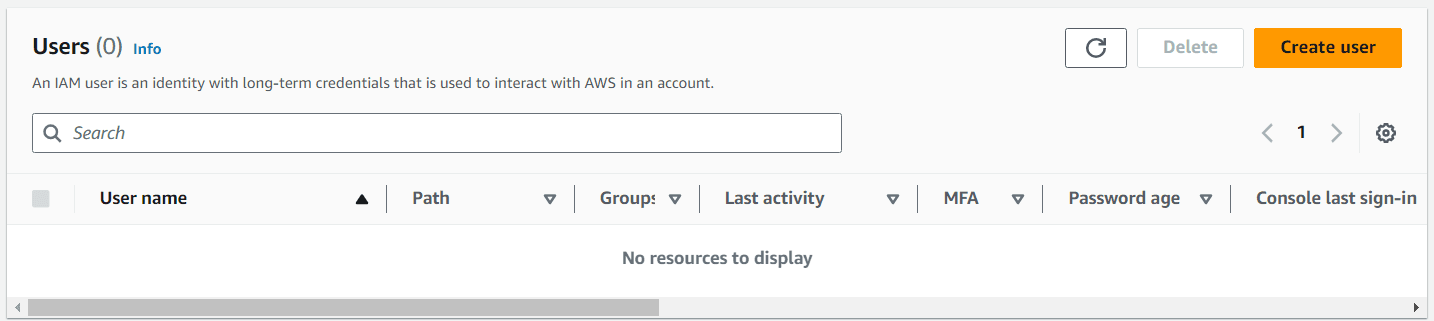
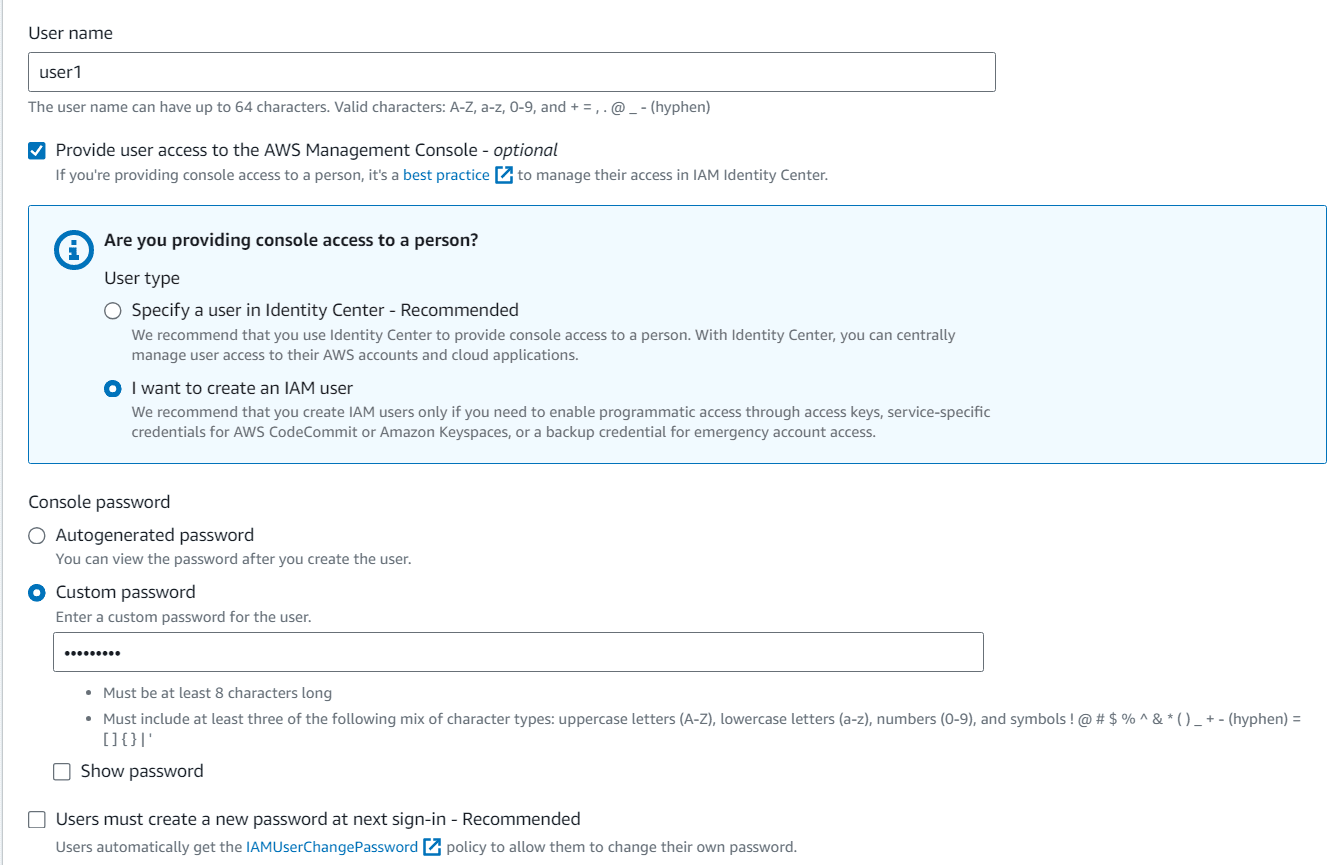
Step 5: Enter Username and Enable Console Access
In the Specify user details page:
- Enter a username (e.g.,
user1). - Check the box Provide user access to the AWS Management Console.
- Select Custom password and enter a password of your choice.
- (Optional) Uncheck "Users must create a new password at next sign-in" if you want to keep the password as set.
Step 6: Add User to Group
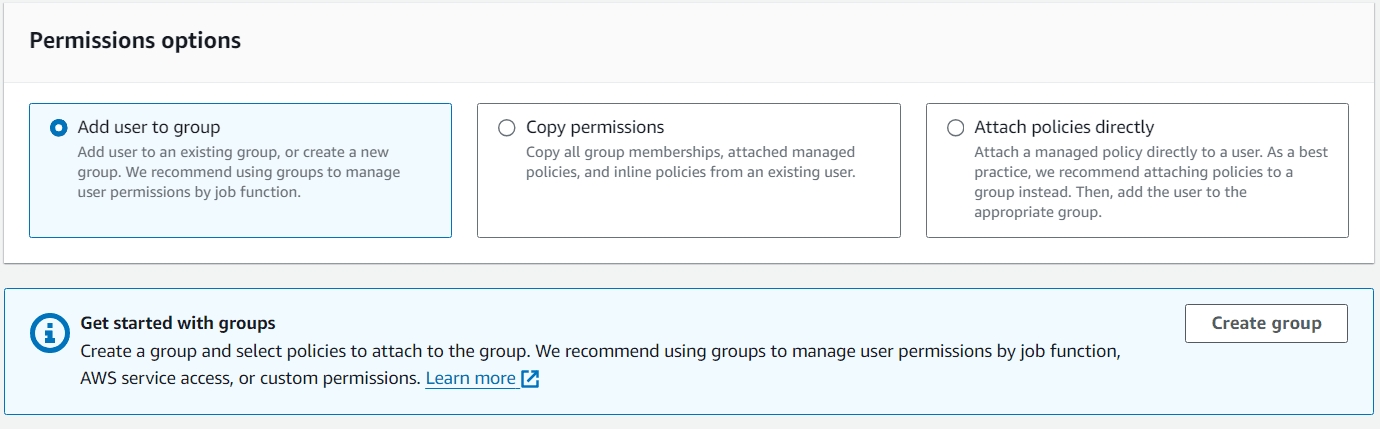
On the Set permissions page, select Add user to group. Then click Create group to make a new group.
Step 7: Create Group with AmazonEC2FullAccess Policy
In the Create group dialog:
- Give the group a name, e.g.,
EC2Admins. - In the Filter policies box, search for AmazonEC2FullAccess.
- Check the box next to AmazonEC2FullAccess.
- Click Create group.
After creating the group, make sure it's selected in the list, then click Next and Create user.

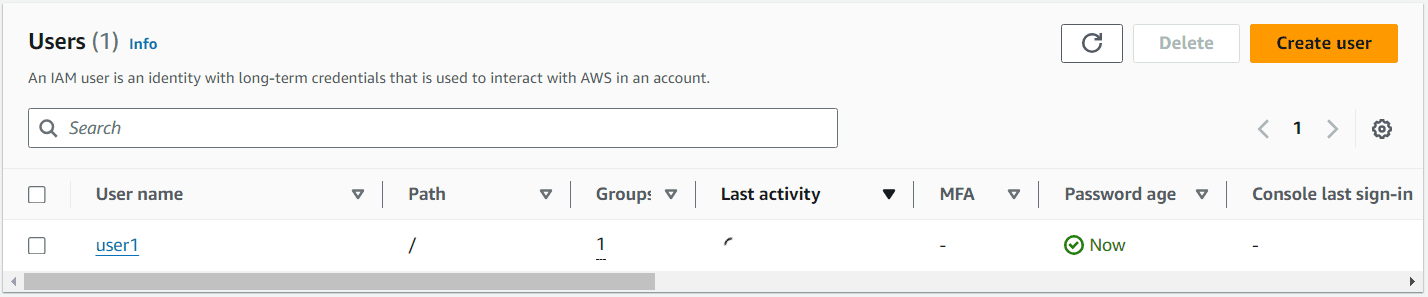
Step 8: Verify User Creation
You'll be returned to the Users list. Your new user (user1) should now appear in the list. Repeat the process to create two more users with different permissions.
Step 9: Create Two More Users with Different Permissions
Follow the same steps (4–8) to create:
- user2: Add to a new group with AmazonS3FullAccess policy.
- user3: Add to a new group with AdministratorAccess policy.
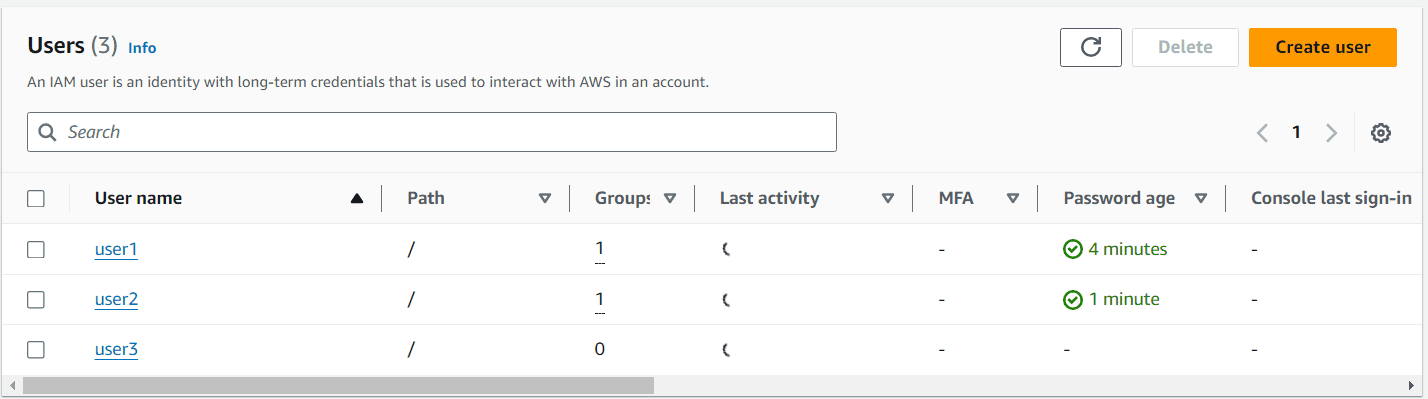
After creation, your Users list should show three users, each with different permissions attached via their respective groups.
Step 10: Sign In as user1 Using the IAM Sign-in URL
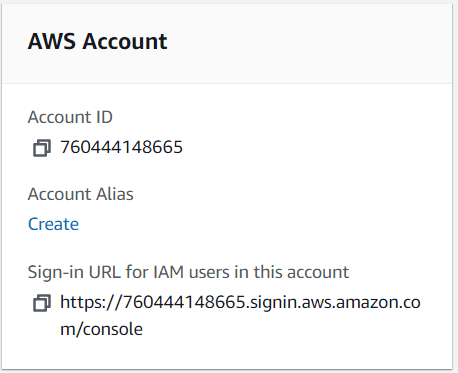
- In the IAM dashboard, locate the IAM users sign-in link (usually something like
https://your-account-id.signin.aws.amazon.com/console). Copy this URL. - Open a new incognito/private browser window and paste the URL.
- Sign in using the credentials for
user1(the username and password you set earlier).
Step 11: Test S3 Permissions with user1
Once logged in as user1, try to create an S3 bucket:
- Navigate to the S3 service.
- Click Create bucket.
- Enter a bucket name and configure settings, then click Create bucket.
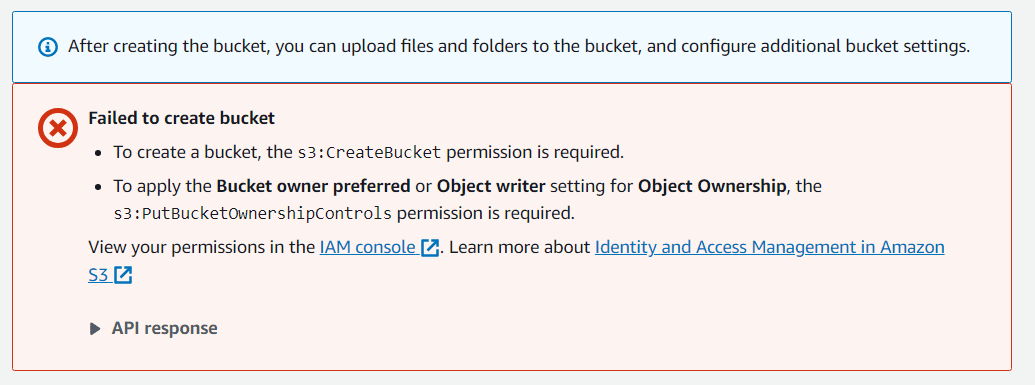
You should see an error message similar to the following:
Failed to create bucket
To create a bucket, thes3:CreateBucketpermission is required. To apply the Bucket owner preferred or Object writer setting for Object Ownership, thes3:PutBucketOwnershipControlspermission is required.
View your permissions in the IAM console. Learn more about Identity and Access Management in Amazon S3.
This error occurs because user1 only has EC2 permissions and no S3 permissions.
Step 12: Sign In as user2 and Test EC2 Permissions
Now sign out and sign in as user2 (who has S3 full access but no EC2 permissions). Try to launch an EC2 instance:
- Go to the EC2 dashboard.
- Click Launch instance.
- Attempt to proceed through the wizard (you can stop before actually launching, but the error will appear when trying to view instances).
You'll encounter an error like:
You are not authorized to perform this operation.
User:arn:aws:iam::760444148665:user/user2is not authorized to perform:ec2:DescribeInstancesbecause no identity-based policy allows theec2:DescribeInstancesaction.
Even listing instances fails because user2 lacks EC2 read permissions.

Step 13: Sign In as user3 and Test Both Services
Finally, sign in as user3 (AdministratorAccess). Try to create an S3 bucket and launch an EC2 instance.
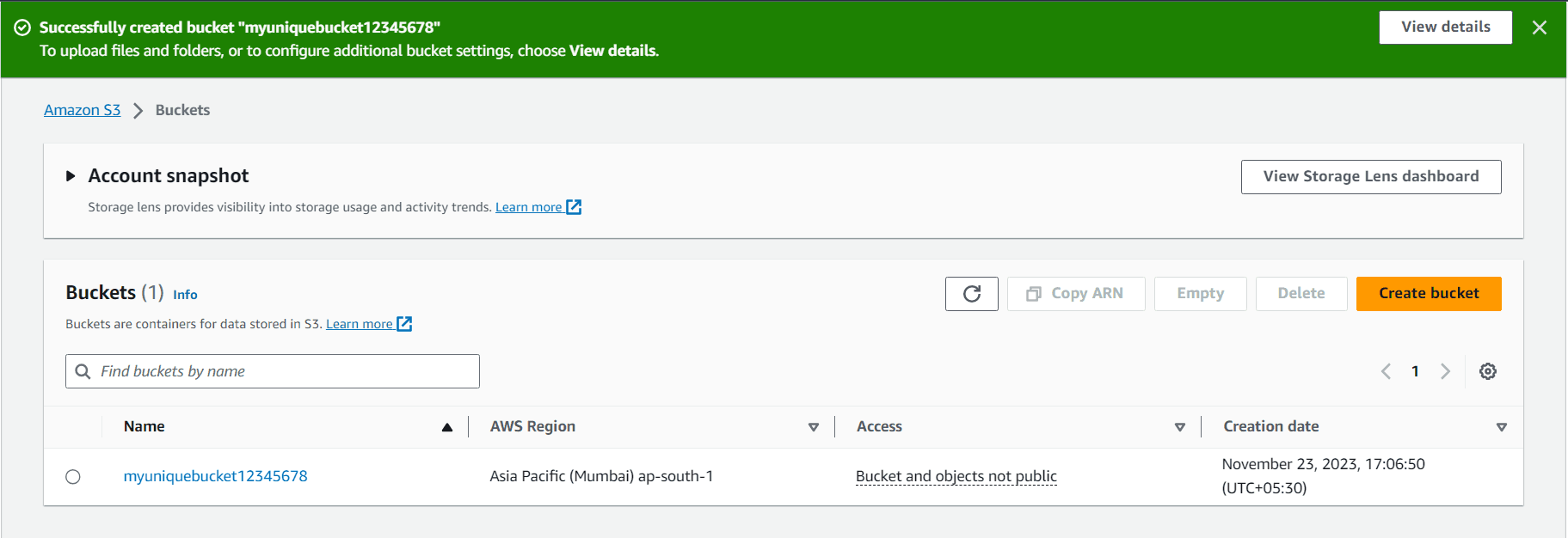
- S3 bucket creation: Should succeed without errors.
- EC2 instance launch: You should be able to view instances and launch new ones.
The AdministratorAccess policy grants full access to all AWS services and resources.

Conclusion
You've successfully demonstrated how IAM permissions work by:
- Creating IAM users with specific permissions via groups.
- Testing those permissions by signing in and attempting actions.
- Observing the expected allow/deny behavior based on attached policies.
This hands-on exercise highlights the principle of least privilege: users should only have the permissions necessary for their job.
Cleanup
To avoid ongoing charges and keep your AWS account tidy:
- Sign in as an administrator (or root user).
- Go to IAM > Users and delete
user1,user2, anduser3. - Delete any groups you created (
EC2Admins,S3Admins,AdminGroup). - If you created any resources (S3 buckets, EC2 instances) during testing, terminate or delete them.
Key Takeaways
- IAM Users: Individual identities with permanent credentials.
- IAM Groups: Collections of users that share common permissions.
- IAM Policies: JSON documents that define permissions; can be attached to users or groups.
- Testing Permissions: Always verify that users have exactly the access they need—nothing more, nothing less.
For more information, refer to the AWS IAM Documentation.
Happy securing! 🔐☁️