Automated Vulnerability Management with AWS Inspector

AWS Inspector Tutorial: Setting Up Vulnerability Assessments on EC2 Instances
Amazon Inspector is an automated security assessment service that helps improve the security and compliance of applications deployed on AWS. It automatically assesses applications for vulnerabilities or deviations from best practices. In this step-by-step tutorial, we'll walk through the entire process—from launching EC2 instances to running an Inspector assessment and downloading a vulnerability report.
Step 1: Sign in to the AWS Console
Begin by navigating to aws.amazon.com and clicking Sign In to the Console. Enter your AWS account credentials to access the AWS Management Console. If you don't have an account, you can create one—new users get access to the Free Tier for 12 months, which is sufficient for this tutorial.
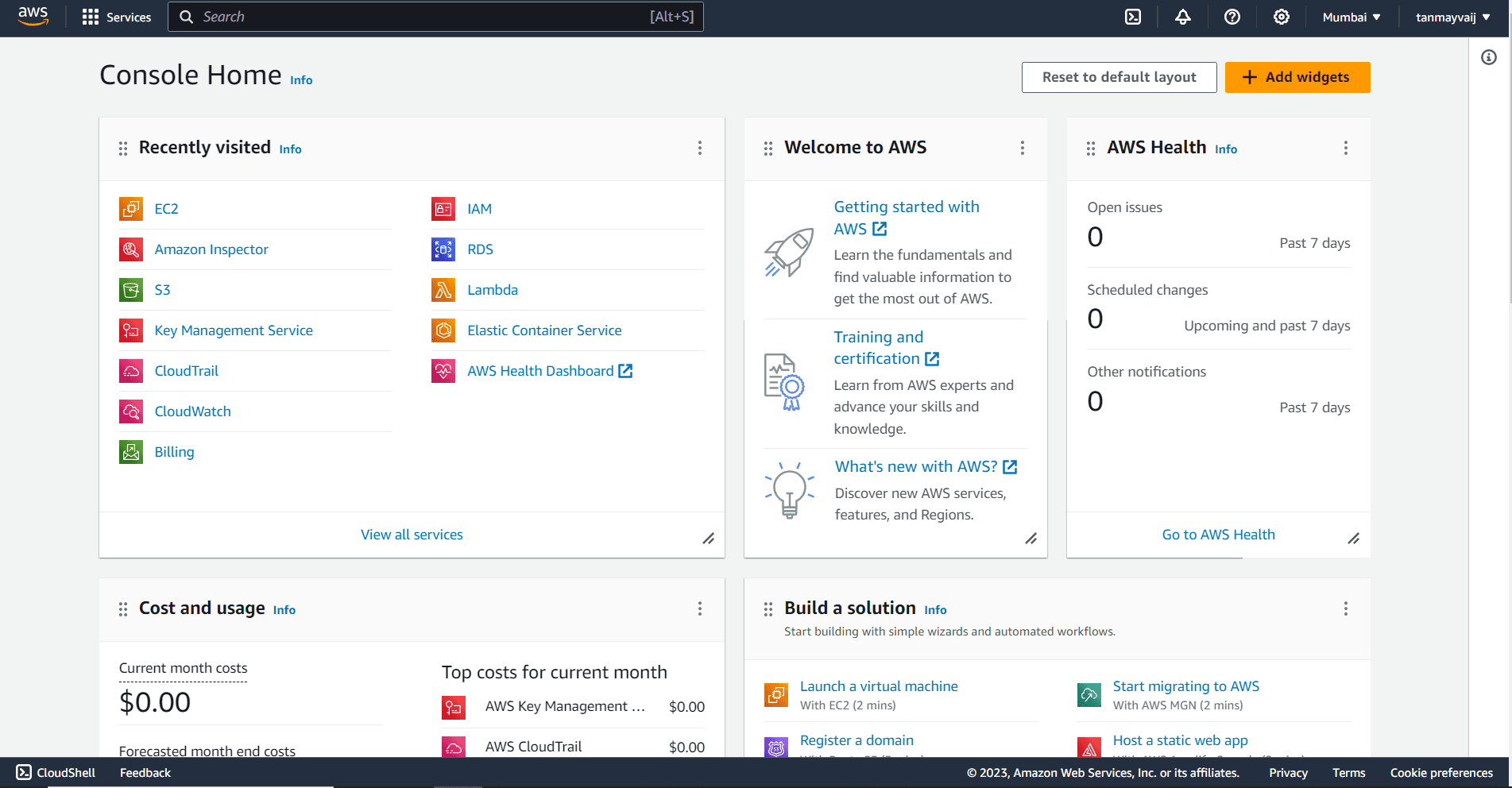
Step 2: Search and Click on EC2
Once logged in, you'll see the AWS Management Console dashboard. In the top search bar, type EC2 and select EC2 from the dropdown menu under Services. This will take you to the EC2 dashboard where you can manage your virtual servers.
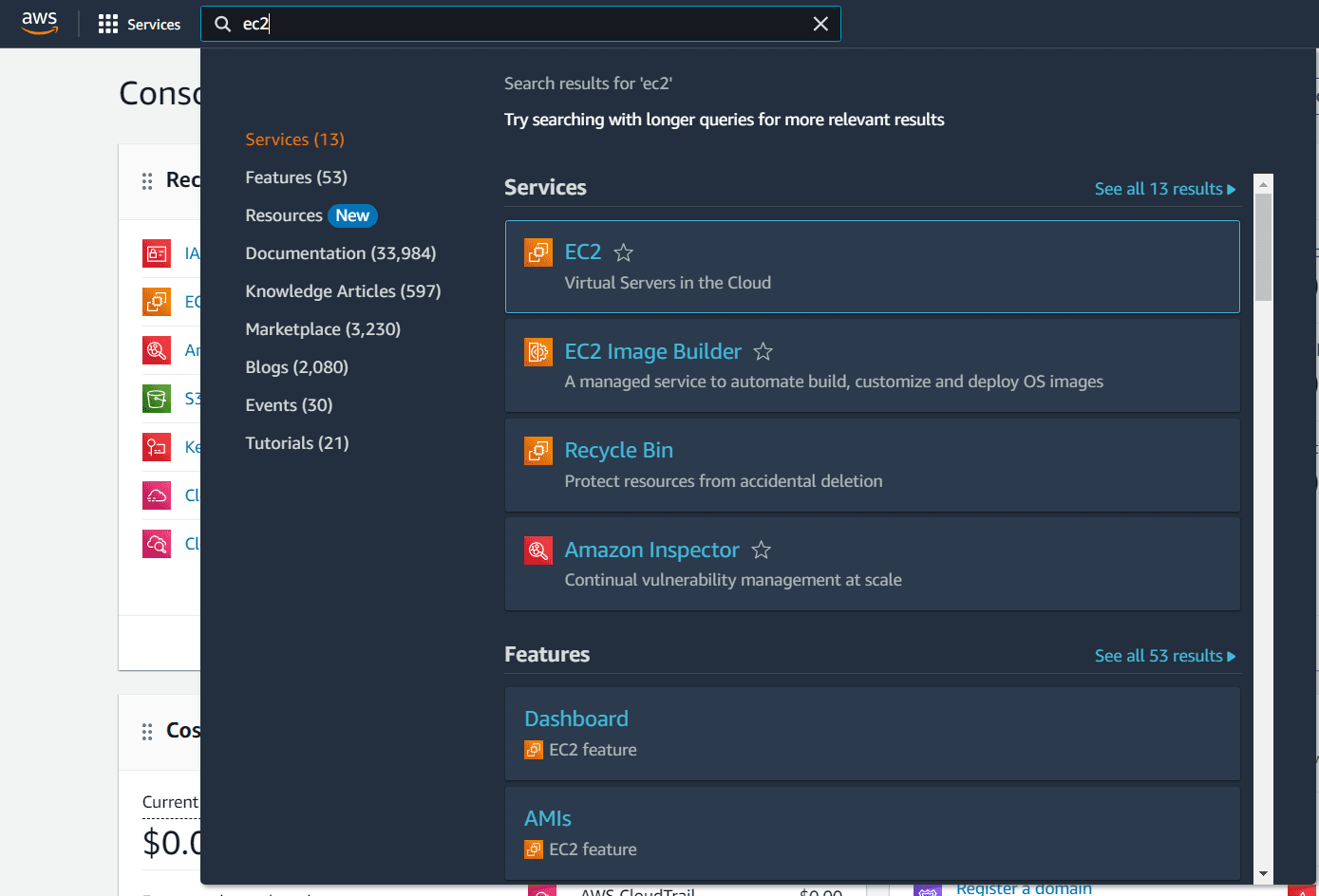
Step 3: Click on "Launch Instances"
On the EC2 dashboard, click the orange Launch Instances button in the top-right corner. This begins the instance creation wizard.

Step 4: Give a Name to the Instance
In the Name and tags section, give your instance a descriptive name. For this tutorial, we'll launch three instances, so you might name them sequentially like "Inspector-VM-1", "Inspector-VM-2", etc. But for now, you can start with a base name—we'll rename them later.
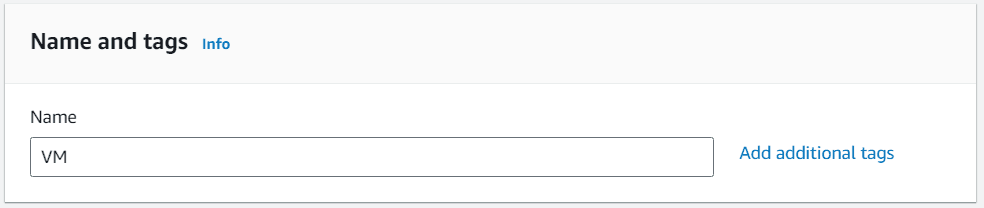
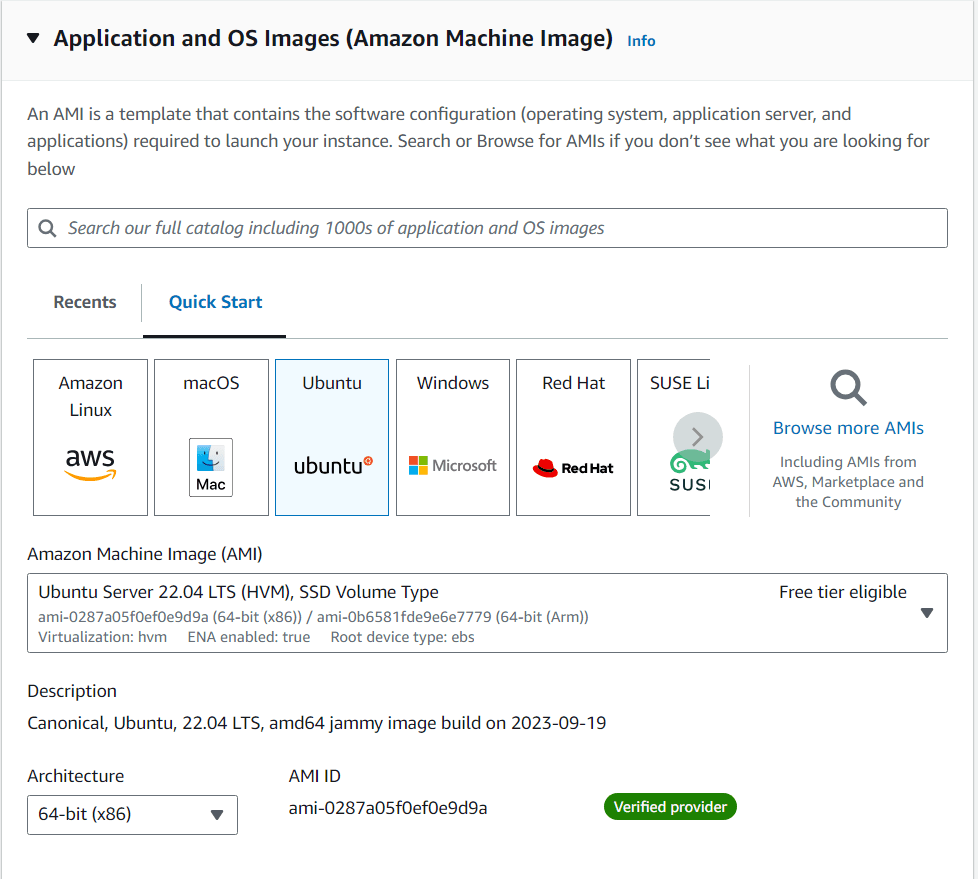
Step 5: Select Ubuntu as the OS Image
An AMI (Amazon Machine Image) is a template that contains the software configuration (operating system, application server, and applications) required to launch your instance. Under Application and OS Images, select Ubuntu Server 22.04 LTS (HVM), SSD Volume Type.
The description should read: "Canonical, Ubuntu, 22.04 LTS, amd64 jammy image build on 2023-09-19". This AMI is free tier eligible and works perfectly for our Inspector demo.
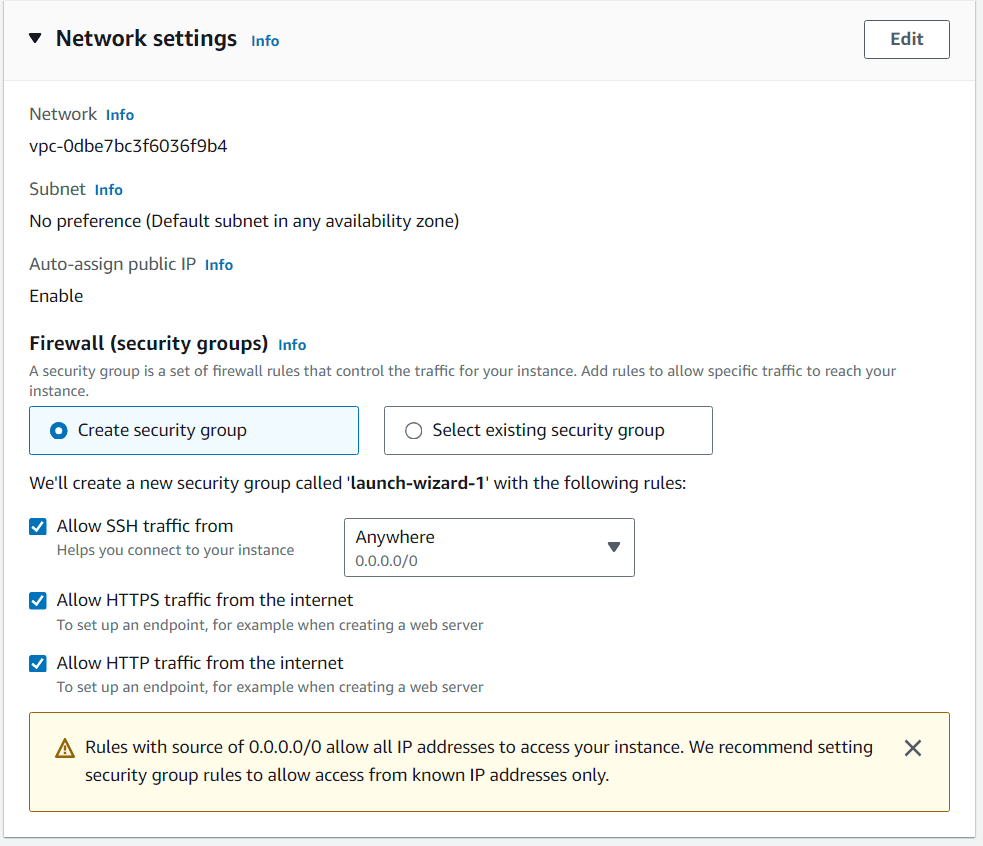
Step 6: Create or Select a Security Group
Under Network settings, you need to configure a security group. A security group acts as a virtual firewall for your instance. For this demo, you can either create a new security group or select an existing one. Keep the default settings for now—we only need basic SSH access to install the Inspector agent later. Ensure that SSH (port 22) is allowed from your IP address.
Step 7: Set Number of Instances and Launch
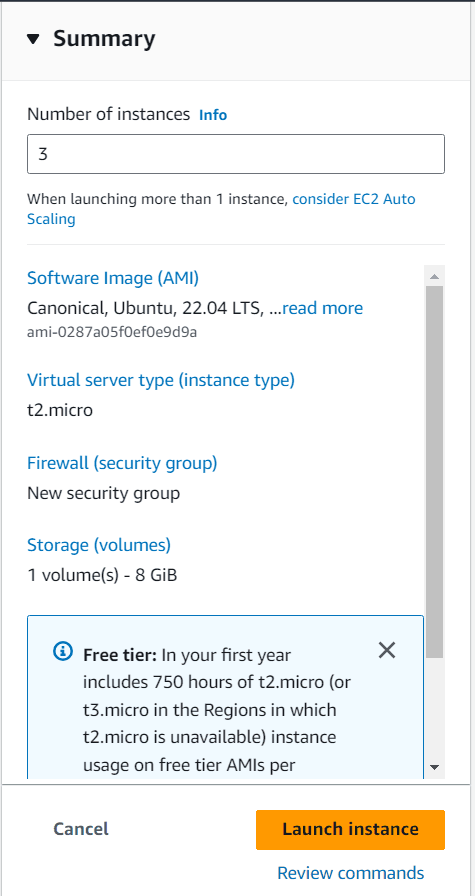
Under Number of instances, set the value to 3 because we want three instances to assess. Then review your configuration and click Launch instance. A key pair prompt may appear; if you don't have one, you can create a new key pair or proceed without (if you plan to use EC2 Instance Connect). For Inspector, we don't need a key pair if we use Instance Connect, but having one is fine.
Step 8: Rename the Three Instances Uniquely
After launching, you'll see your instances in the EC2 Instances dashboard. Wait until all three instances show a status of Running and pass the 2/2 status checks. Then, select each instance, click the Name tag (pencil icon), and rename them uniquely—for example, "Inspector-VM-1", "Inspector-VM-2", and "Inspector-VM-3". This will help you identify them later.

Step 9: Install the Amazon Inspector Agent on Each Instance
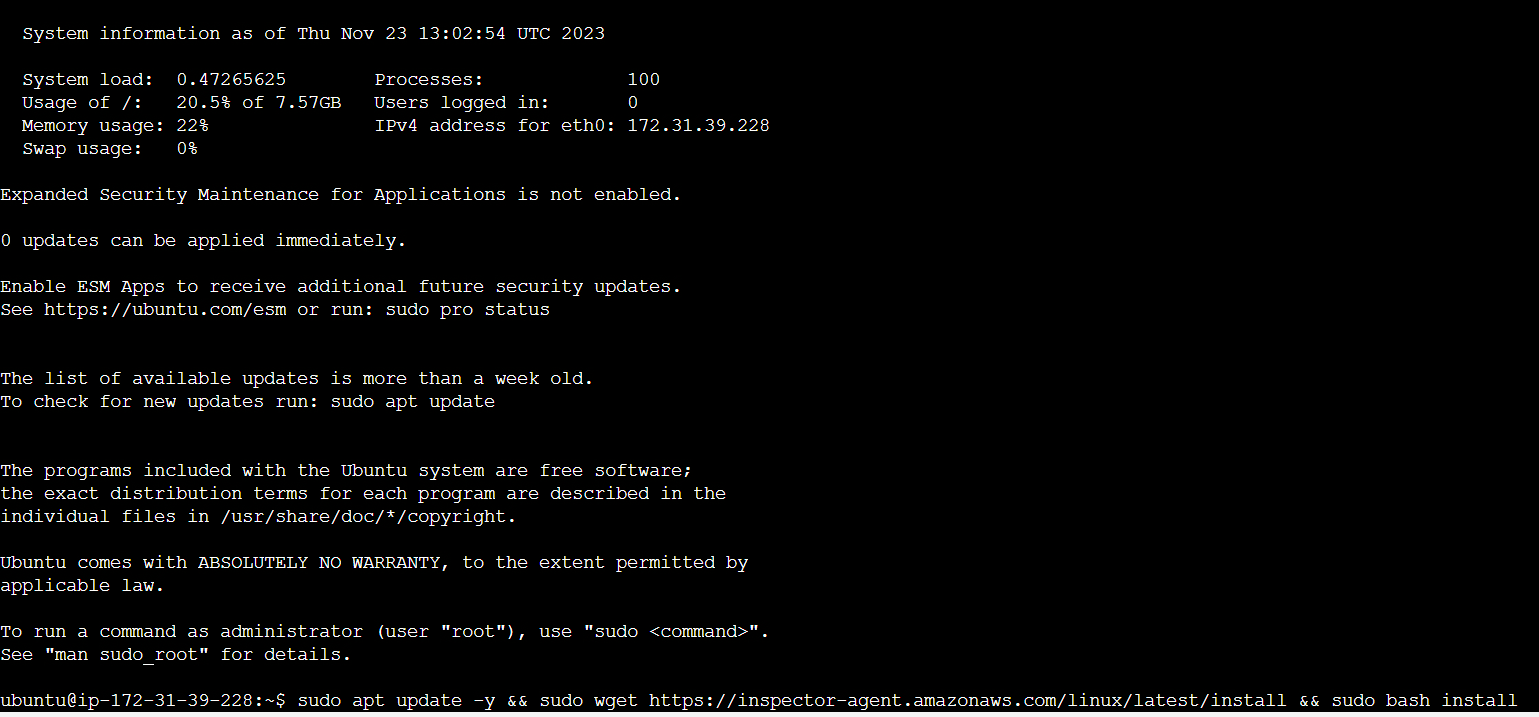
Now we need to install the Inspector agent on each instance. Select one instance, click the Connect button, and choose EC2 Instance Connect (or use SSH with your key pair). A terminal will open in your browser.
Run the following command to install the Inspector agent:
sudo apt update -y && sudo wget https://inspector-agent.amazonaws.com/linux/latest/install && sudo bash installThis command:
- Updates the package repository
- Downloads the Inspector agent installation script
- Runs the script to install the agent
Repeat this process for the other two instances. The agent will start automatically and communicate with the Inspector service.
Step 10: Search for Amazon Inspector
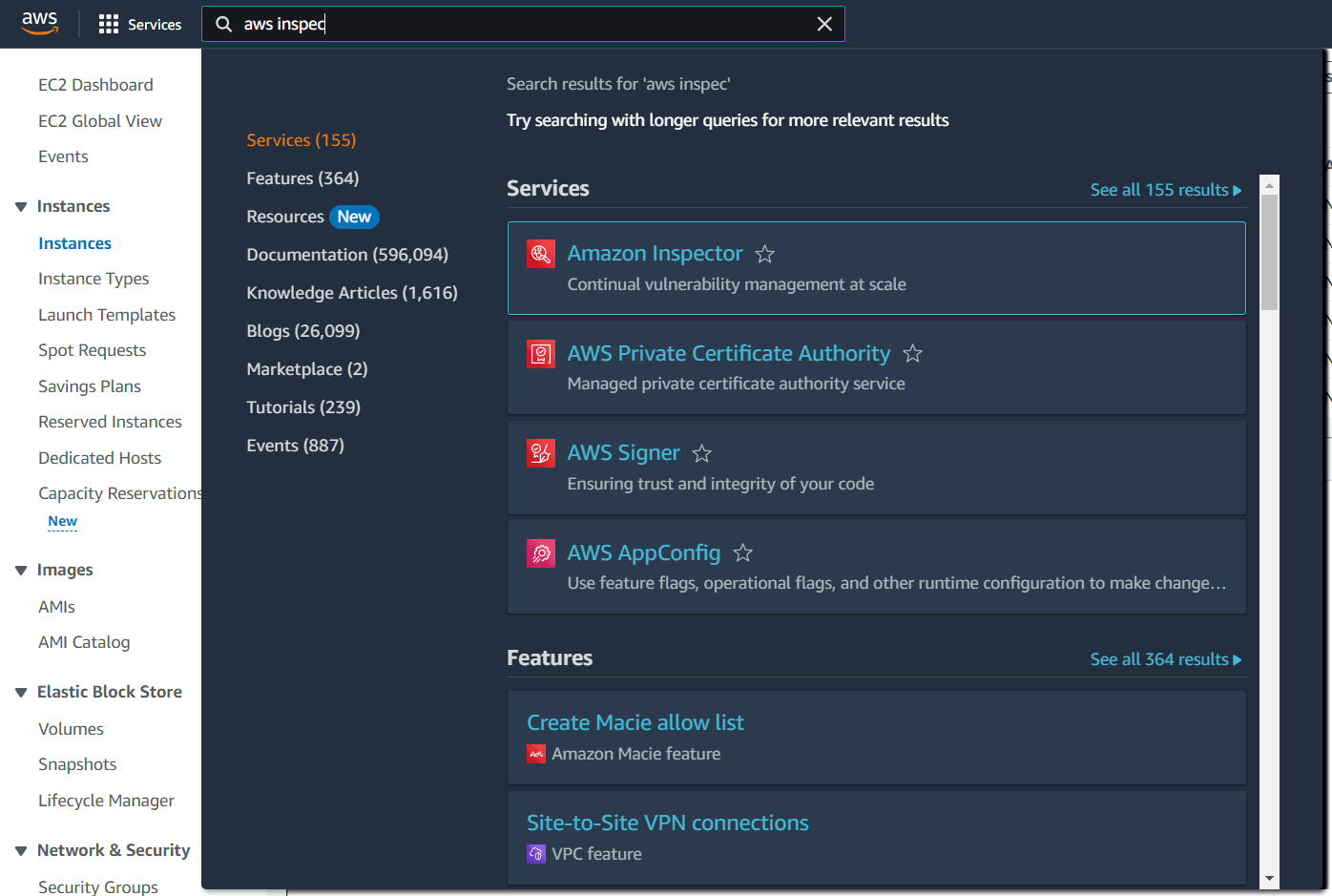
Return to the AWS Management Console and in the top search bar, type Inspector. Click on Amazon Inspector from the search results. This will take you to the Amazon Inspector dashboard.
Step 11: Switch to Inspector Classic
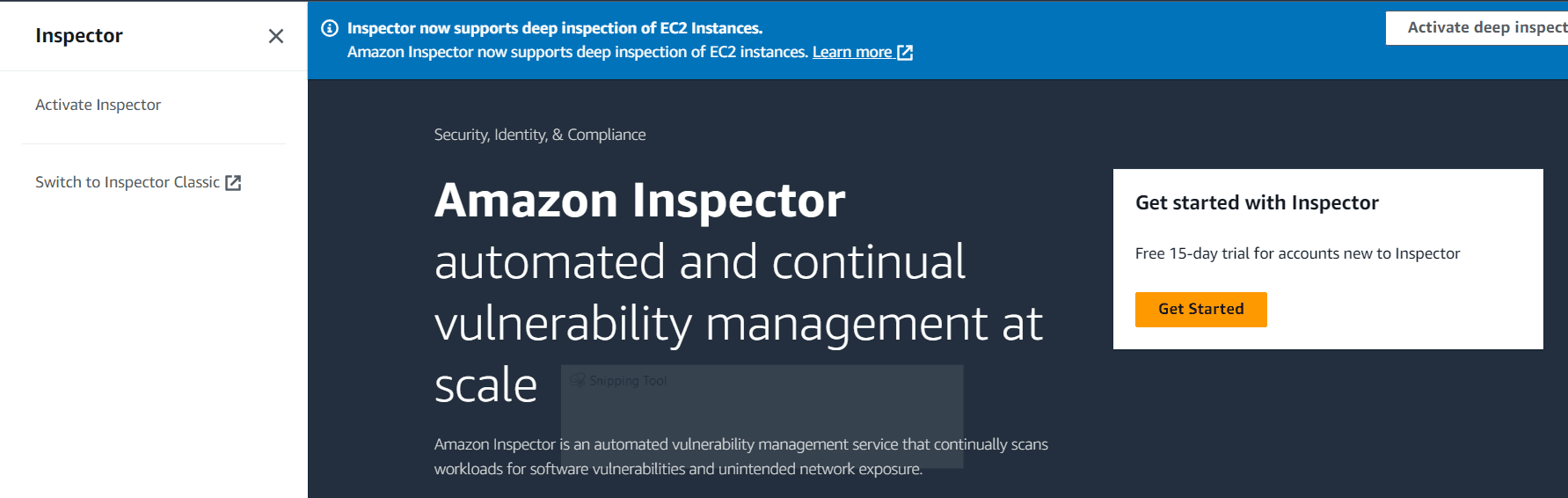
Amazon Inspector has a newer version (Amazon Inspector), but for this tutorial we'll use the classic interface as shown in the PDF. In the left navigation menu, click the menu icon (hamburger) and then select Switch to Inspector Classic. If you don't see this option, you might be already in the classic view; you can also access it directly via the URL or by selecting "Inspector Classic" from the services menu.
Step 12: Create an Assessment Target
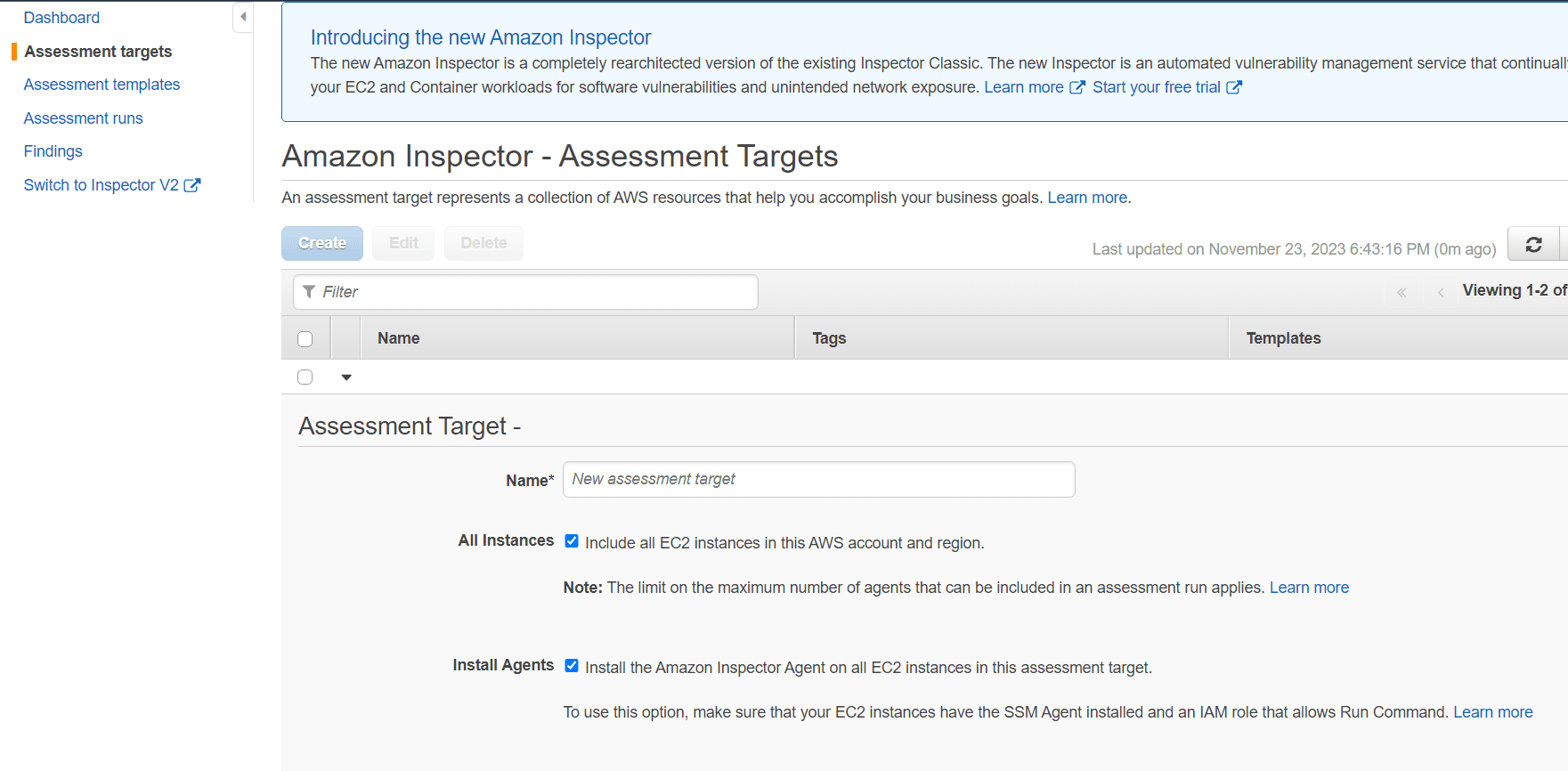
In the Inspector Classic dashboard, click on Assessment Targets (if not already there) and then click Create or Create assessment target. Provide a name for your target (e.g., "My-Target"). Check the box that says Include all EC2 instances in this AWS account and region. This ensures all your instances with the Inspector agent installed are included in the assessment. Click Save at the bottom.
Step 13: Install Agents with Run Command (Optional)
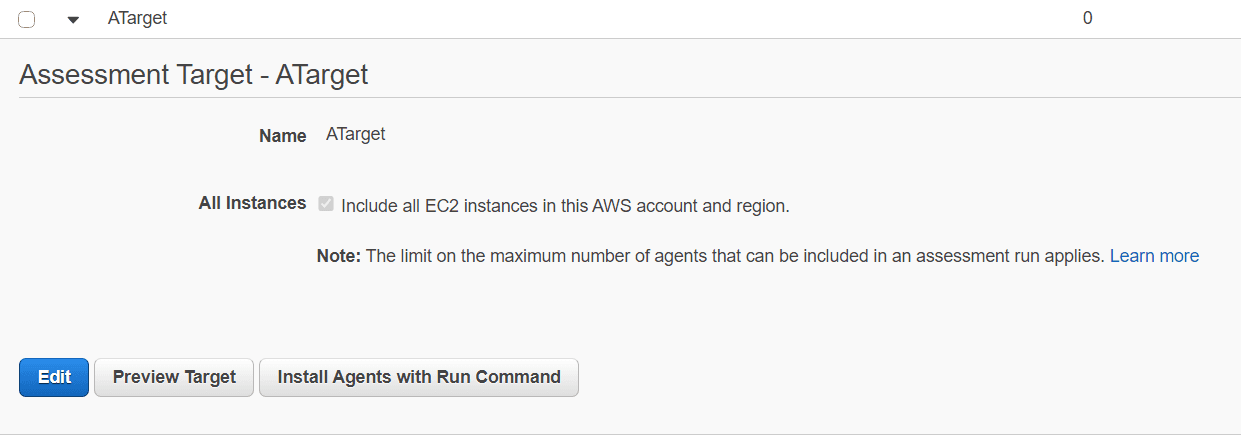
After creating the target, you may see a dropdown next to the target. Click on it and select Install Agents with Run Command. This step is optional if you already installed the agents manually (as we did in Step 9). However, if you skipped manual installation, this option uses AWS Systems Manager to install the agent on all instances in the target. Since we already installed, you can skip this step.
Step 14: Create an Assessment Template
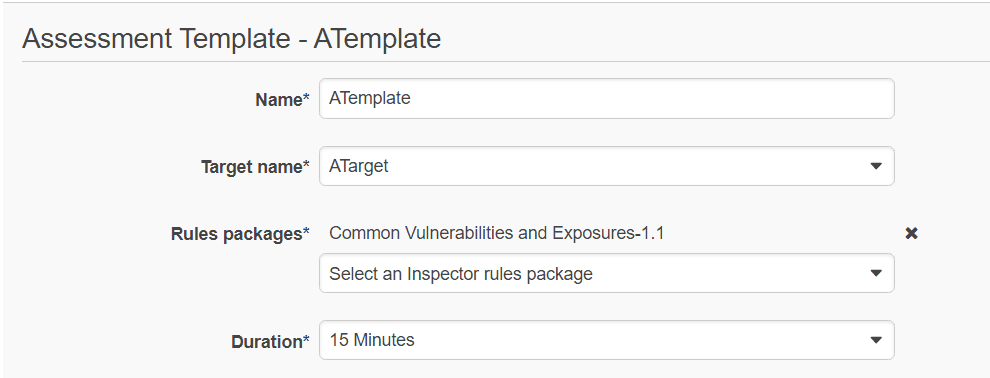
Now we need a template that defines what checks to run and for how long. Go to Assessment Templates and click Create. Provide the following:
- Assessment template name: e.g., "My-Template"
- Target name: Select the target you just created ("My-Target")
- Rules packages: Select Common Vulnerabilities and Exposures-1.1. This package checks for CVEs.
- Duration: Set to 15 Minutes (the minimum duration).
- Leave other settings as default and click Save.
Step 15: Run the Assessment
Select the template you just created from the list, click the Actions dropdown, and choose Run (or click the Run button if available). The assessment will start and run for the duration you set (15 minutes). You can monitor its progress in the Assessment Runs section.

Step 16: Download the Report
After the 15 minutes have passed, the assessment run will complete. Go to the Assessment Runs section, find your completed run, and click on it. Then click the Download report button. You'll be prompted to choose the format (PDF or HTML). Select PDF and click Download.

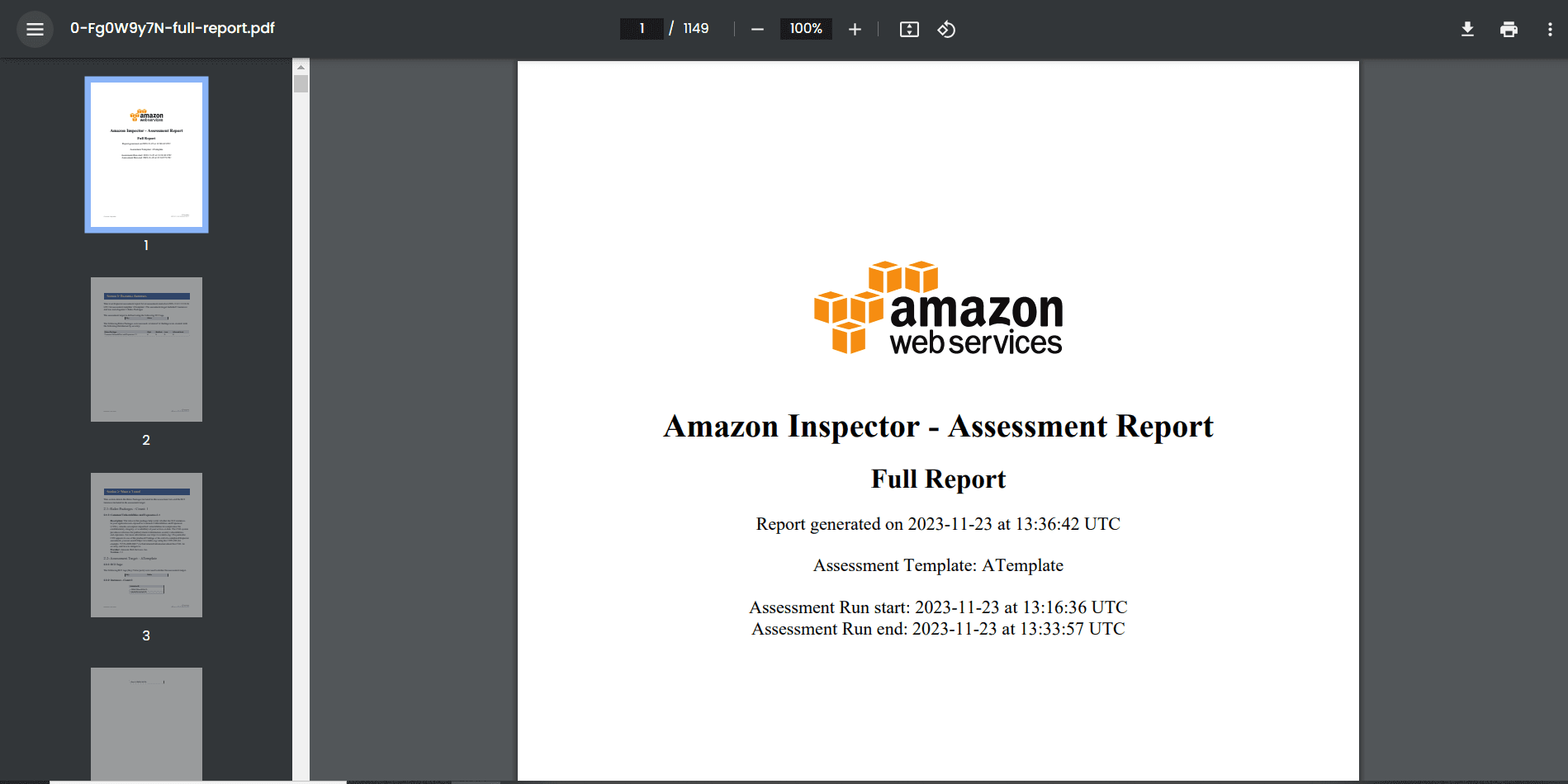
Step 17: View the PDF Report
The report will open in a new tab (or download, depending on your browser settings). The PDF contains a detailed list of vulnerabilities found on your instances, including severity levels, descriptions, and recommendations for remediation.
Conclusion
Congratulations! You've successfully set up Amazon Inspector to assess your EC2 instances for vulnerabilities. You learned how to:
- Launch multiple EC2 instances
- Install the Inspector agent
- Create assessment targets and templates
- Run an assessment and generate a report
Regular vulnerability assessments are crucial for maintaining the security of your cloud infrastructure. Amazon Inspector automates this process, making it easy to identify and remediate potential issues before they can be exploited.
Cleanup
To avoid incurring charges, remember to:
- Terminate the EC2 instances you launched
- (Optional) Delete the assessment targets and templates in Inspector Classic
- If you created any additional resources, clean them up
Need more help? Check the Amazon Inspector Documentation or leave a comment below.
Stay secure! 🔒☁️