Mastering Docker Lifecycle Commands on EC2
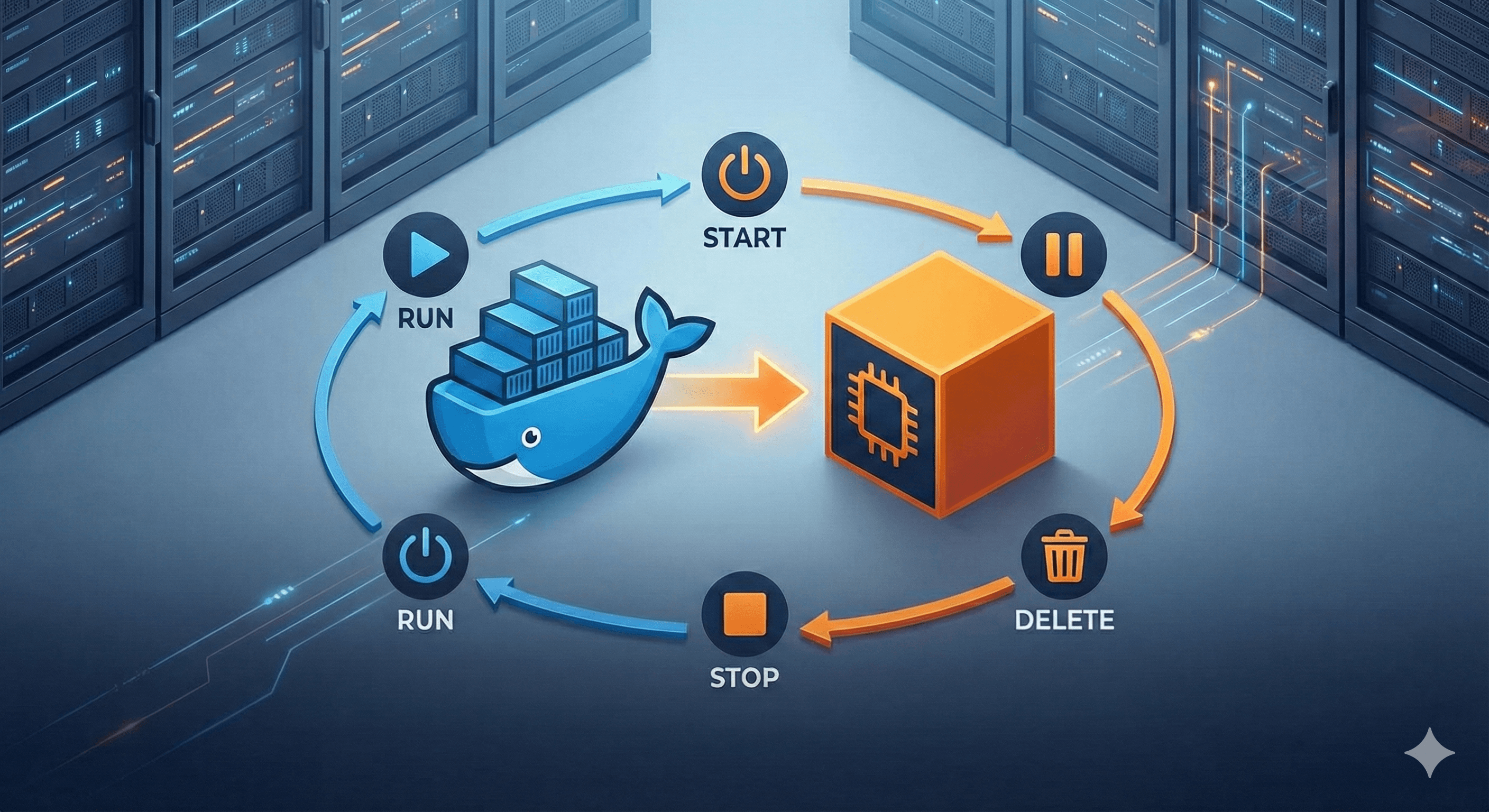
Installing Docker on AWS EC2 and Performing Container Lifecycle Operations
In this comprehensive tutorial, we’ll walk through the entire process of setting up Docker on an Amazon EC2 instance and then managing container lifecycles. You’ll learn how to launch an EC2 instance, install Docker, run containers, and perform operations like stop, start, pause, unpause, and kill. We’ll use Redis and Nginx containers as examples.
Prerequisites
- An AWS account (Free Tier eligible)
- Basic familiarity with the AWS Management Console
- A terminal application (like Terminal on macOS/Linux or Git Bash on Windows)
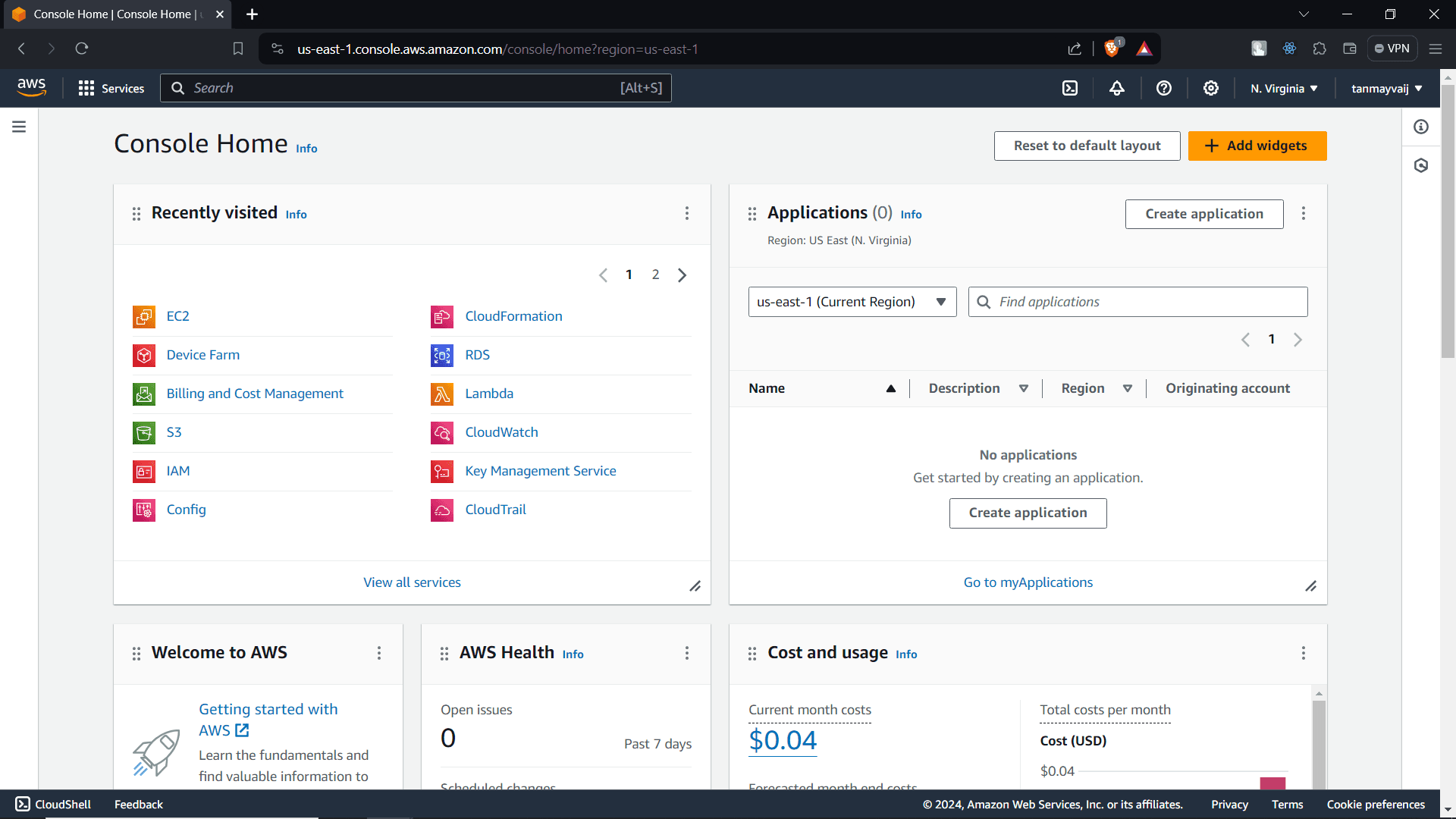
Step 1: Sign in to AWS Account
Navigate to aws.amazon.com and click Sign In to the Console. Enter your credentials to access the AWS Management Console.
Step 2: Go to EC2 Dashboard and Create a Security Group
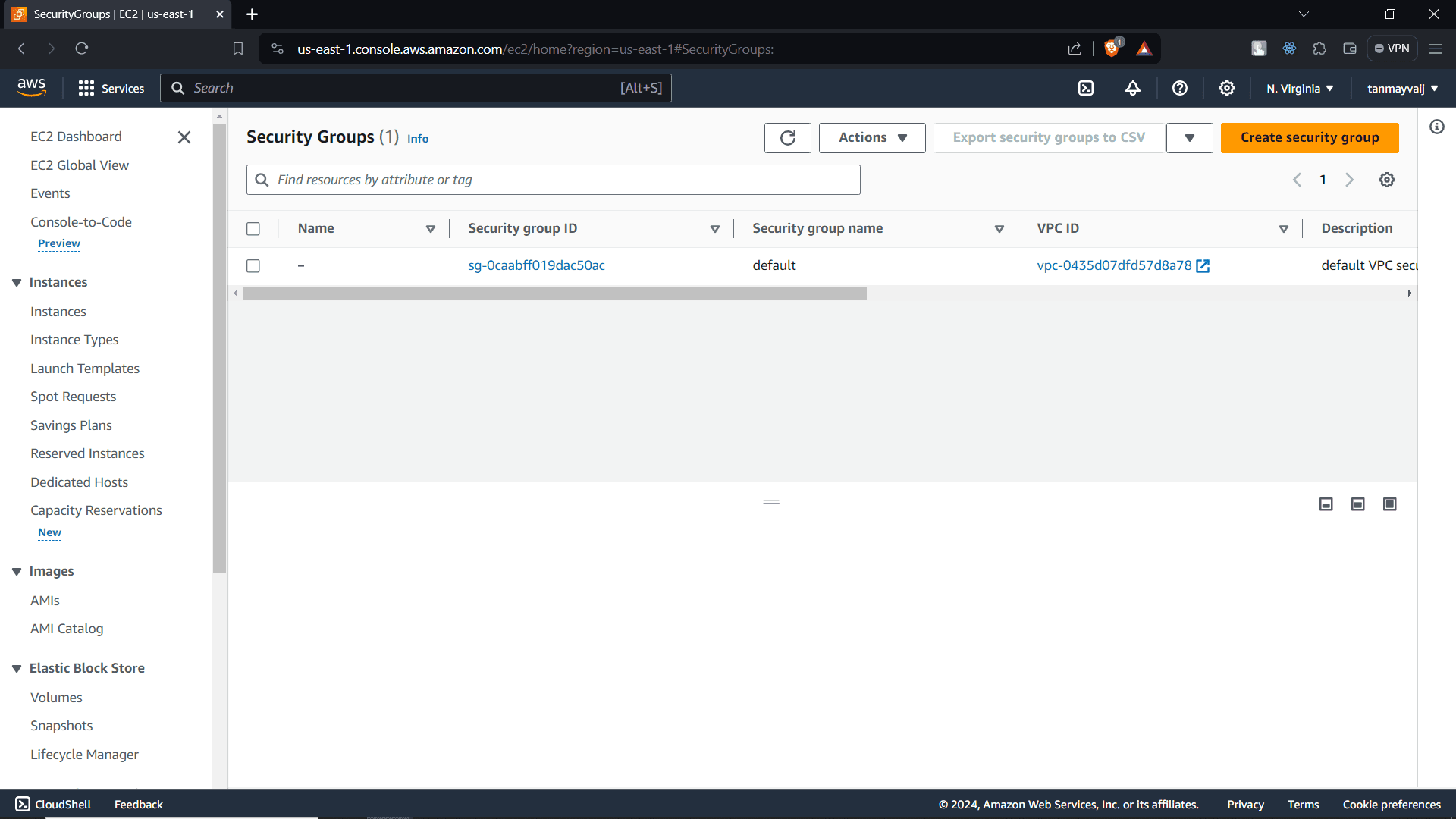
In the AWS Management Console, search for EC2 and select it. In the left sidebar, under Network & Security, click Security Groups. Then click the orange Create security group button.
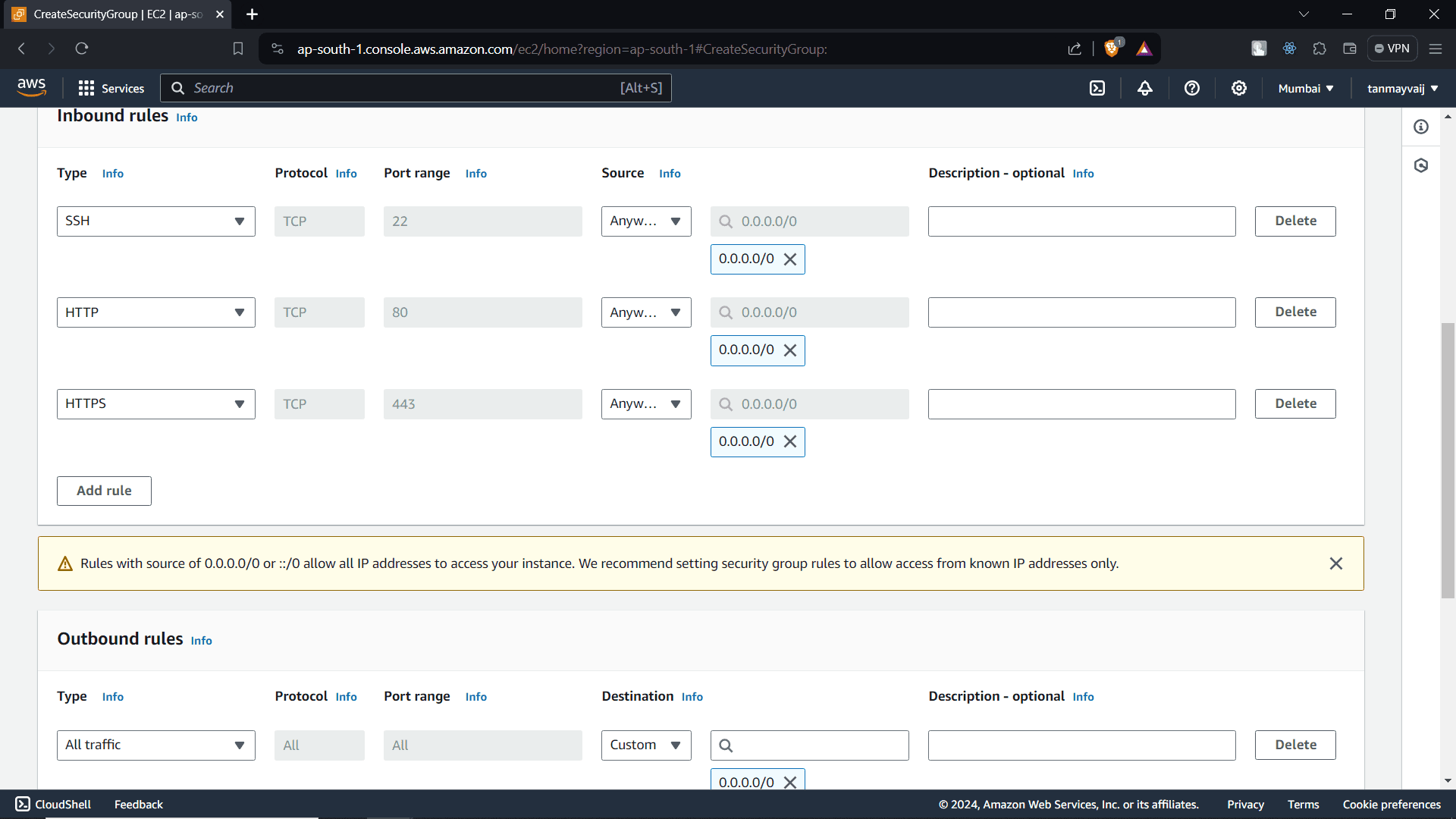
Step 3: Configure Security Group Inbound Rules (Ports 22, 80, 443)
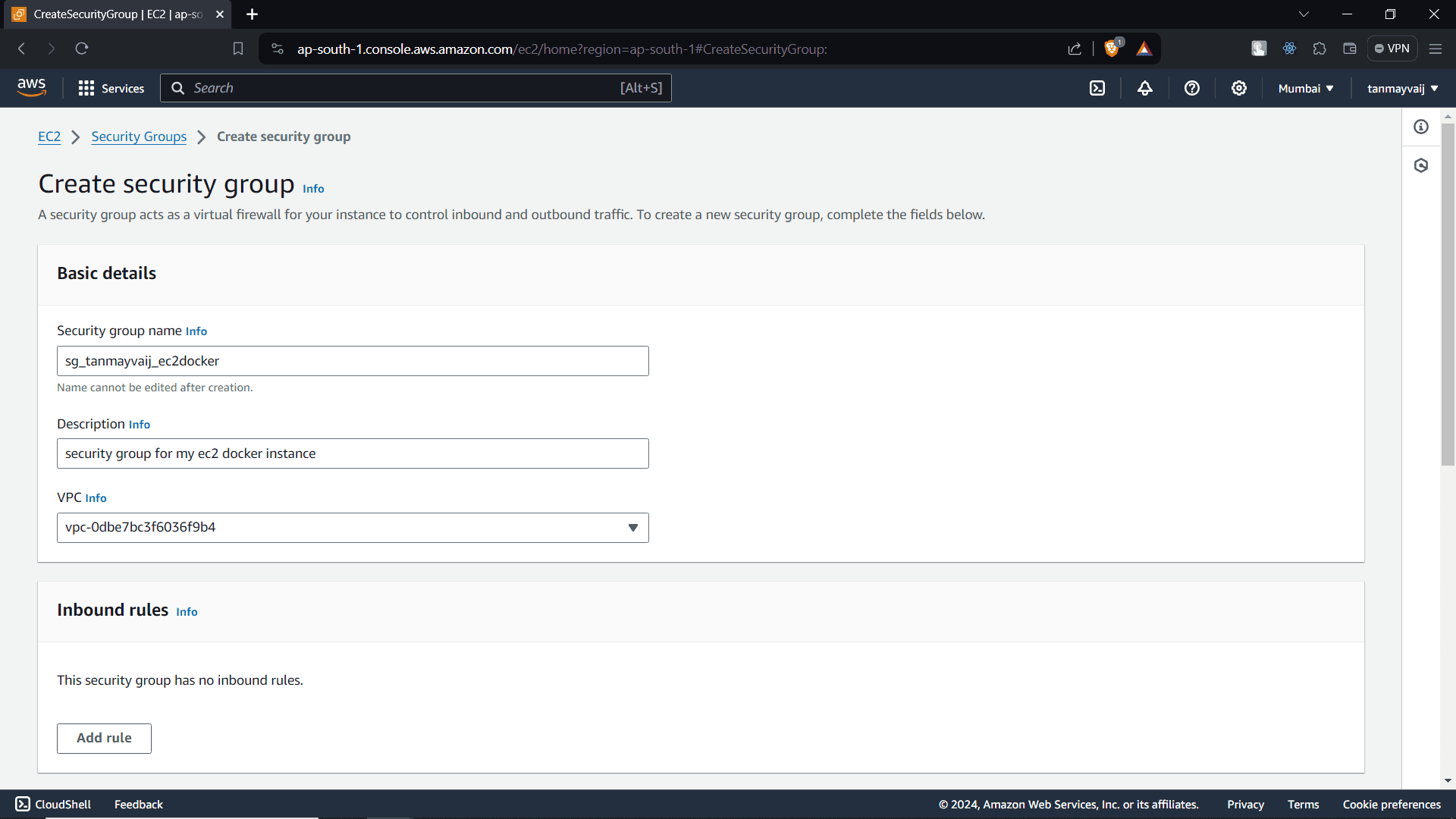
Give your security group a name (e.g., docker-sg) and a description. In the Inbound rules section, add three rules:
| Type | Protocol | Port Range | Source |
|---|---|---|---|
| SSH | TCP | 22 | My IP |
| HTTP | TCP | 80 | Anywhere |
| HTTPS | TCP | 443 | Anywhere |
In the Outbound rules, leave the default All traffic to allow all outbound communication. Click Create security group.
Step 4: (Optional) Allow Additional Ports Later
We’ll add port 7089 later for testing a web server. You can do that when needed.
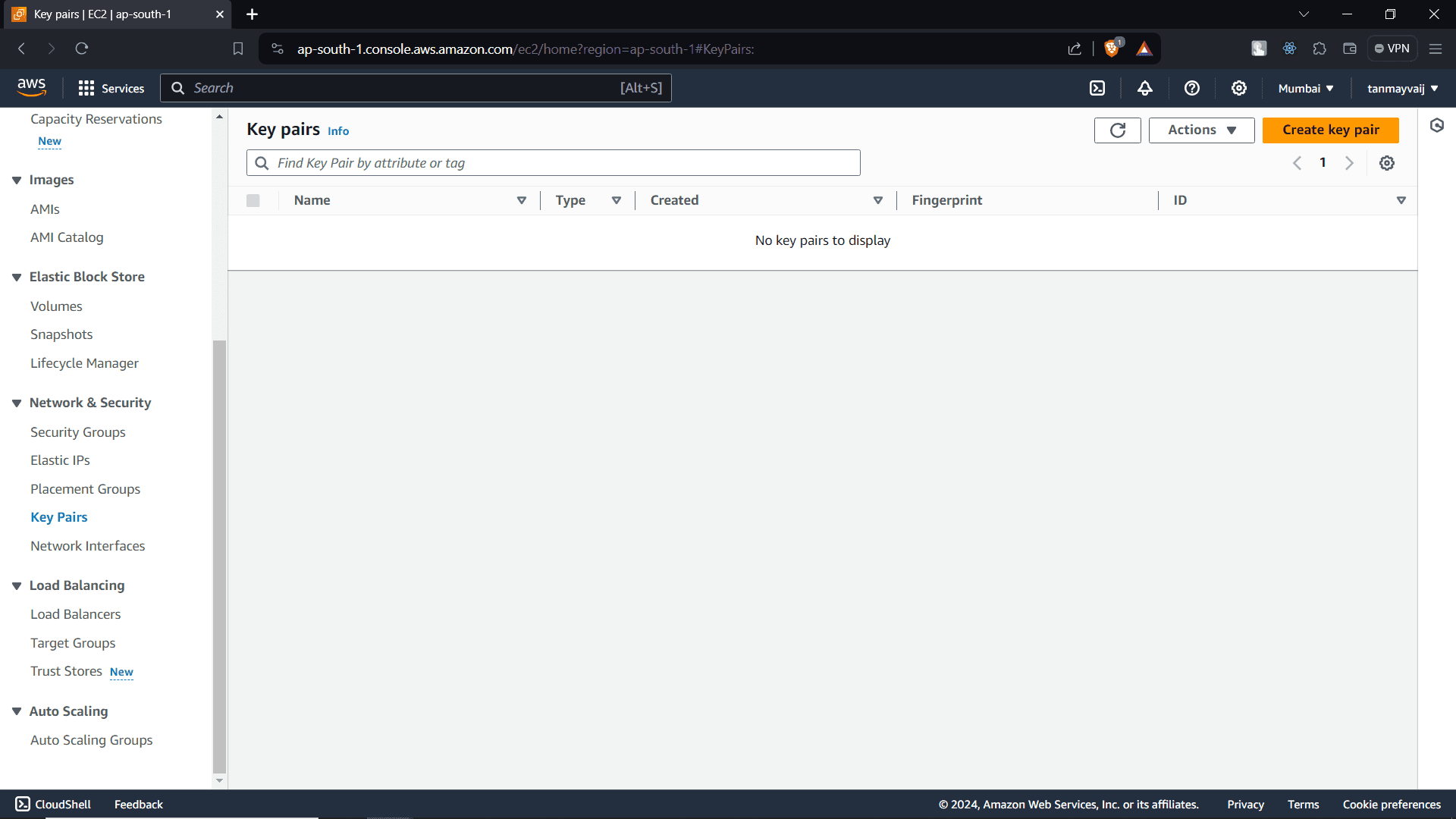
Step 5: Create a Key Pair
In the EC2 sidebar, under Network & Security, click Key Pairs. Then click Create key pair.
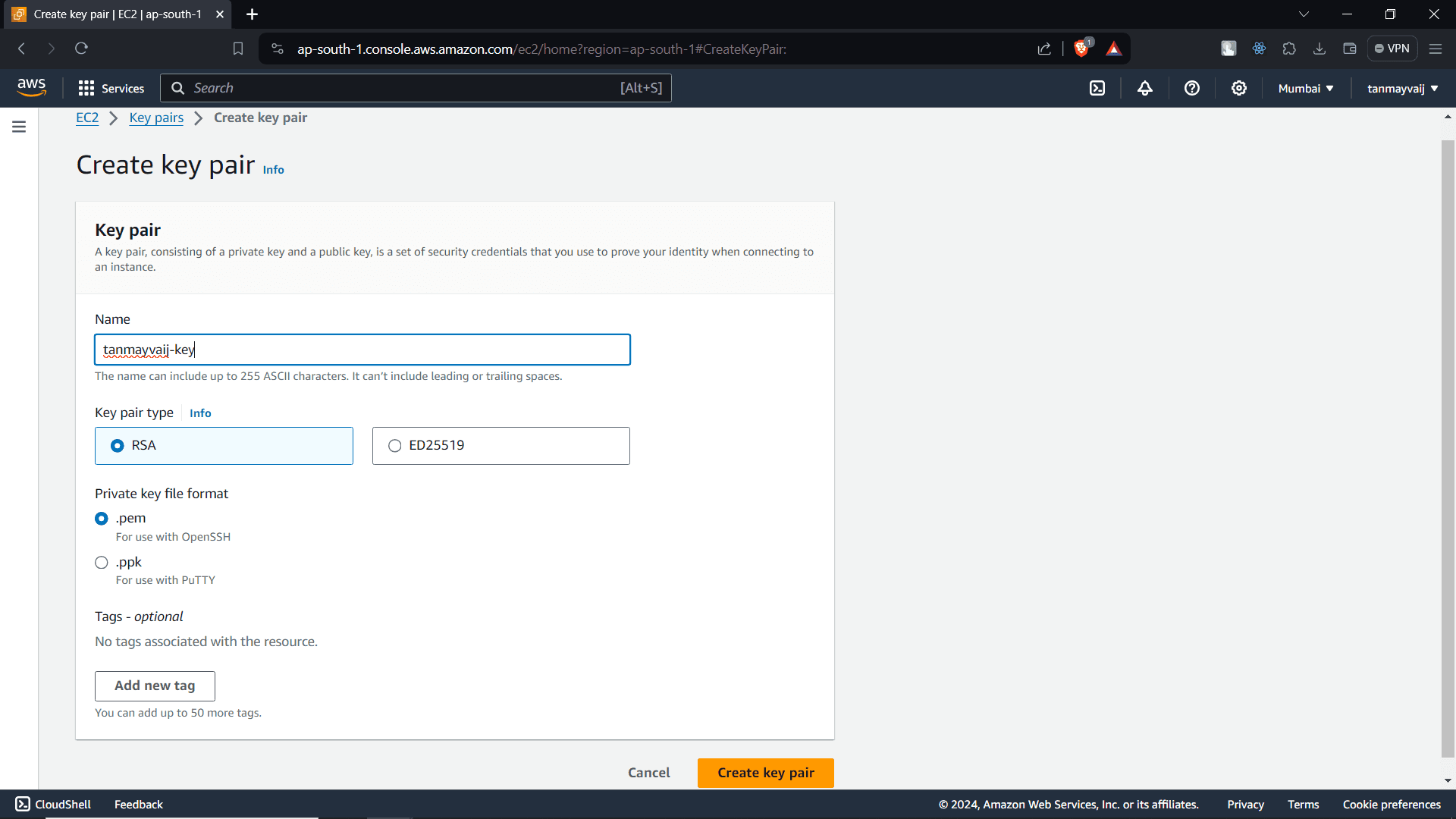
Step 6: Name the Key and Set Options
Provide a name for your key pair (e.g., docker-key). Keep the default RSA as the key pair type and .pem as the private key file format. Click Create key pair. The key file will download automatically; store it securely—you’ll need it to SSH into your instance.
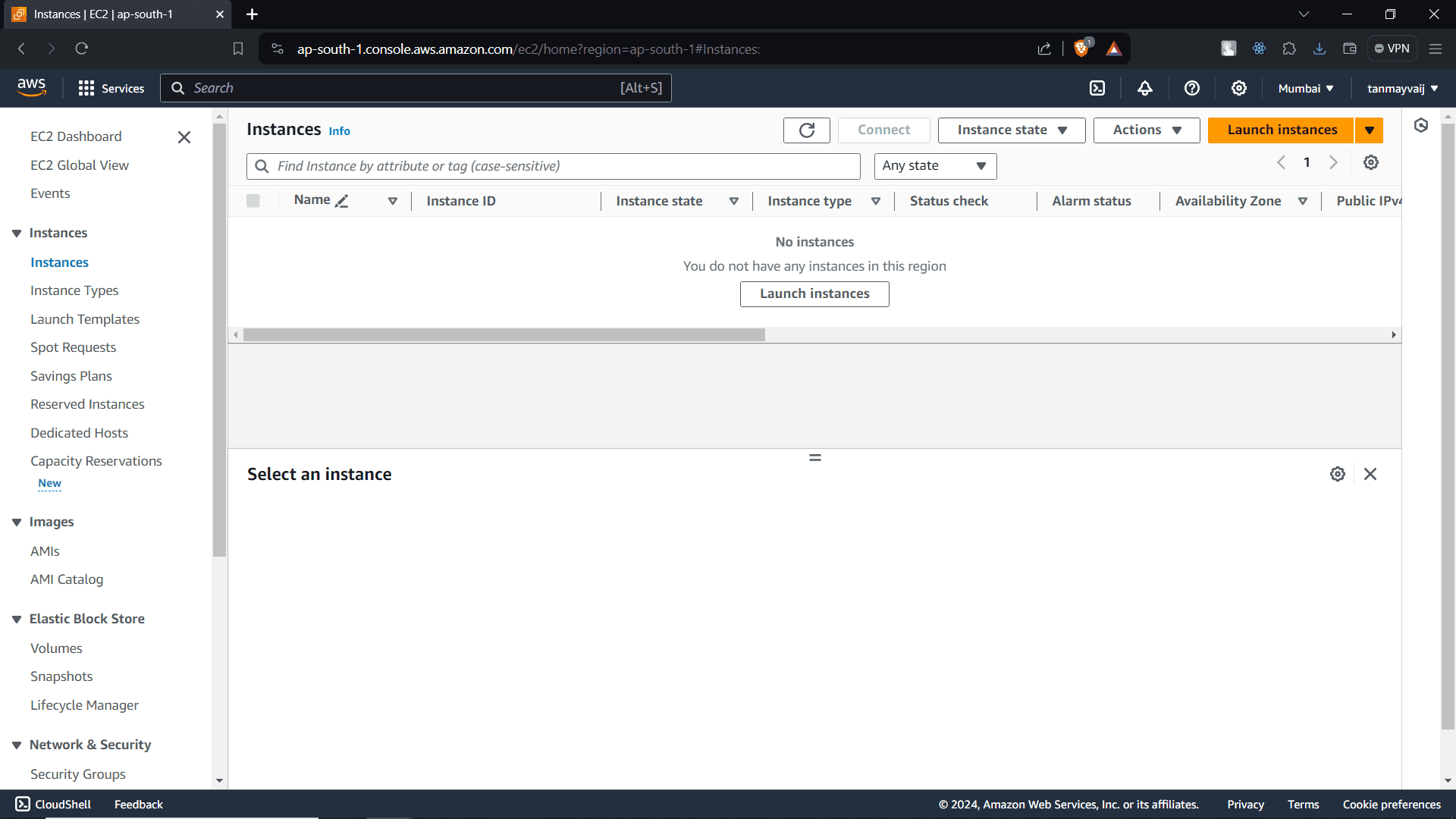
Step 7: Launch an EC2 Instance
In the EC2 dashboard, click the orange Launch instances button.
Step 8: Name the Instance and Select Ubuntu OS
Give your instance a name (e.g., Docker-Host). Under Application and OS Images, select Ubuntu Server 22.04 LTS (HVM) – it’s free tier eligible.
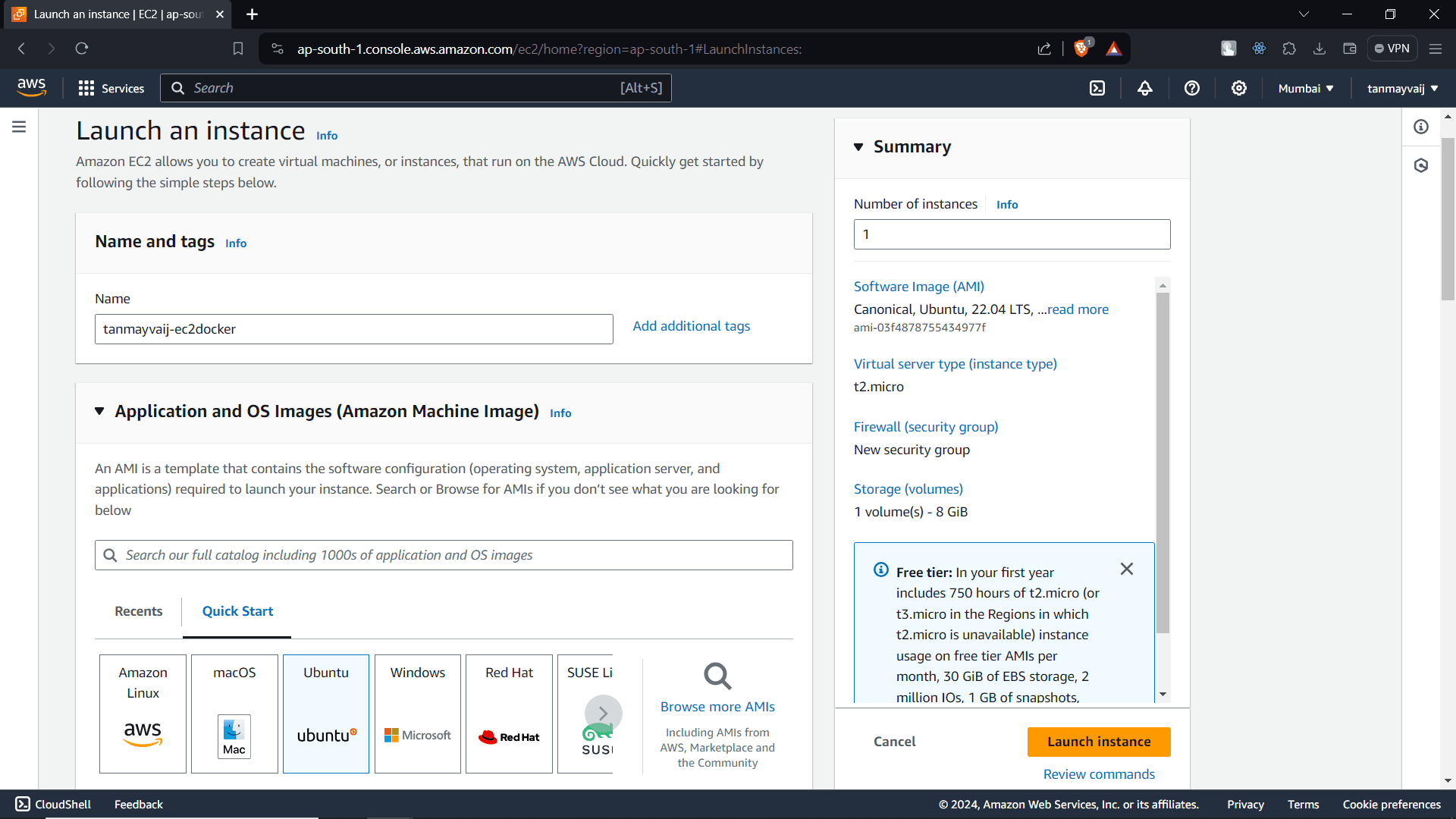
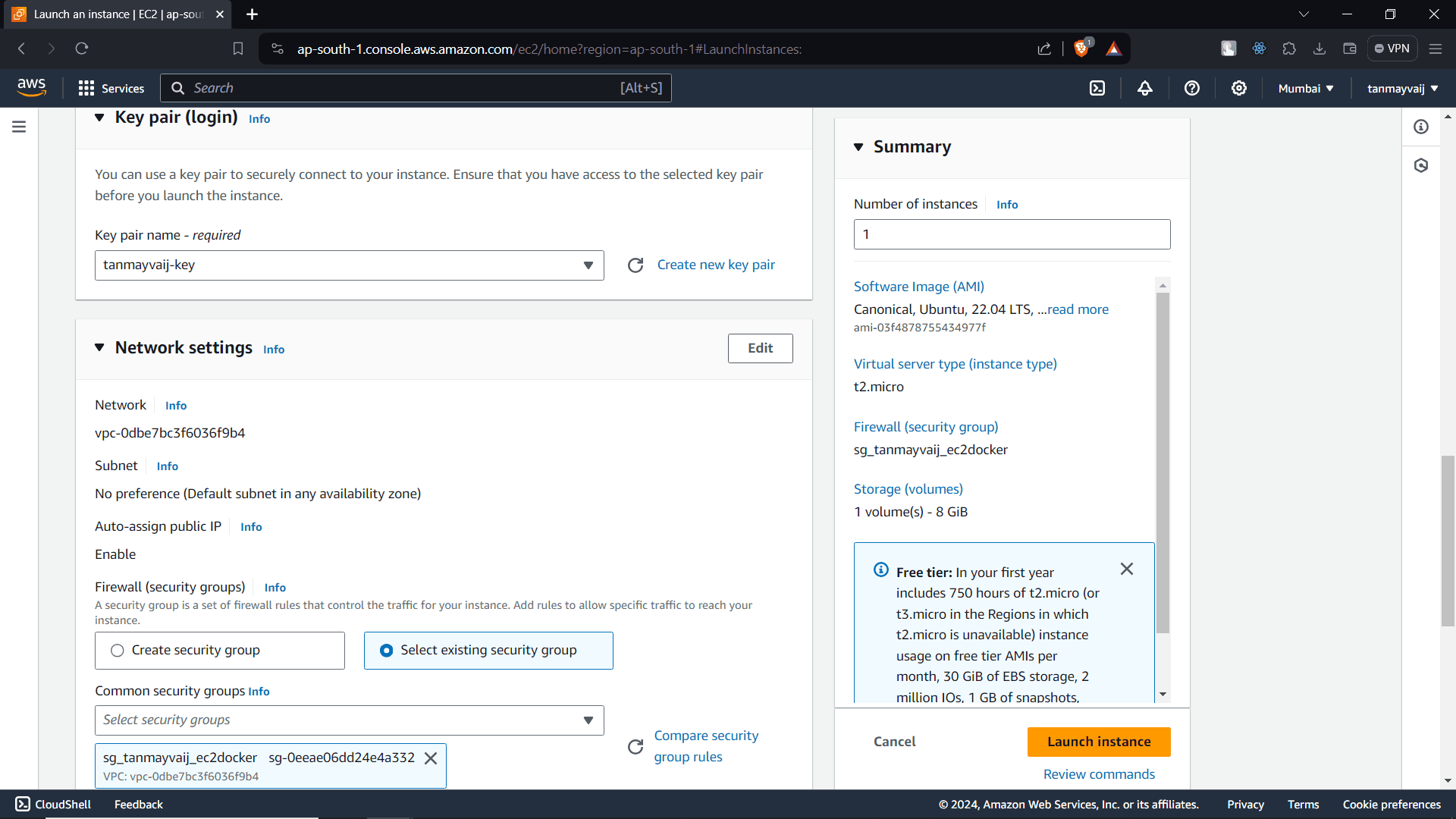
Step 9: Choose Security Group and Key Pair
Under Key pair (login), select the key pair you created (docker-key). Under Network settings, click Edit and select the security group you created earlier (docker-sg). Keep the instance type as t2.micro (free tier). Then click Launch instance.
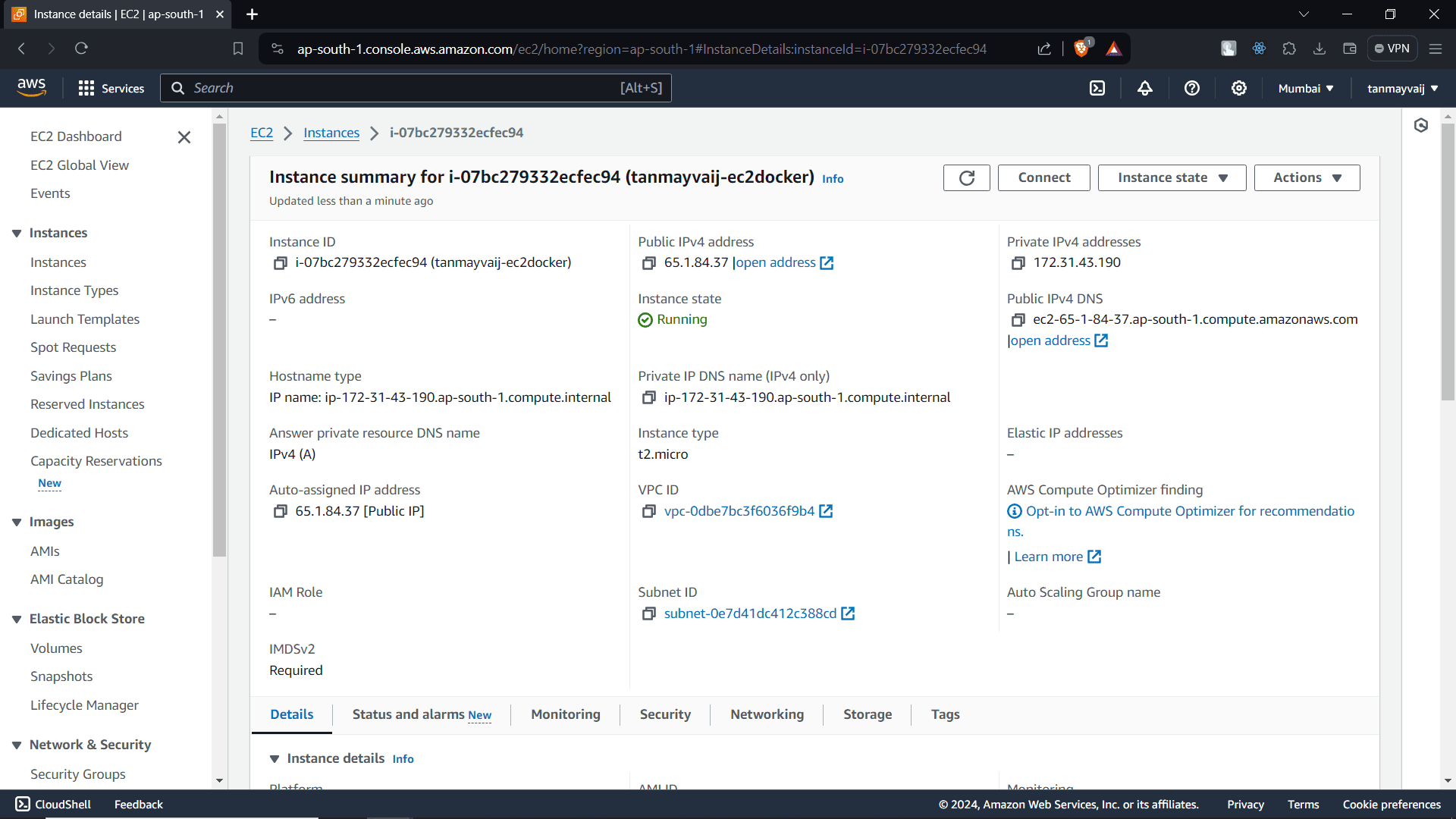
Step 10: Connect to the Instance
After the instance is running (status checks passed), select it in the Instances list and click the Connect button.
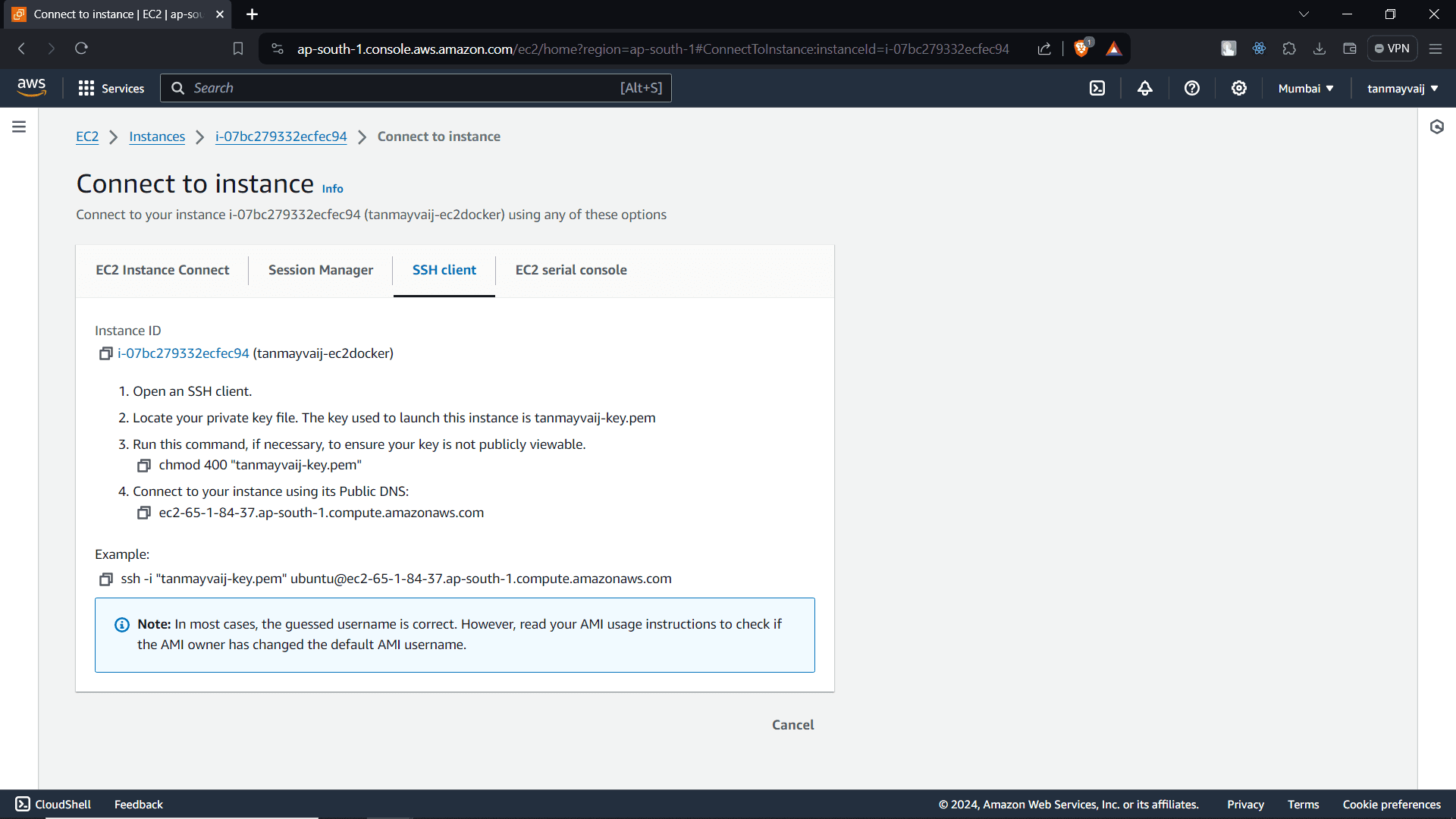
Step 11: Use SSH Client to Connect
In the Connect to instance page, go to the SSH client tab. You’ll see an example command that looks like:
ssh -i "docker-key.pem" ubuntu@<your-instance-public-ip>Copy this command and run it in your local terminal (make sure your key file has proper permissions: chmod 400 docker-key.pem).
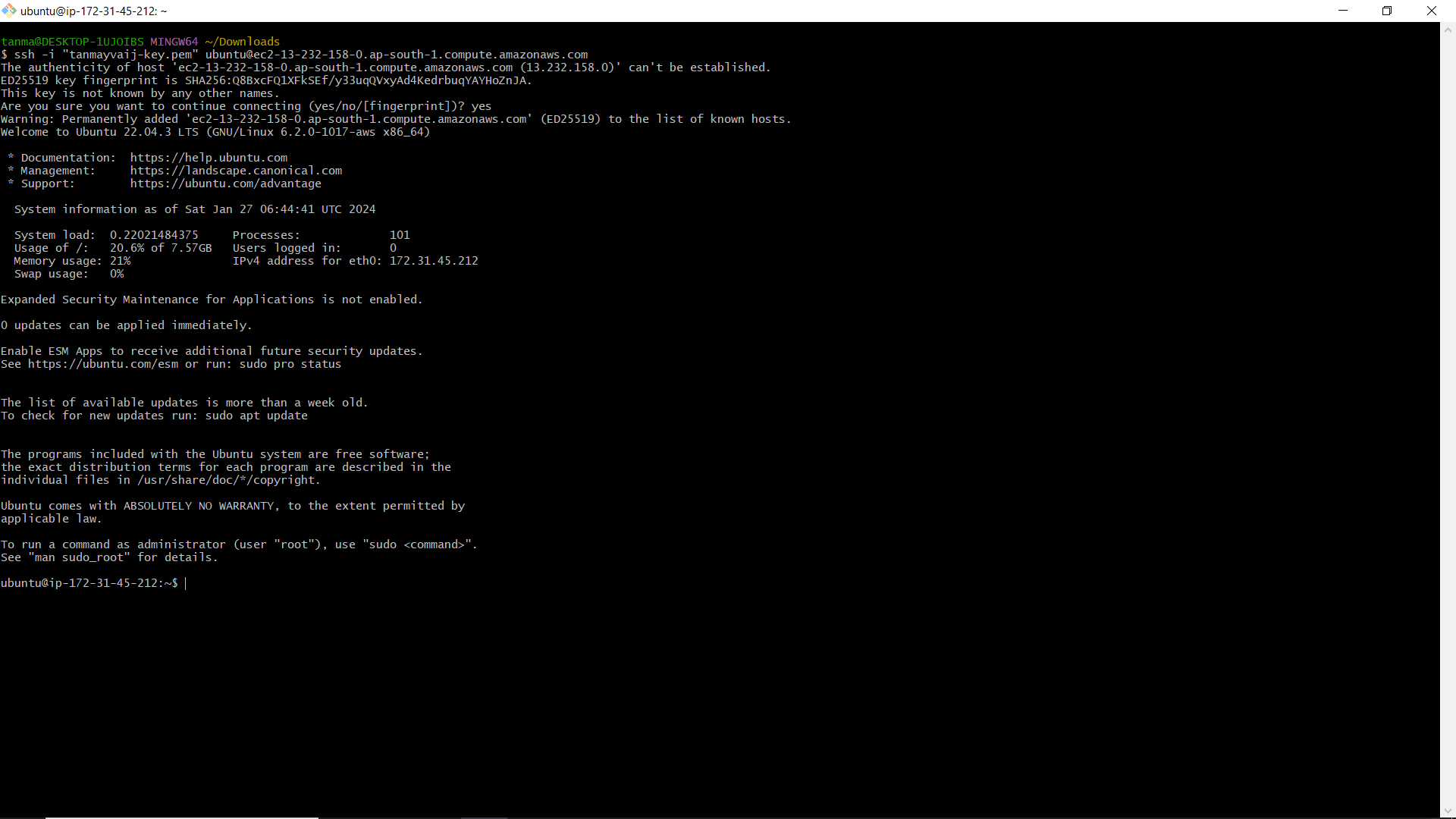
Step 12: Successfully Connected
After running the SSH command, you should see a welcome message and the Ubuntu command prompt. You are now logged into your EC2 instance.
Step 13: Set Up Docker Repository
Now we’ll install Docker. First, update the package list and install required dependencies:
sudo apt-get update -y
sudo apt-get install -y apt-transport-https ca-certificates curl gnupg-agent software-properties-common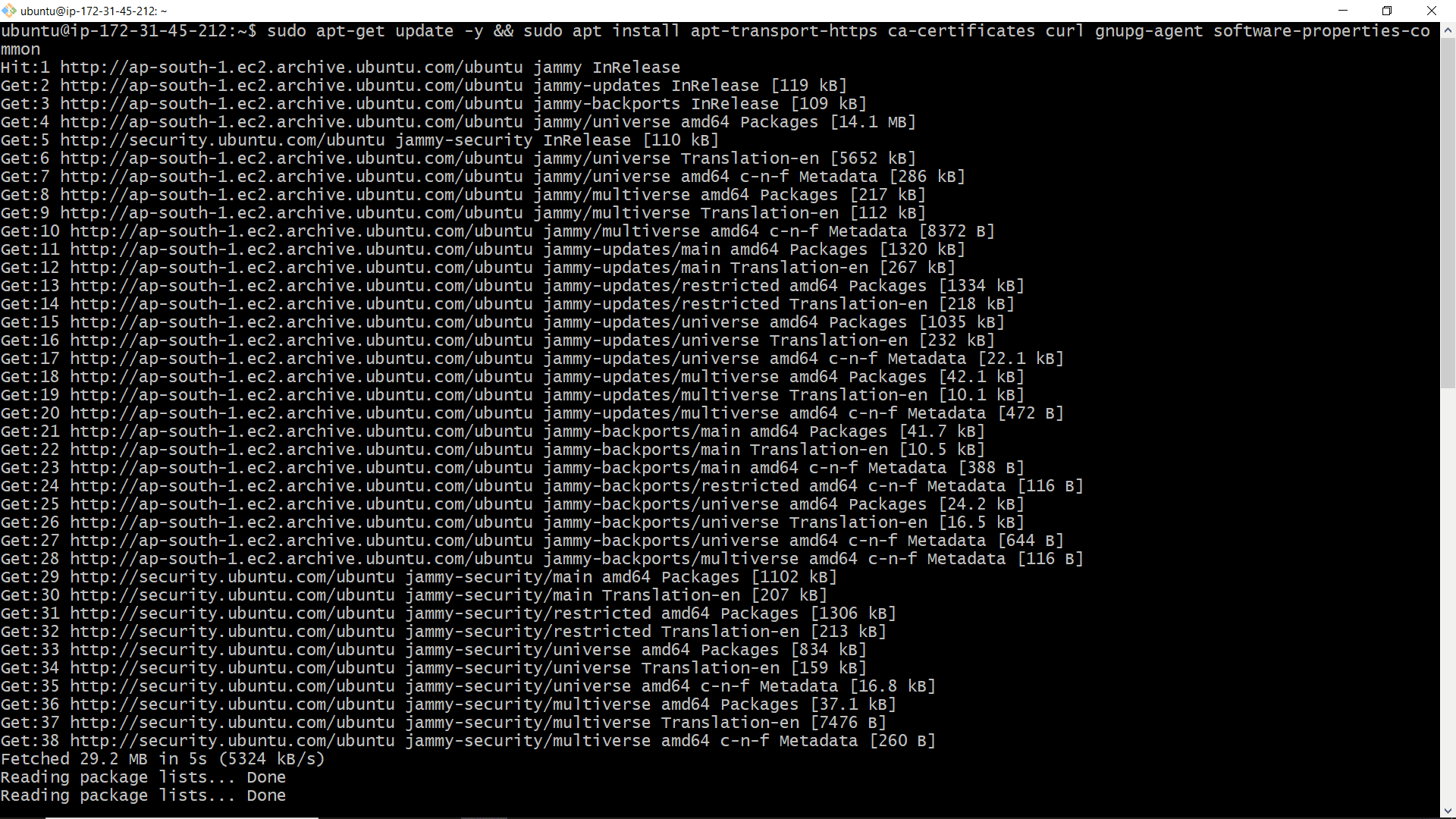
Step 14: Add Docker’s Official GPG Key and Repository
Add Docker’s GPG key to verify package signatures:
curl -fsSL https://download.docker.com/linux/ubuntu/gpg | sudo apt-key add -Then add the Docker repository:
sudo add-apt-repository "deb [arch=amd64] https://download.docker.com/linux/ubuntu $(lsb_release -cs) stable"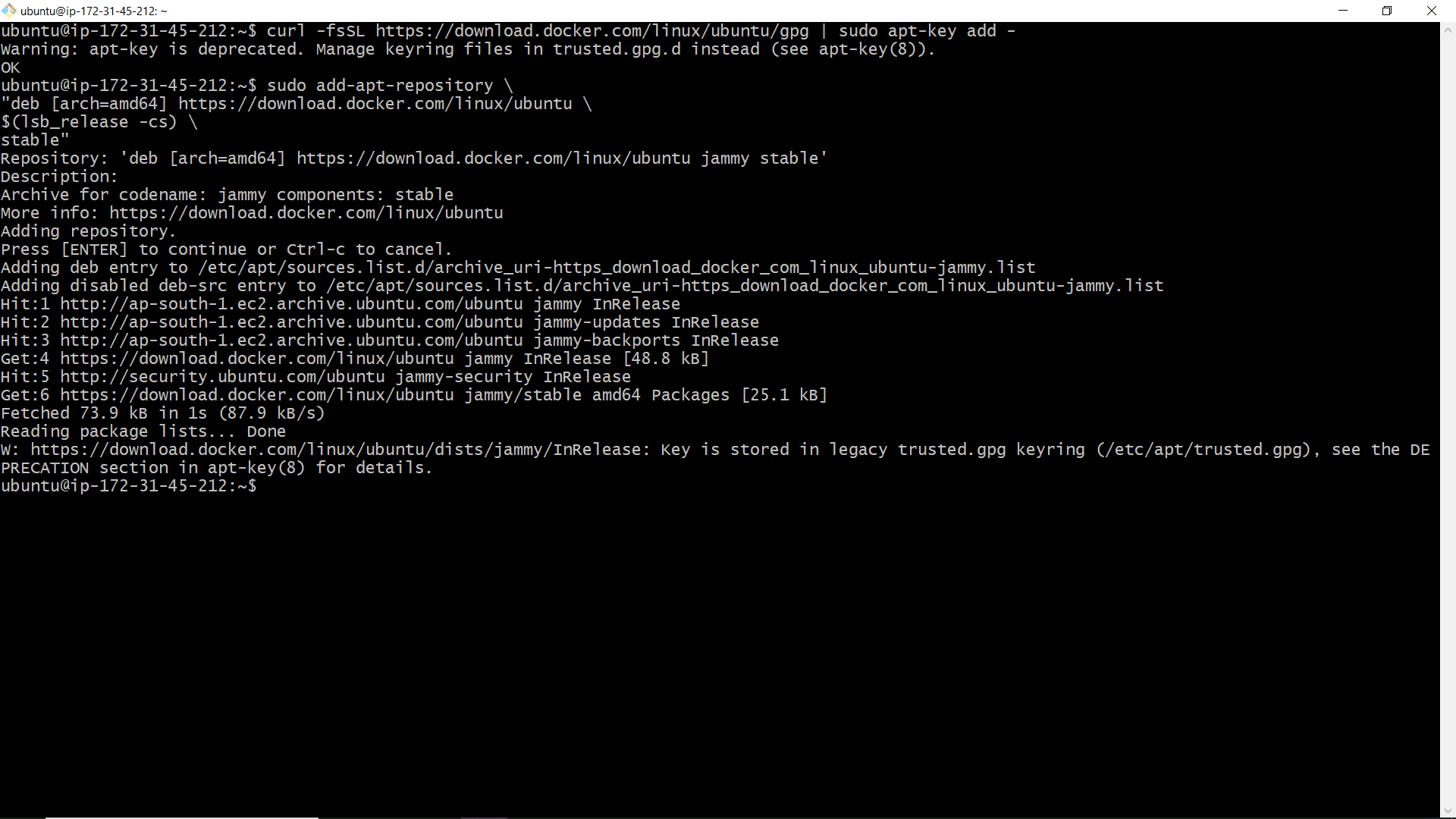
Step 15: Install Docker Engine
Update the package list again and install Docker:
sudo apt-get update -y
sudo apt-get install -y docker-ce docker-ce-cli containerd.io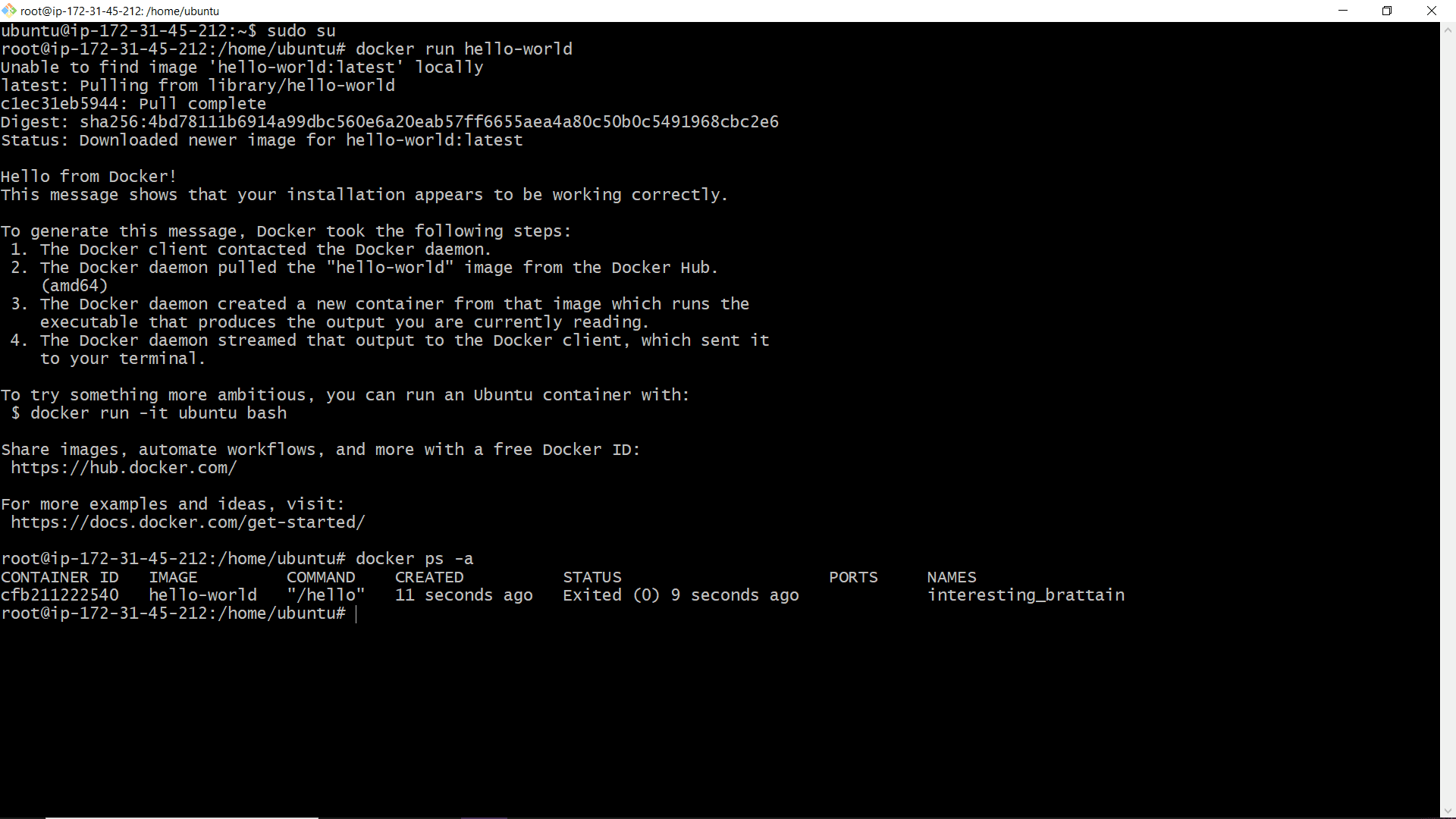
Step 16: Start Docker and Enable on Boot
Start the Docker service and enable it to start automatically on system boot:
sudo systemctl start docker
sudo systemctl enable docker
Verify Docker is running:
sudo systemctl status dockerYou can also run a test container:
sudo docker run hello-world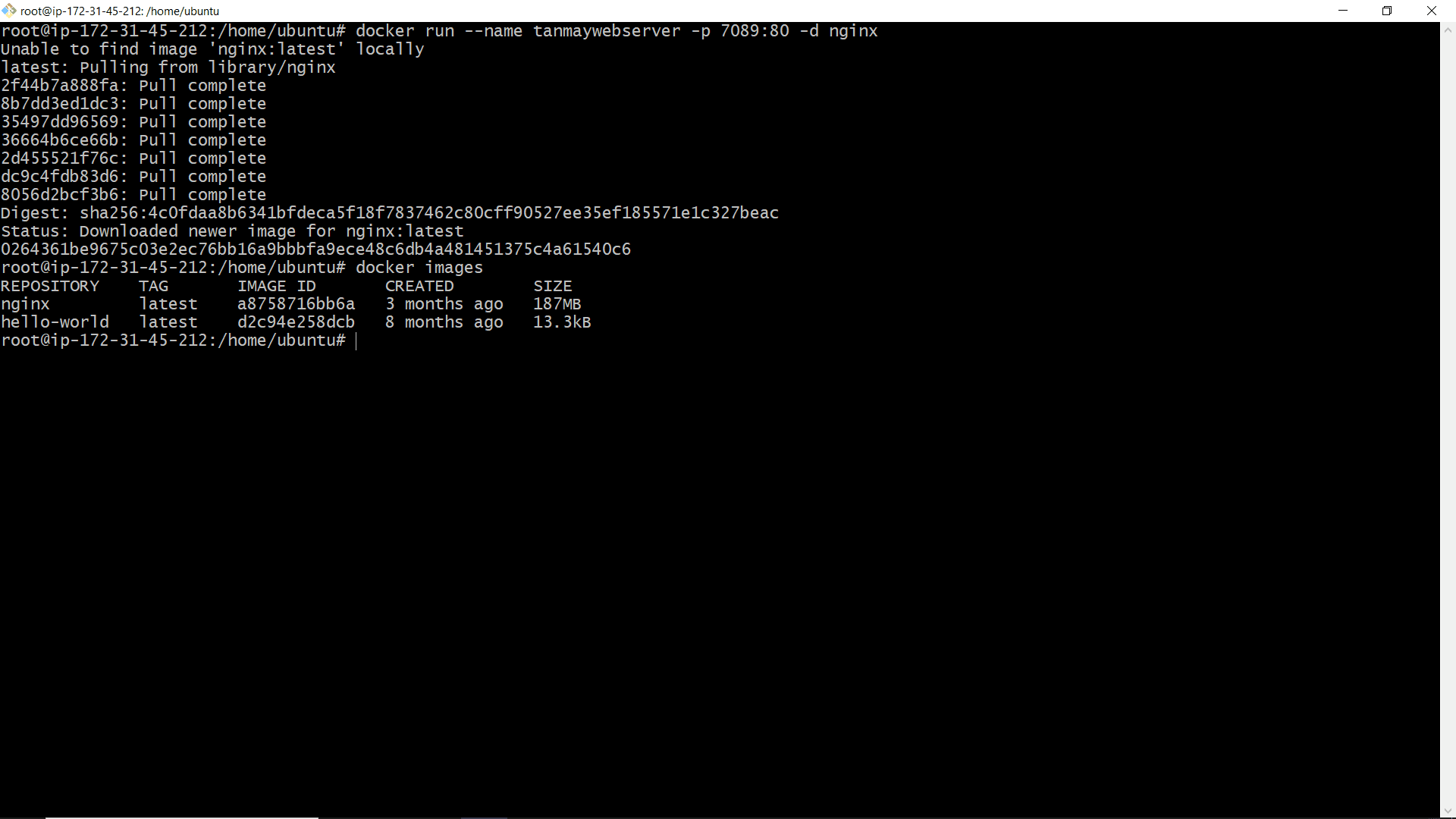
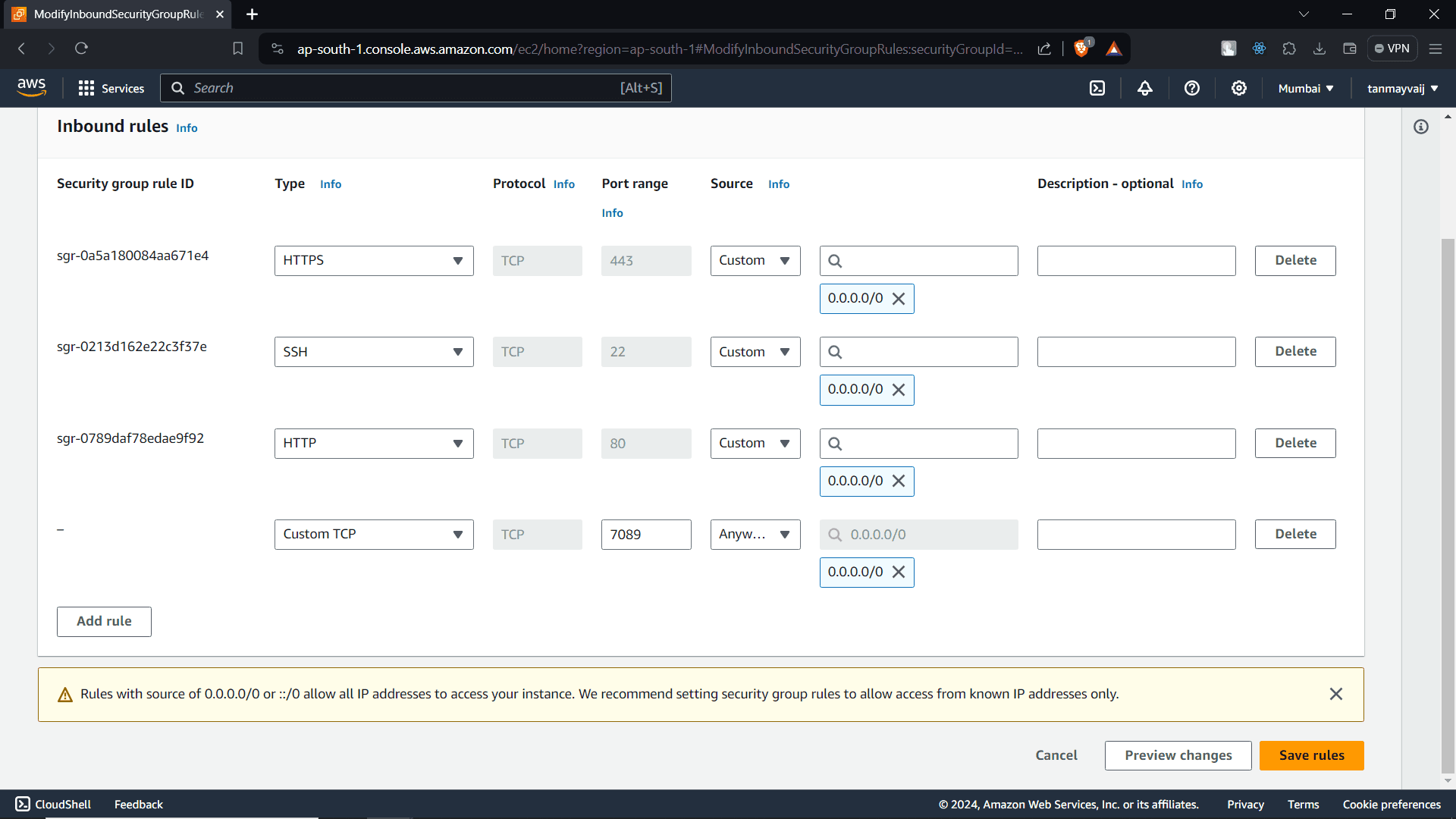
Step 17: Add Port 7089 to Security Group Inbound Rules
We’ll later run a container that might use port 7089. To allow external access, add a new inbound rule to your security group:
- Type: Custom TCP
- Port Range: 7089
- Source: Anywhere (0.0.0.0/0)
You can do this from the AWS Console: go to EC2 → Security Groups → select your security group → Inbound rules → Edit inbound rules → Add rule.
Step 18: Access Instance Public IP with Port 7089
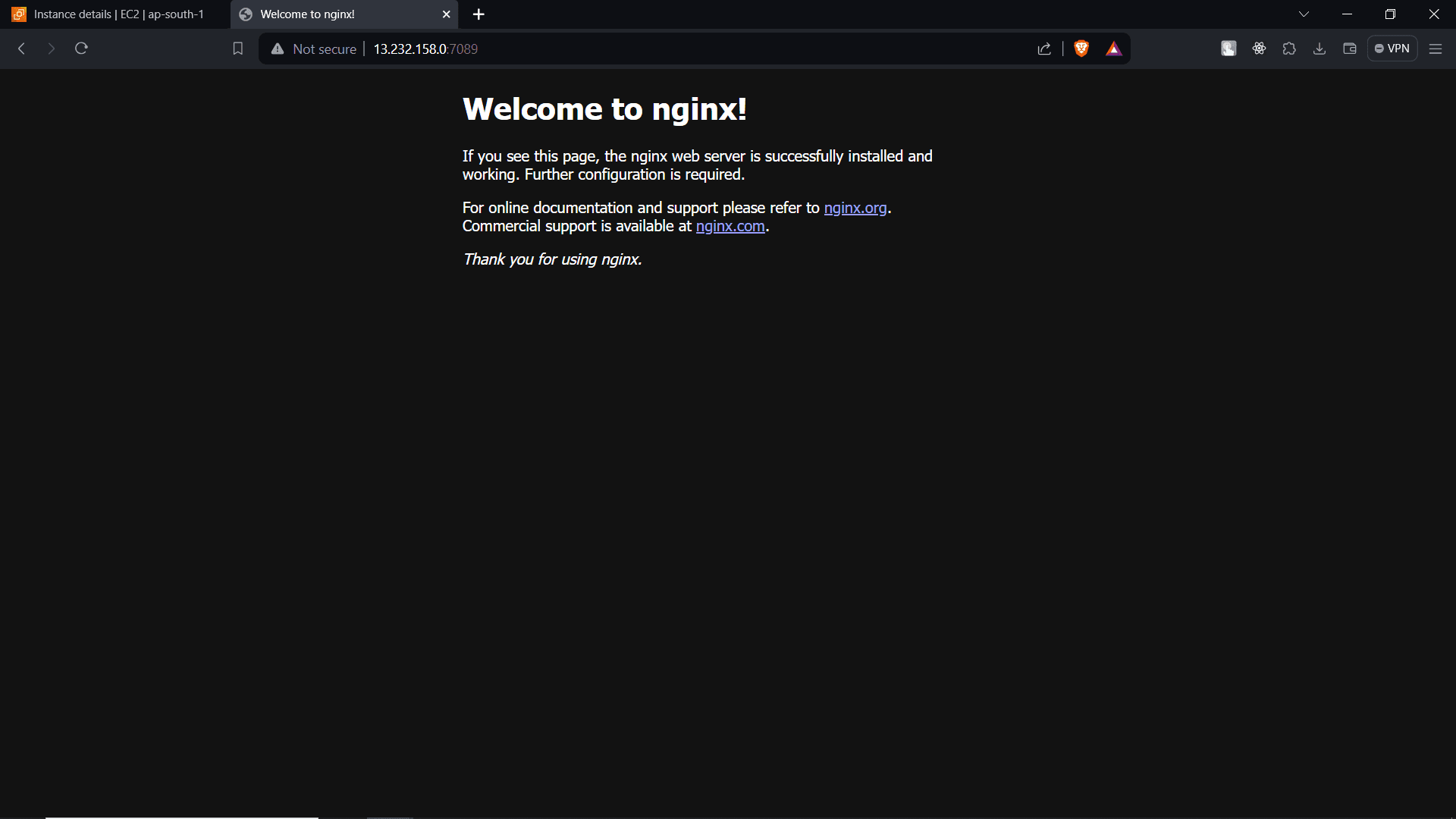
Copy the public IPv4 address of your EC2 instance from the Instances dashboard. Paste it into a browser with port 7089, e.g., http://<your-instance-ip>:7089. You may not see anything yet because no container is listening on that port. We’ll run containers soon.
Step 19: Run a Redis Container
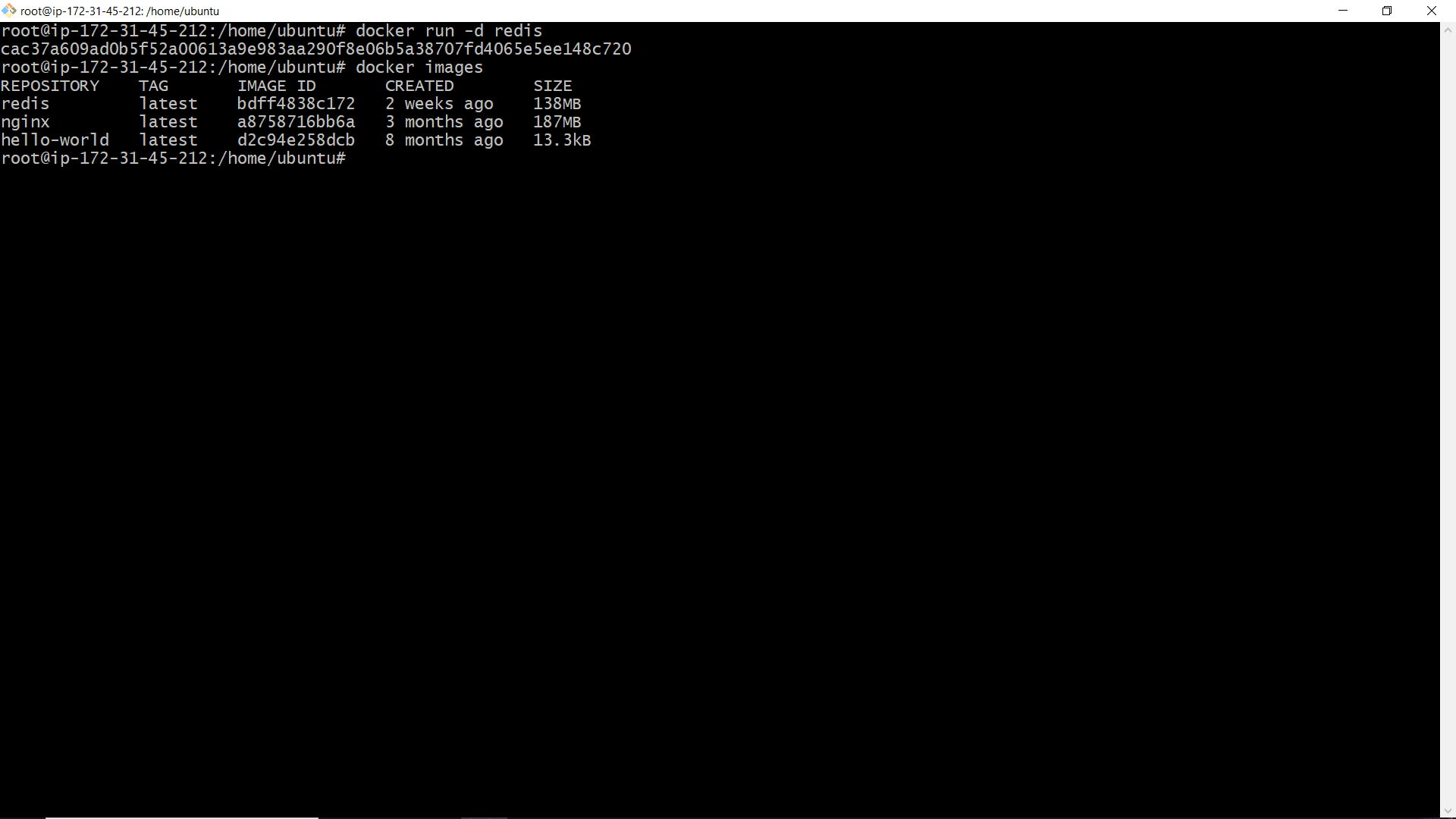
Now let’s pull and run a Redis container in detached mode:
sudo docker run -d redisThis command downloads the Redis image (if not present) and starts a container in the background. Note the container ID printed (e.g., cac37a609ad0). You can list running containers with sudo docker ps.
Step 20: Stop and Restart the Redis Container
Stop the Redis container using its container ID:
sudo docker stop cac37a609ad0Verify it’s stopped with sudo docker ps -a. Then restart it:
sudo docker start cac37a609ad0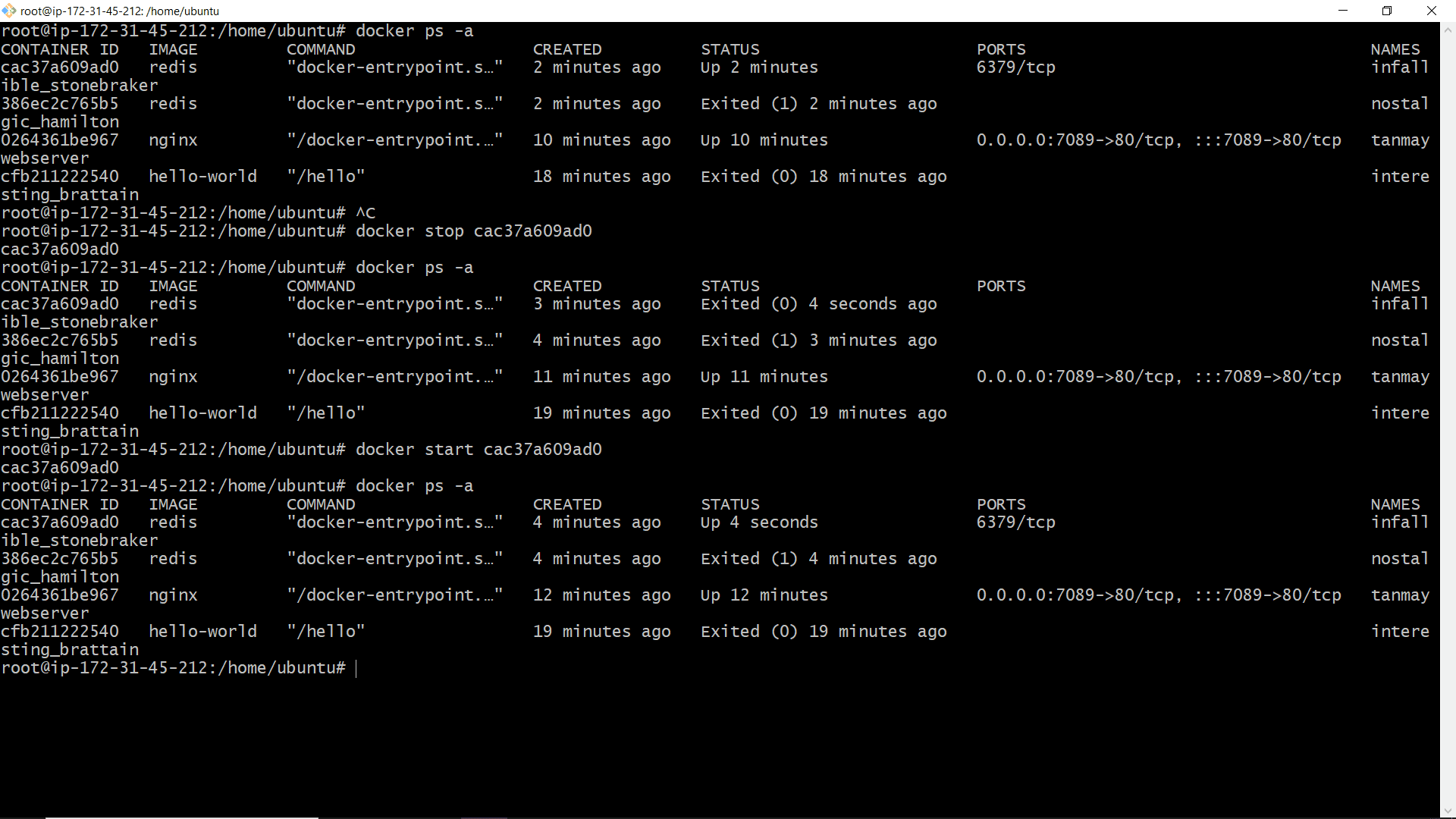
Step 21: Pause and Unpause the Redis Container
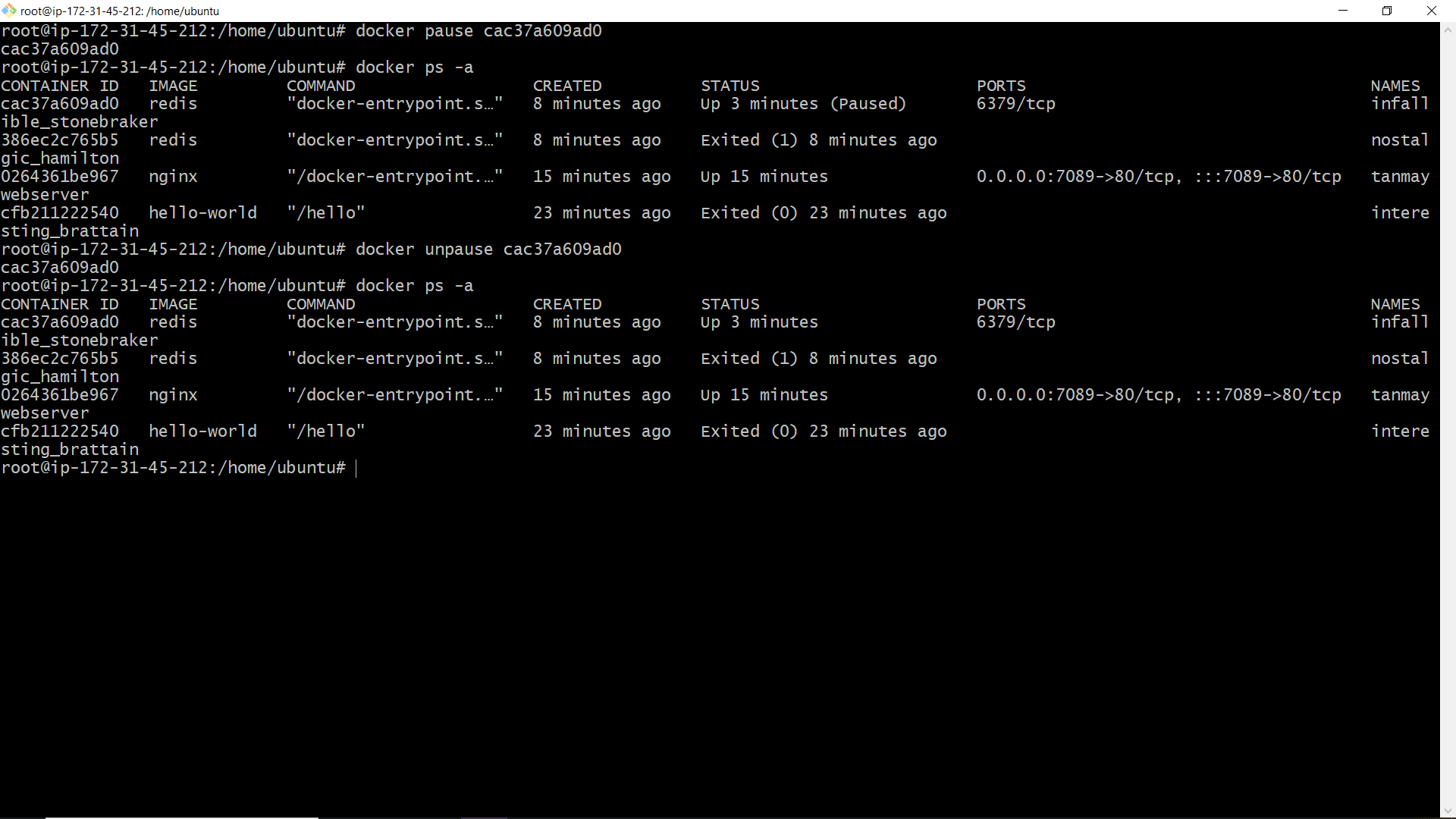
Pausing a container freezes its processes without stopping the container:
sudo docker pause cac37a609ad0To unpause:
sudo docker unpause cac37a609ad0You can see the status change in docker ps.
Step 22: Kill the Redis Container
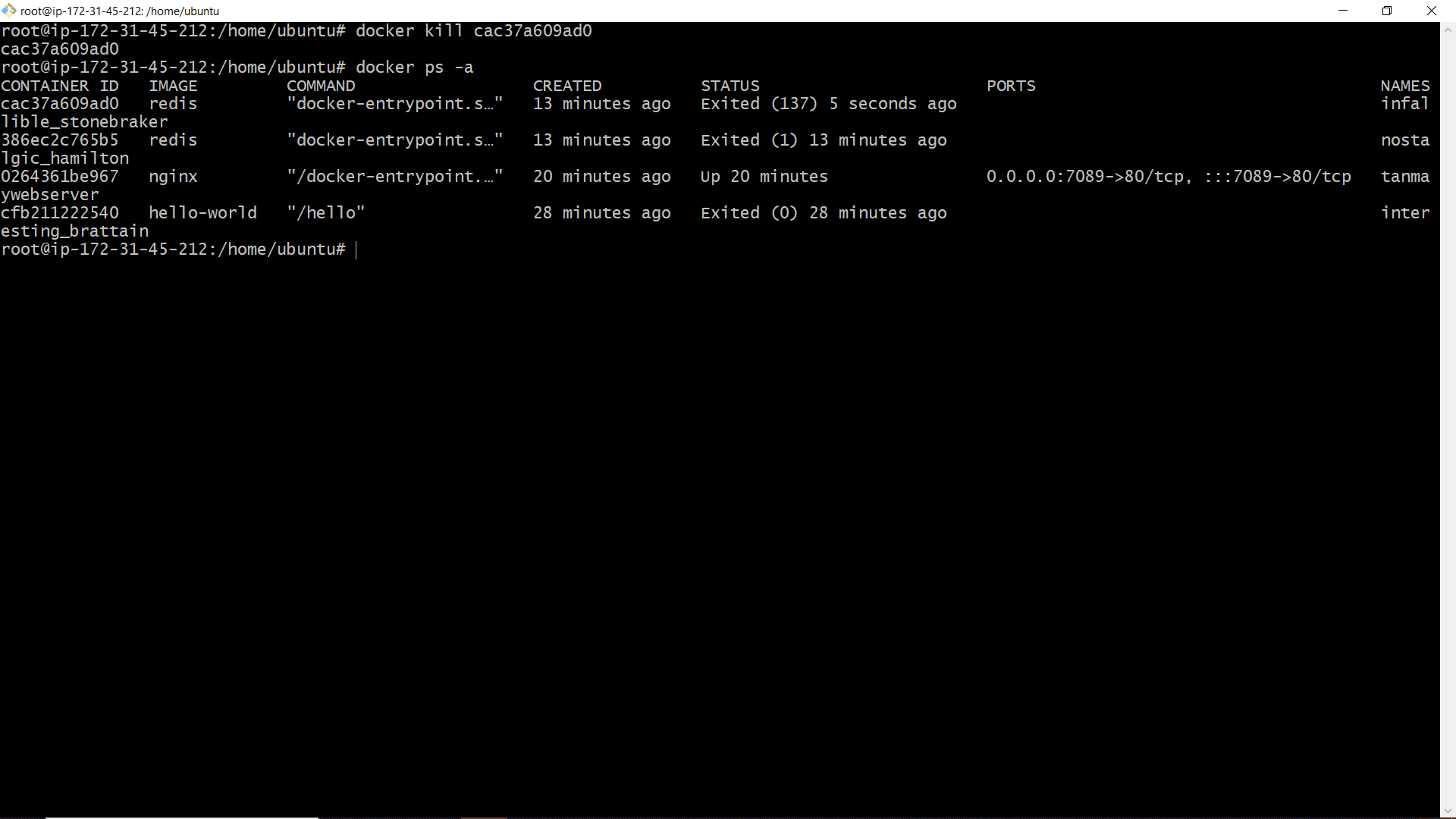
Killing a container sends a SIGKILL signal, forcefully stopping it:
sudo docker kill cac37a609ad0After killing, the container is stopped. Use docker ps -a to see it with status “Exited”.
Step 23: Stop, Restart, and Pause an Nginx Container
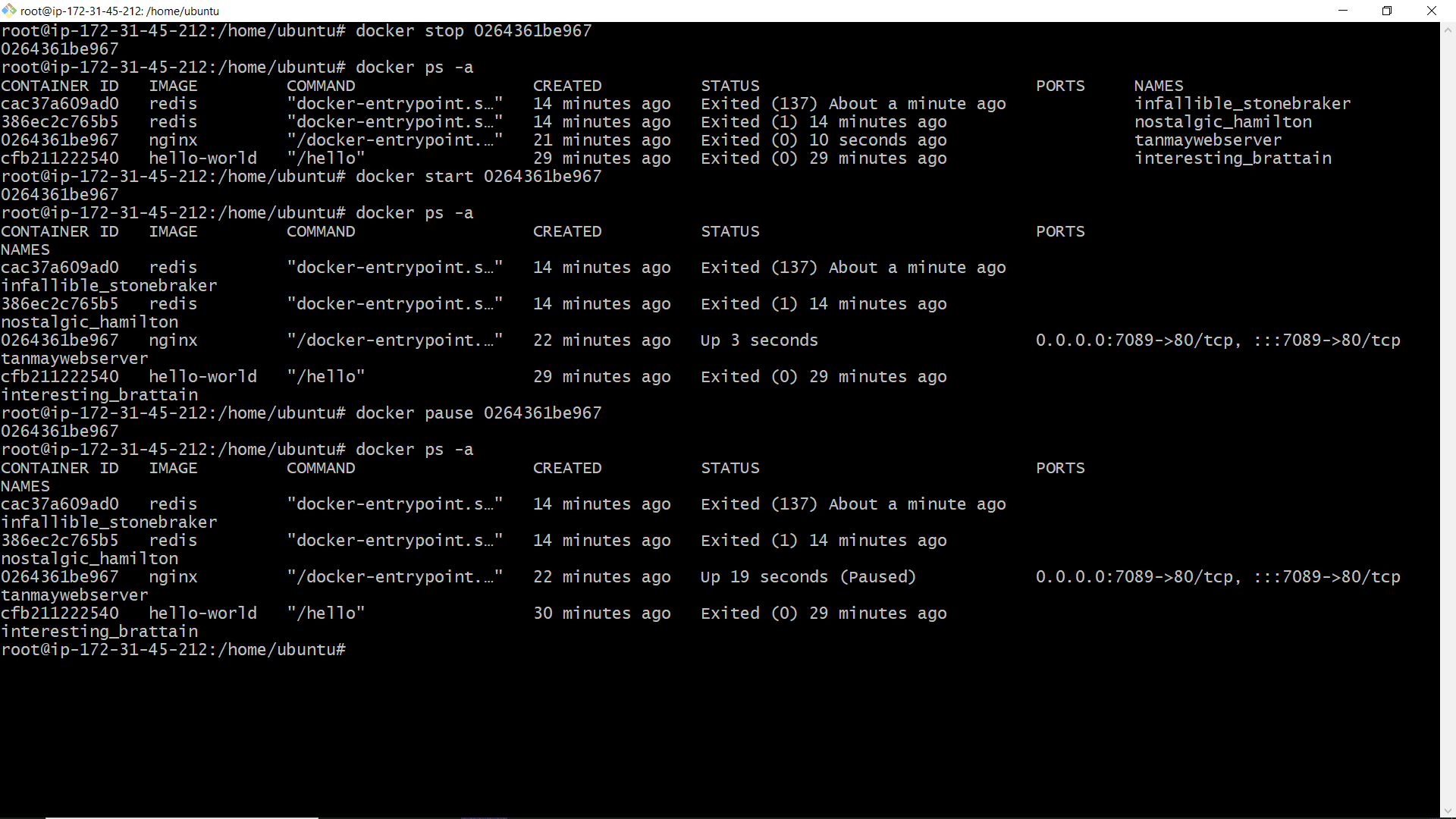
Run an Nginx container (you can use a different ID each time):
sudo docker run -d nginxNote its container ID (e.g., 0264361be967). Now practice:
- Stop:
sudo docker stop 0264361be967 - Restart:
sudo docker start 0264361be967 - Pause:
sudo docker pause 0264361be967
Step 24: Unpause and Kill the Nginx Container
Finally, unpause and kill the Nginx container:
sudo docker unpause 0264361be967
sudo docker kill 0264361be967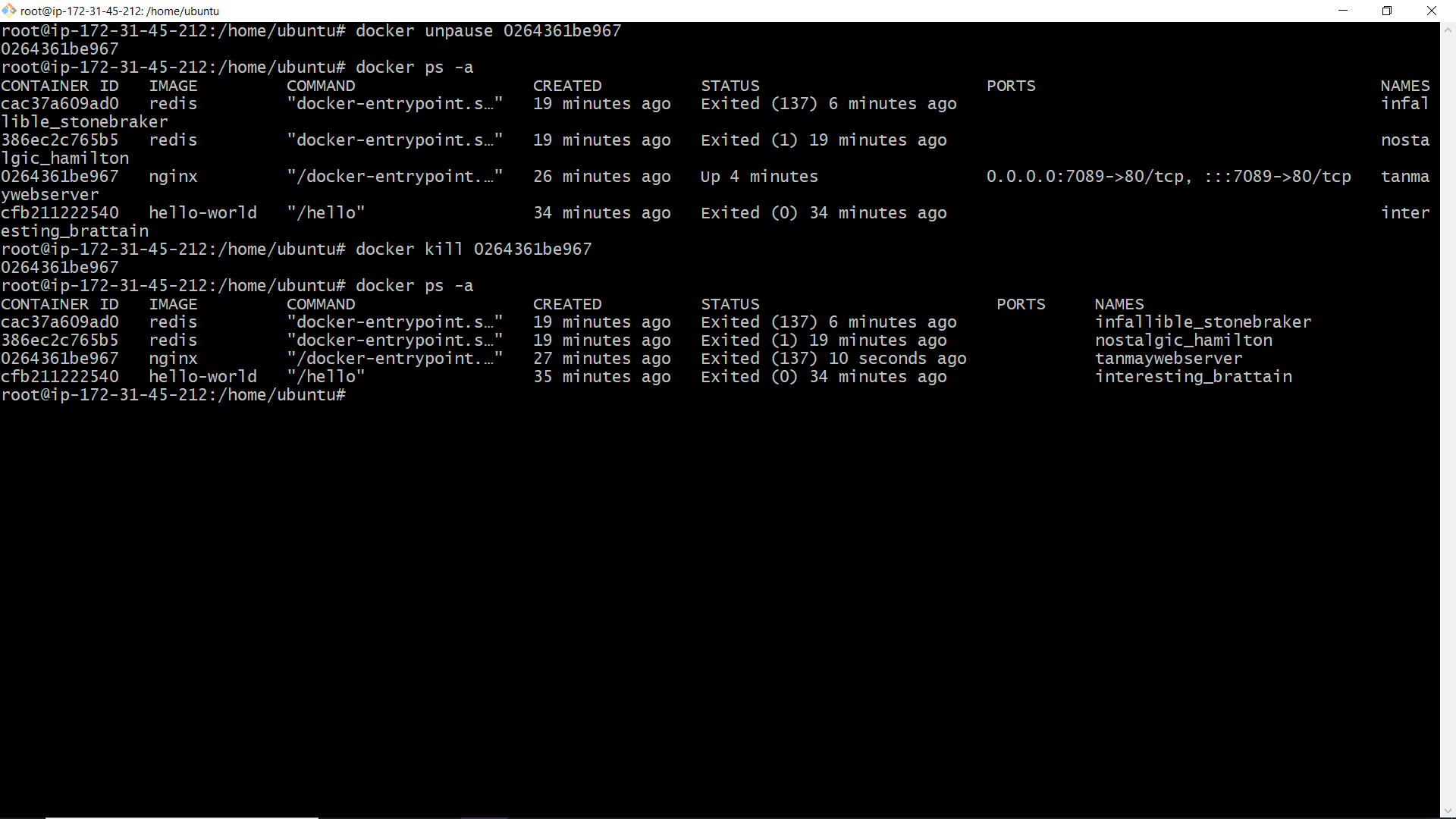
Conclusion
You’ve successfully installed Docker on an AWS EC2 instance and performed various lifecycle operations on containers. You now know how to:
- Launch an EC2 instance with the right security groups
- Install Docker from the official repository
- Run, stop, start, pause, unpause, and kill containers
- Manage containers like Redis and Nginx
These fundamental Docker commands are the building blocks for more advanced container orchestration and microservices deployments.
Cleanup
To avoid incurring charges, remember to:
- Terminate your EC2 instance
- Delete the security group (if no longer needed)
- Remove the key pair from AWS
Need more help? Check the Docker documentation or leave a comment below.
Happy containerizing! 🐳☁️