How to Create Custom Docker Images
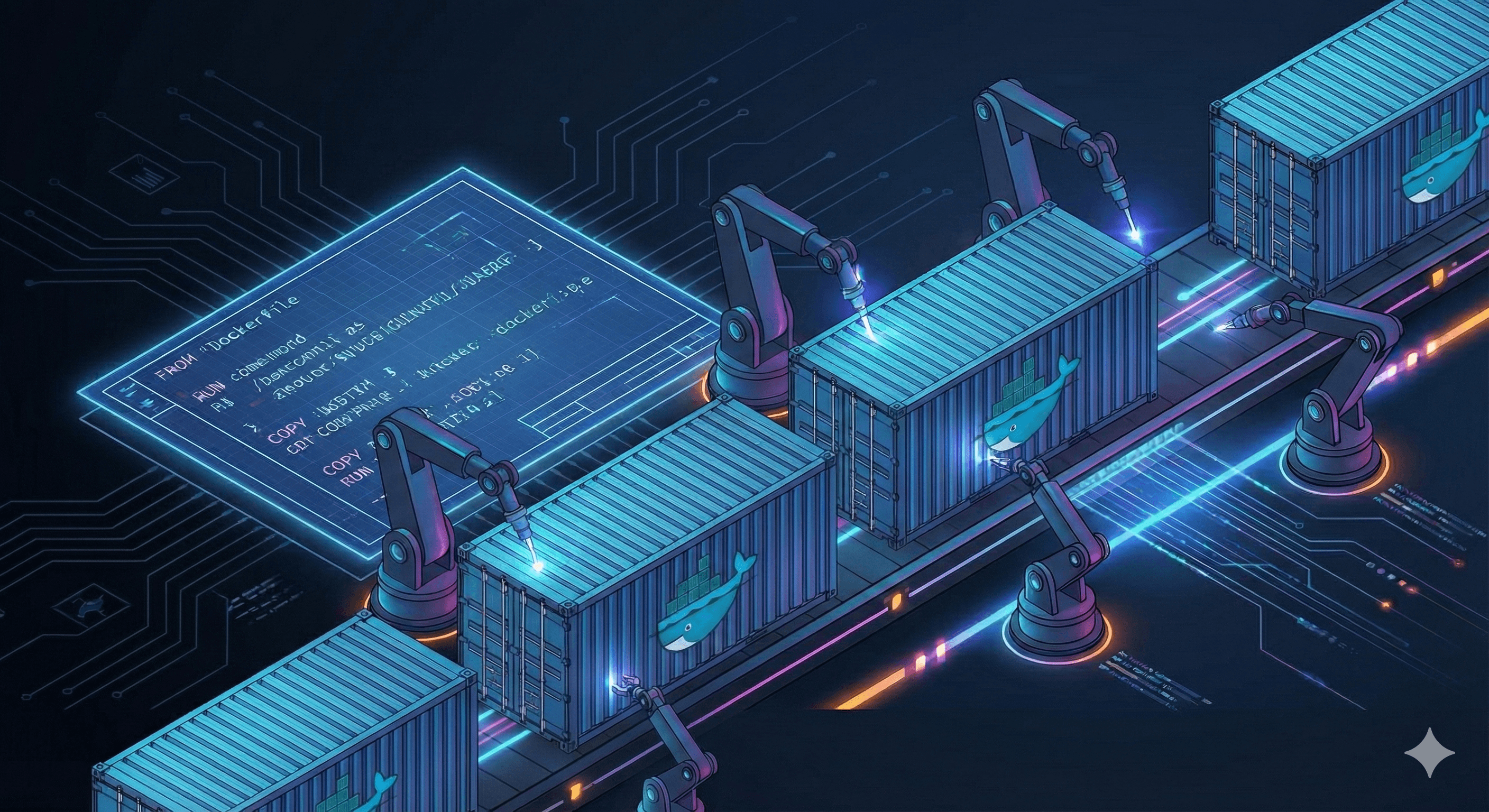
Creating a Docker Image on AWS EC2: Step-by-Step Guide
In this tutorial, we'll walk through the process of creating a custom Docker image on an AWS EC2 instance. You'll learn how to launch an EC2 instance, install Docker, write a Dockerfile, and build your first Docker image. This is the foundation for containerizing applications and sharing them via Docker Hub.
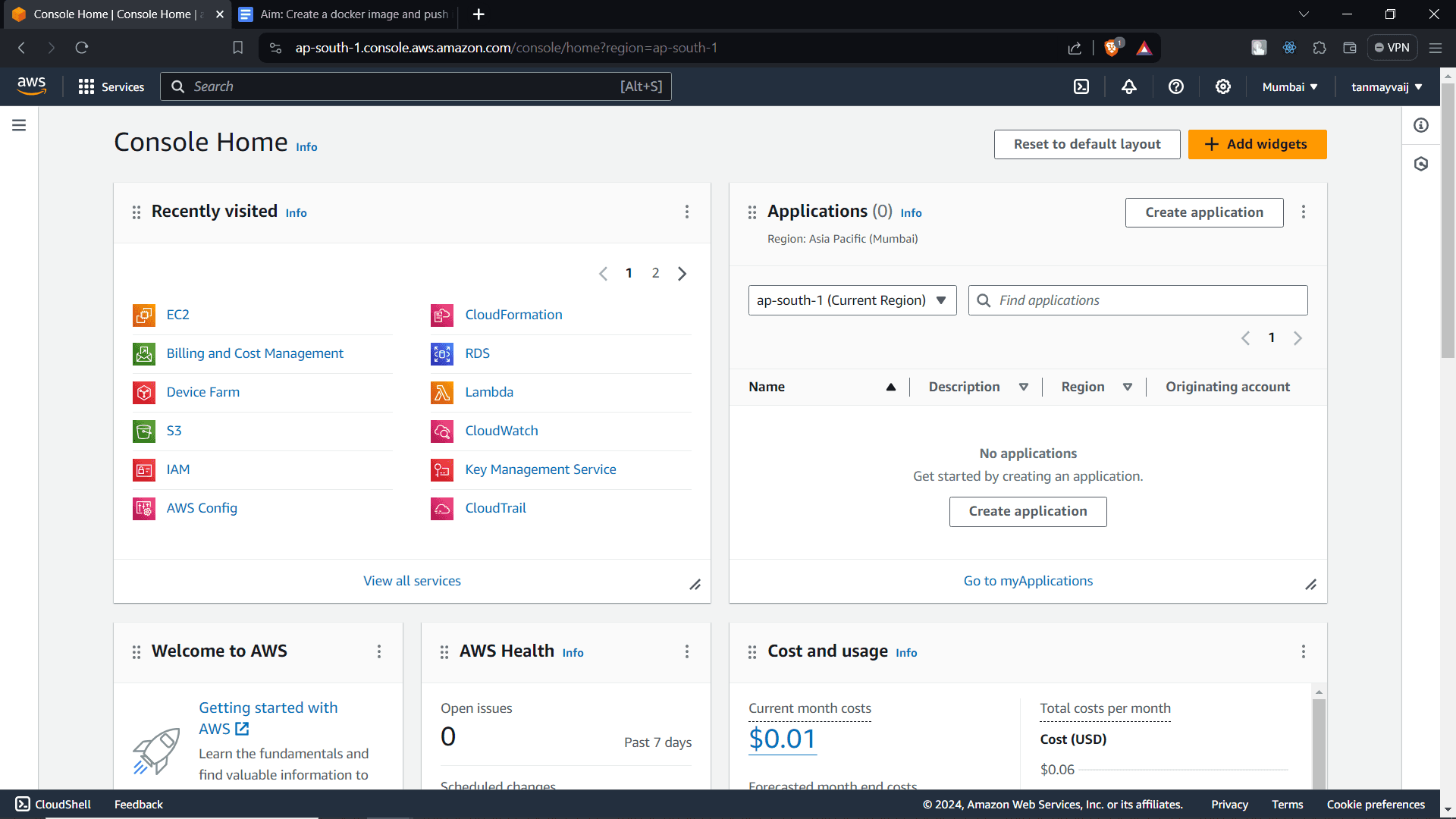
Step 1: Sign in to AWS Account
Navigate to aws.amazon.com and click Sign In to the Console. Enter your AWS account credentials to access the AWS Management Console. If you don't have an account, you can create one—new users get access to the Free Tier for 12 months.
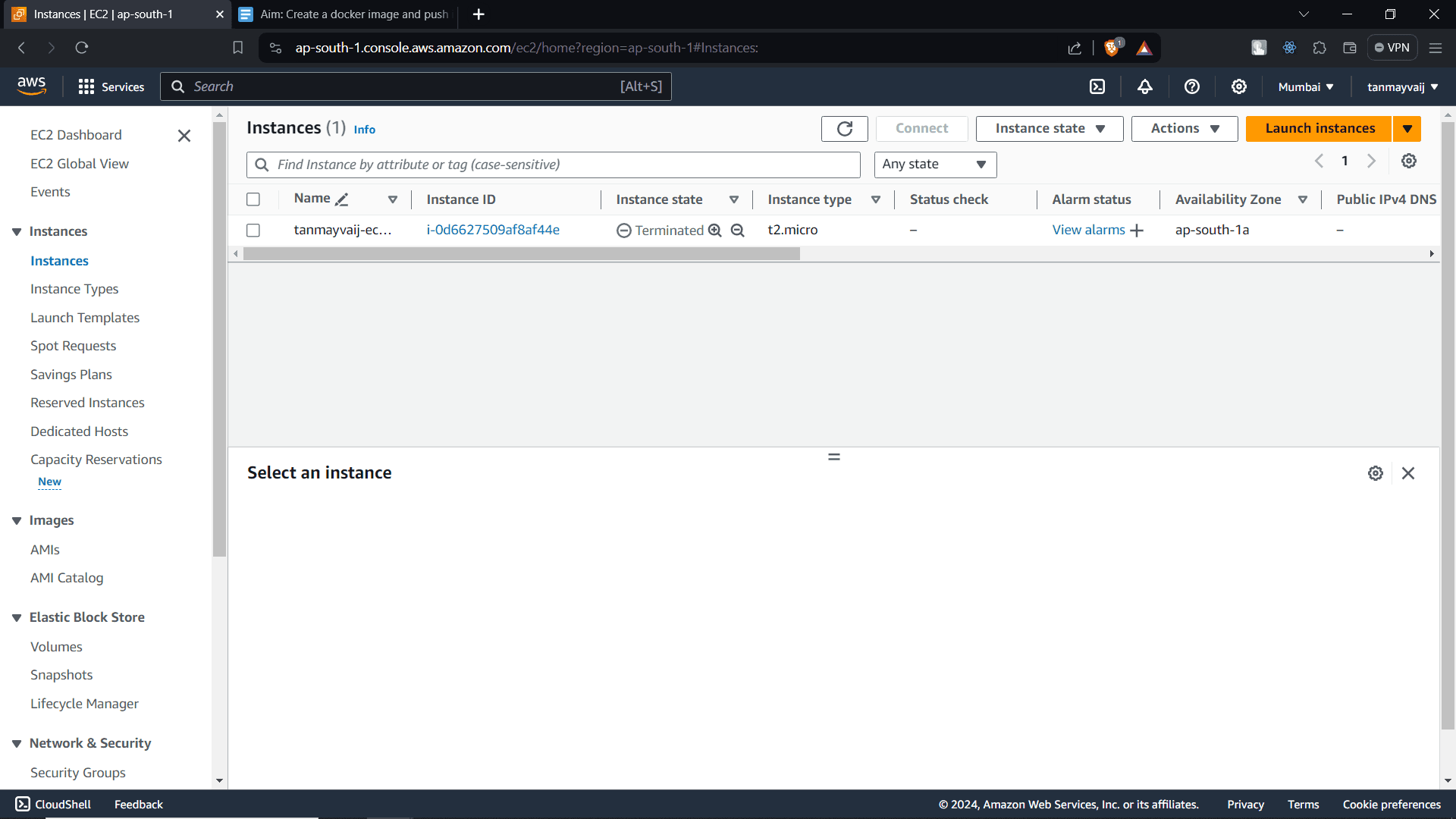
Step 2: Go to Instances and Launch a New Instance
In the AWS Management Console, search for EC2 and select it from the results. On the EC2 dashboard, click Instances in the left sidebar, then click the orange Launch instances button to start creating a new virtual server.
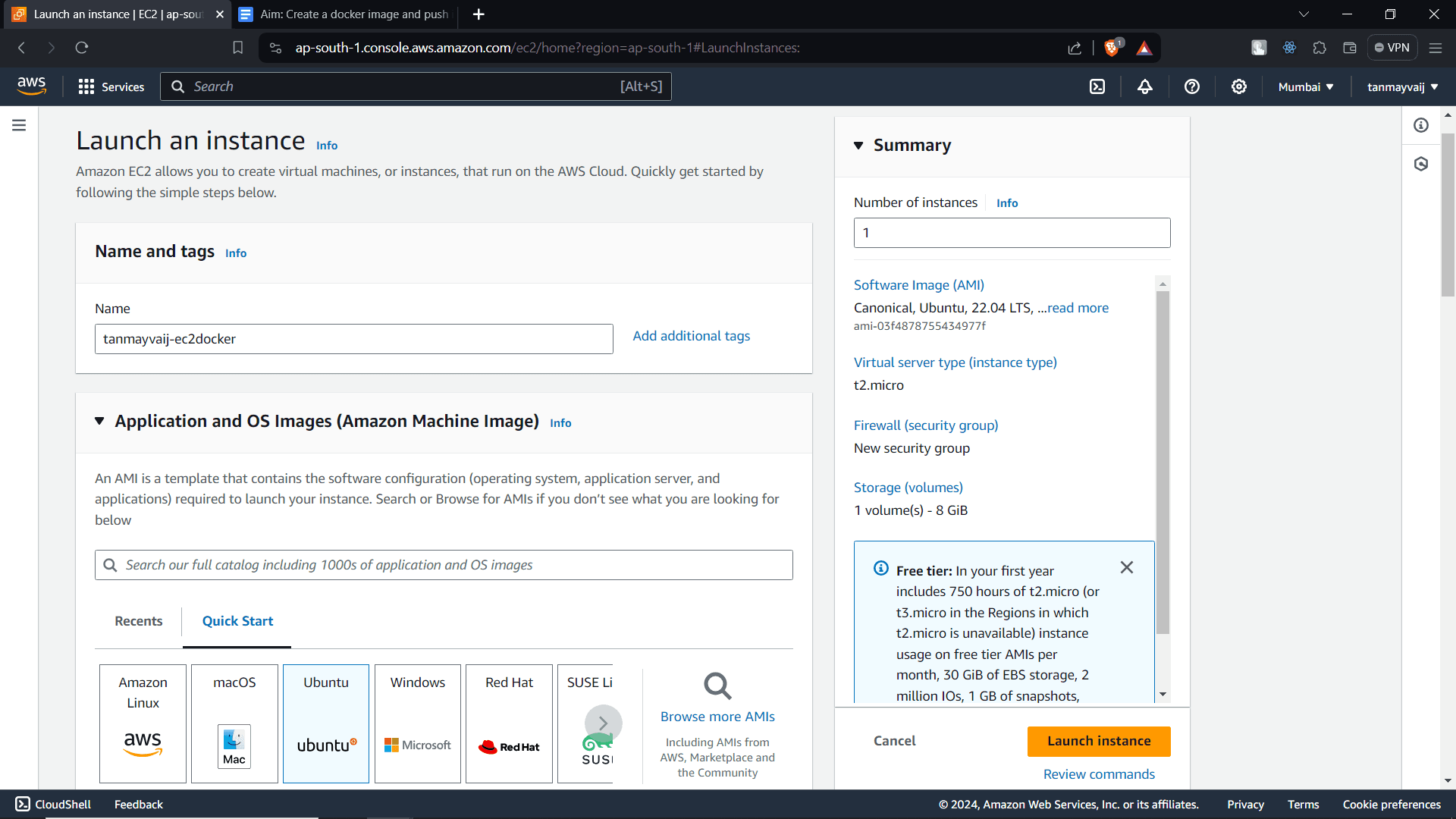
Step 3: Name the Instance and Select Ubuntu OS
Give your instance a meaningful name, e.g., docker-image-builder. Under Application and OS Images, select Ubuntu Server 22.04 LTS (HVM) – it’s free tier eligible and ideal for Docker.
Step 4: Select Key Pair and Security Group
Under Key pair (login), either create a new key pair or select an existing one. This key pair is required for SSH access. For security, create a security group that allows SSH (port 22) from your IP address. You can also add HTTP/HTTPS rules later if needed.
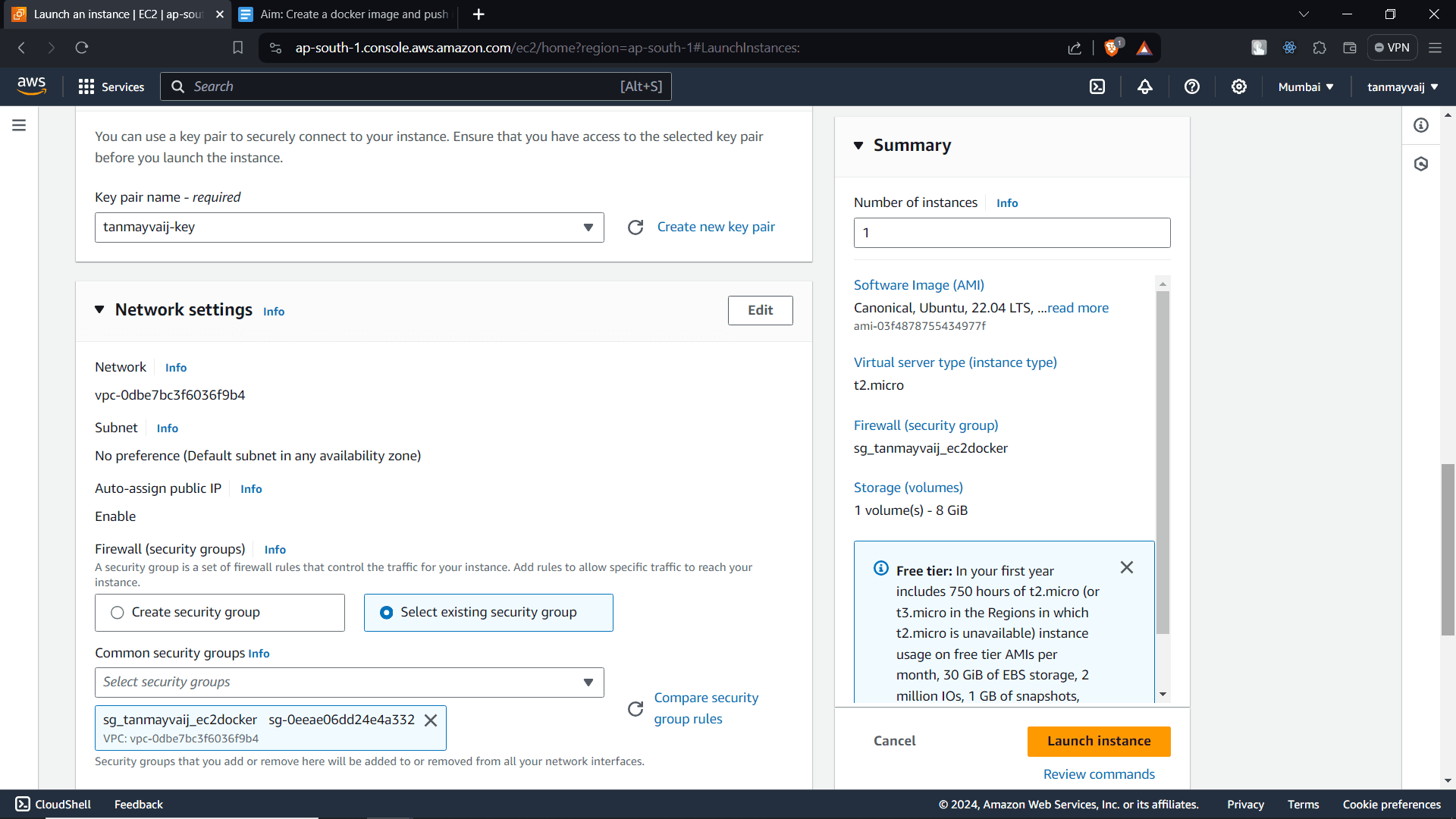
After configuring these settings, click Launch instance. Wait for the instance to reach the Running state and pass its status checks.
Step 5: Connect to Your EC2 Instance
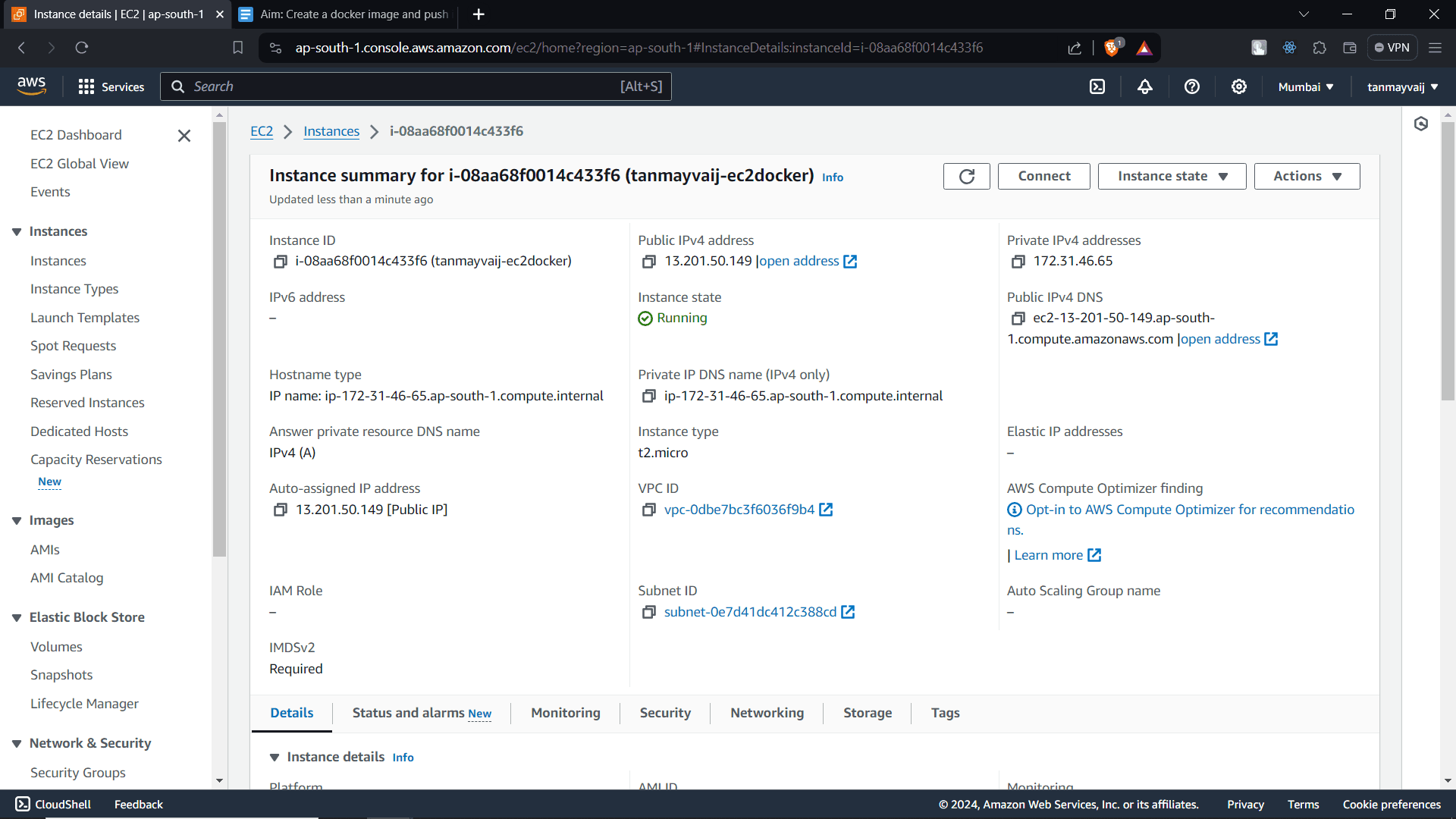
Once the instance is running, select it in the Instances list and click Connect. Use the SSH client tab to get the connection command, then open your terminal and SSH into the instance using your key pair.
Step 6: Install Docker on the EC2 Instance
After connecting to your instance via SSH, run the following commands to install Docker:
# Update package list
sudo apt update -y

# Install prerequisites
sudo apt install -y apt-transport-https curl ca-certificates software-properties-common

# Add Docker's official GPG key
curl -fsSL https://download.docker.com/linux/ubuntu/gpg | sudo apt-key add -

# Add Docker repository
sudo add-apt-repository "deb [arch=amd64] https://download.docker.com/linux/ubuntu $(lsb_release -cs) stable"

# Install Docker Engine
sudo apt install -y docker-ce docker-ce-cli containerd.io
After installation, start Docker and enable it to run on boot:
sudo systemctl start docker
sudo systemctl enable docker
Verify Docker is working:
sudo docker run hello-world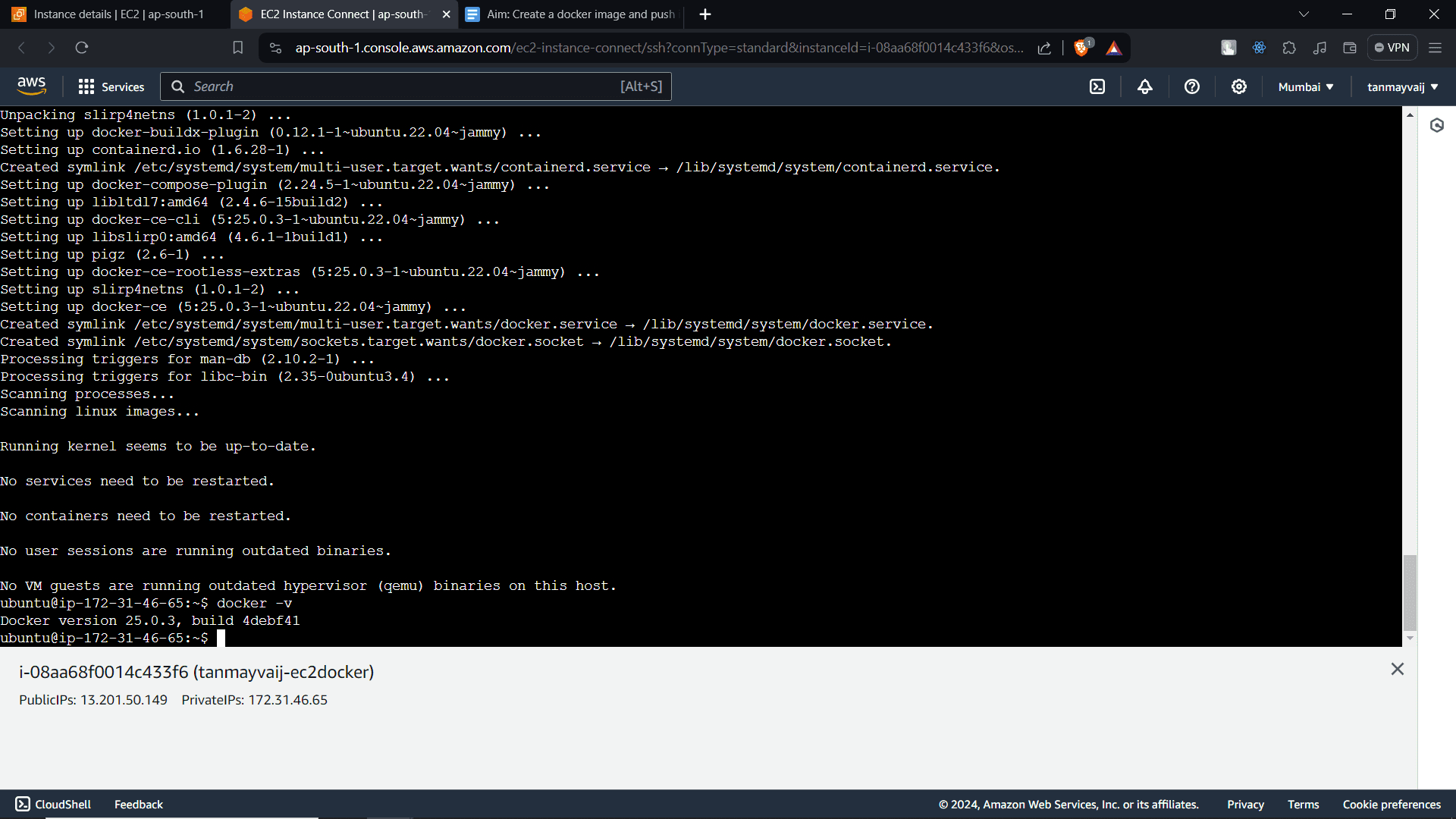
Step 7: Create a Dockerfile
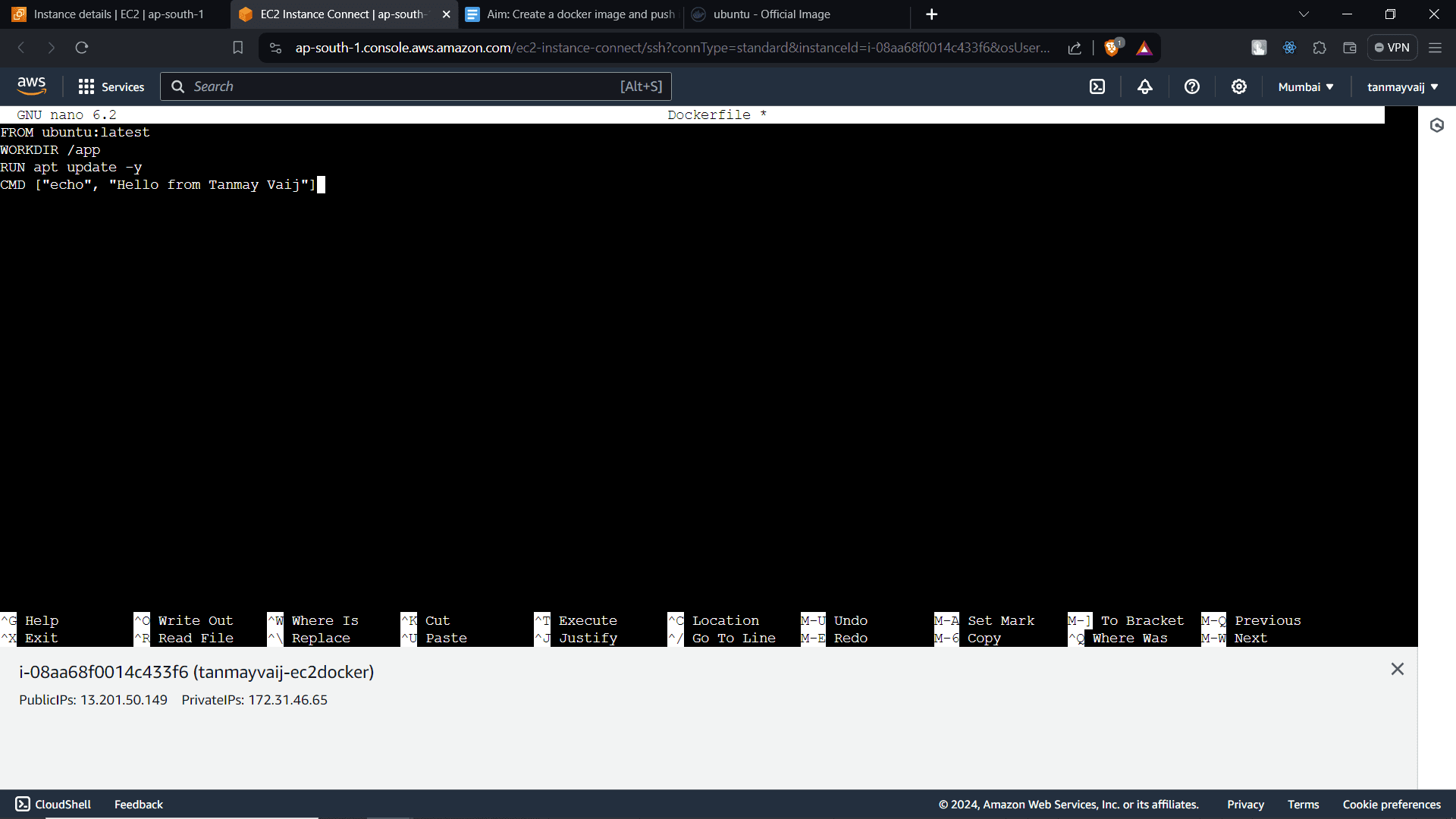
Now we’ll create a simple Dockerfile that defines our custom image. Use a text editor like nano or vim to create a file named Dockerfile:
nano DockerfileAdd the following content:
FROM ubuntu:latest
WORKDIR /app
RUN apt update -y
CMD ["echo", "Hello from Tanmay Vaij"]
Explanation of each line:
FROM ubuntu:latest– Uses the latest Ubuntu image as the base.WORKDIR /app– Sets the working directory inside the container to/app.RUN apt update -y– Updates the package list during image build.CMD– Specifies the default command to run when the container starts; here it prints a message.
Save the file (Ctrl+O in nano, then Ctrl+X to exit).
Step 8: Build the Docker Image
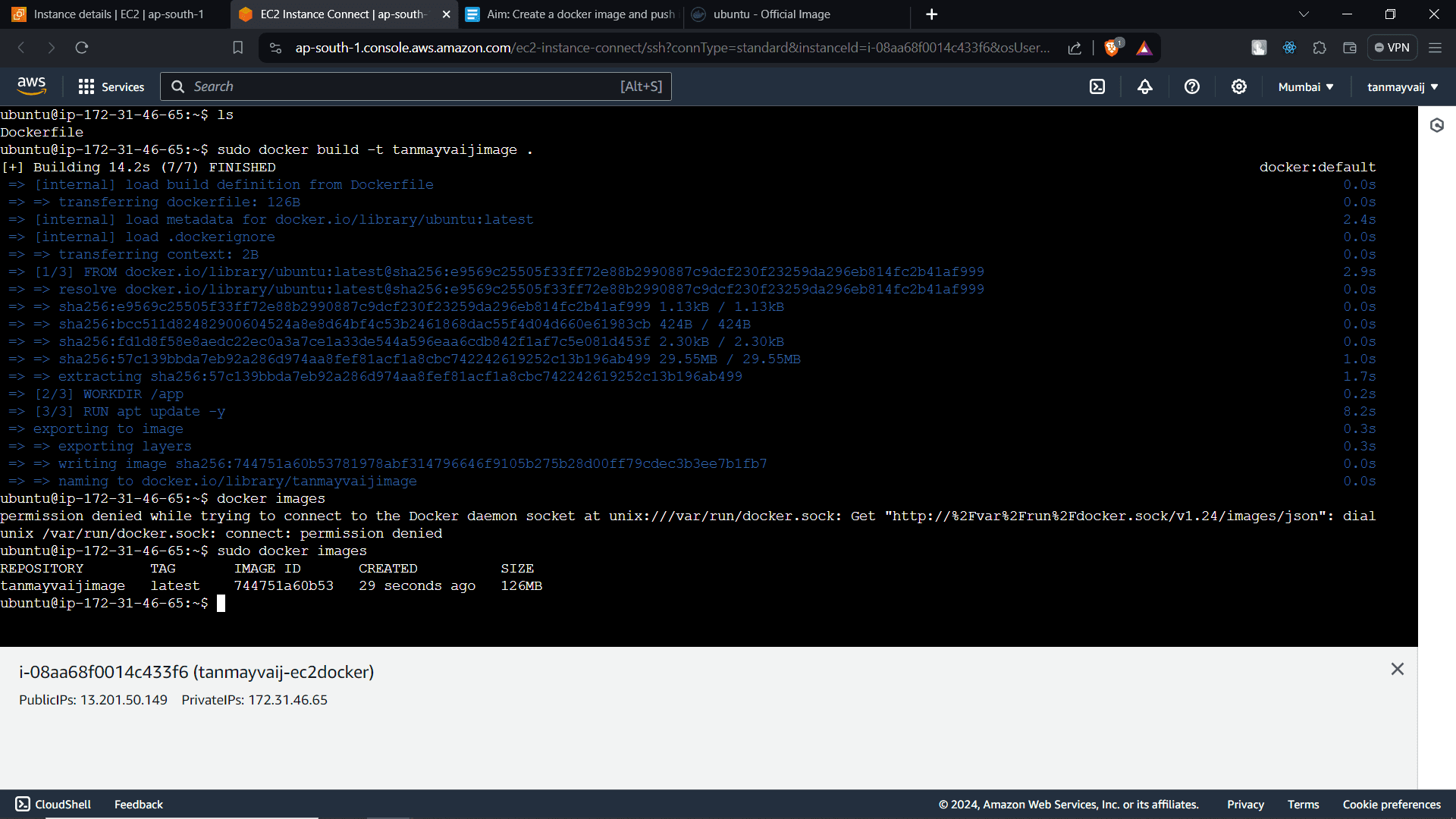
With the Dockerfile in place, build your image using the docker build command. The -t flag tags the image with a name. Run:
sudo docker build -t tanmayvajimage .The dot (.) tells Docker to use the current directory as the build context. You'll see output as Docker executes each step in the Dockerfile.
After the build completes, verify the image exists:
sudo docker imagesYou should see tanmayvajimage listed along with its size and tag.
Conclusion
You've successfully created a custom Docker image on an AWS EC2 instance! In just a few steps, you:
- Launched an EC2 instance with Ubuntu
- Installed Docker
- Wrote a simple Dockerfile
- Built your first Docker image
This image is now ready to be tested locally or pushed to a container registry like Docker Hub (covered in the next part of this series).
Next Steps
- Run your image locally:
sudo docker run tanmayvajimage - Tag and push the image to Docker Hub
- Explore more complex Dockerfiles with application code
Cleanup
To avoid incurring charges, terminate your EC2 instance when you're done experimenting.
Need more help? Check the Docker documentation or leave a comment below.
Happy building! 🐳