How to Launch an AWS EC2 Instance: A Step-by-Step Guide for Beginners

Step-by-Step Guide: Launching an EC2 Instance on AWS
Amazon Elastic Compute Cloud (EC2) is one of the most popular AWS services, providing scalable computing capacity in the cloud. In this tutorial, we’ll walk through launching an EC2 instance step by step—from signing into the AWS console to configuring and connecting to your instance.
Step 1: Sign in to the AWS Console
Start by navigating to aws.amazon.com and clicking Sign In to the Console. Enter your AWS account credentials to access the AWS Management Console.
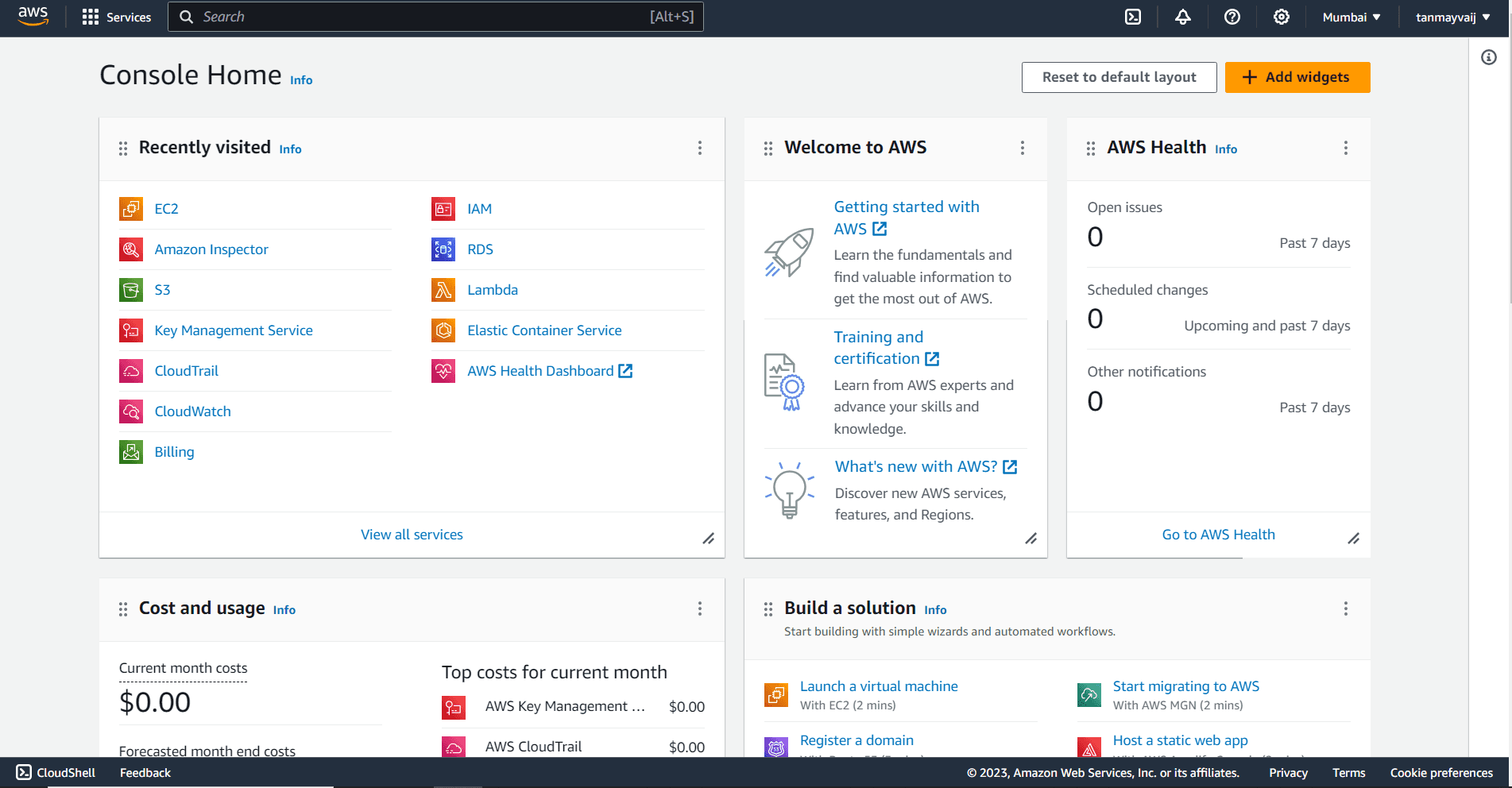
Tip: If you don’t have an AWS account, you can create one—new users get access to the Free Tier for 12 months.
Step 2: Search for EC2
Once logged in, you’ll see the AWS Management Console dashboard. In the top search bar, type EC2 and select EC2 from the dropdown menu under Services.
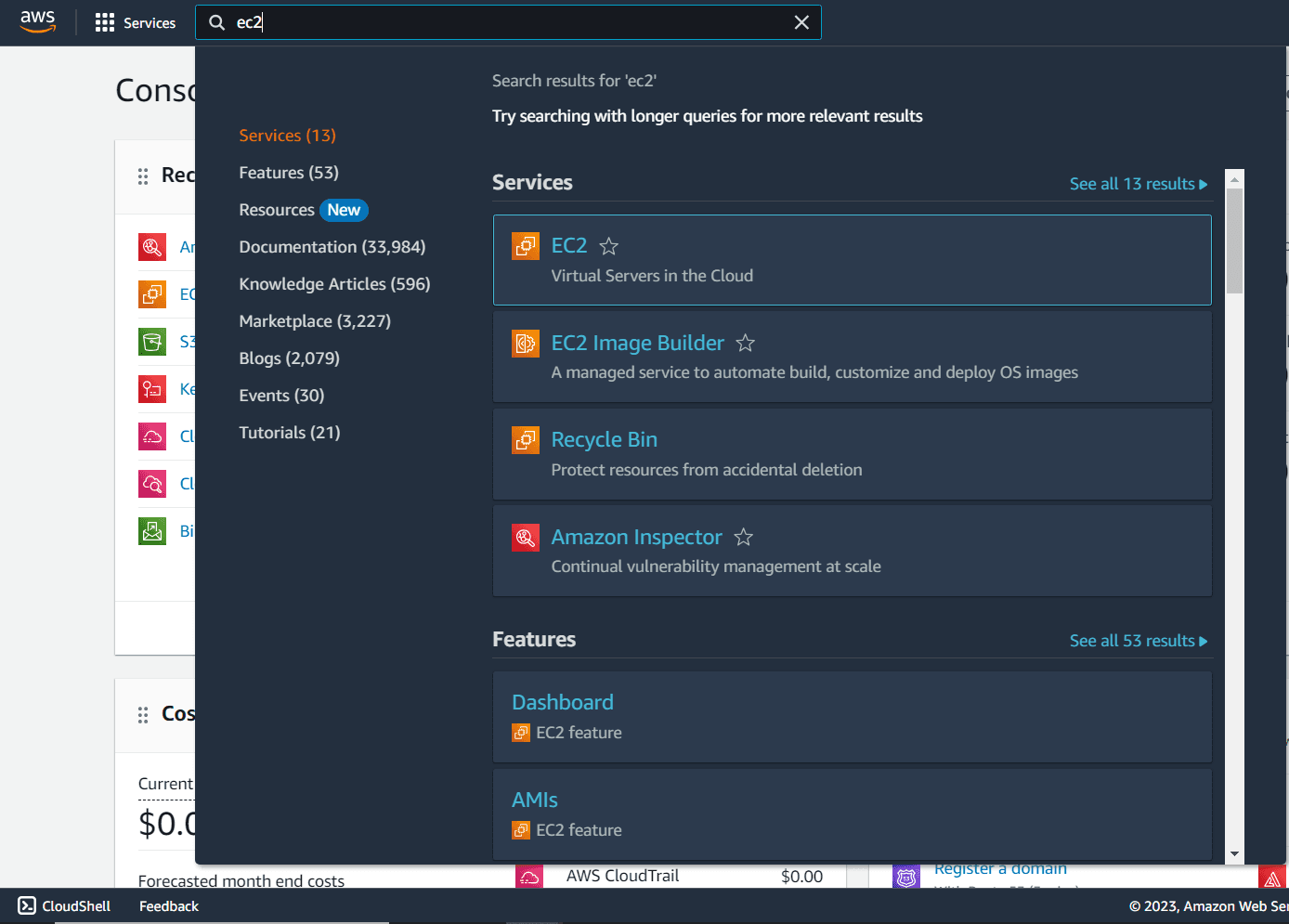
Step 3: Open the EC2 Instance Dashboard
In the EC2 dashboard, locate the Resources card on the right side. Click on Instances (running) to open the instance management page.
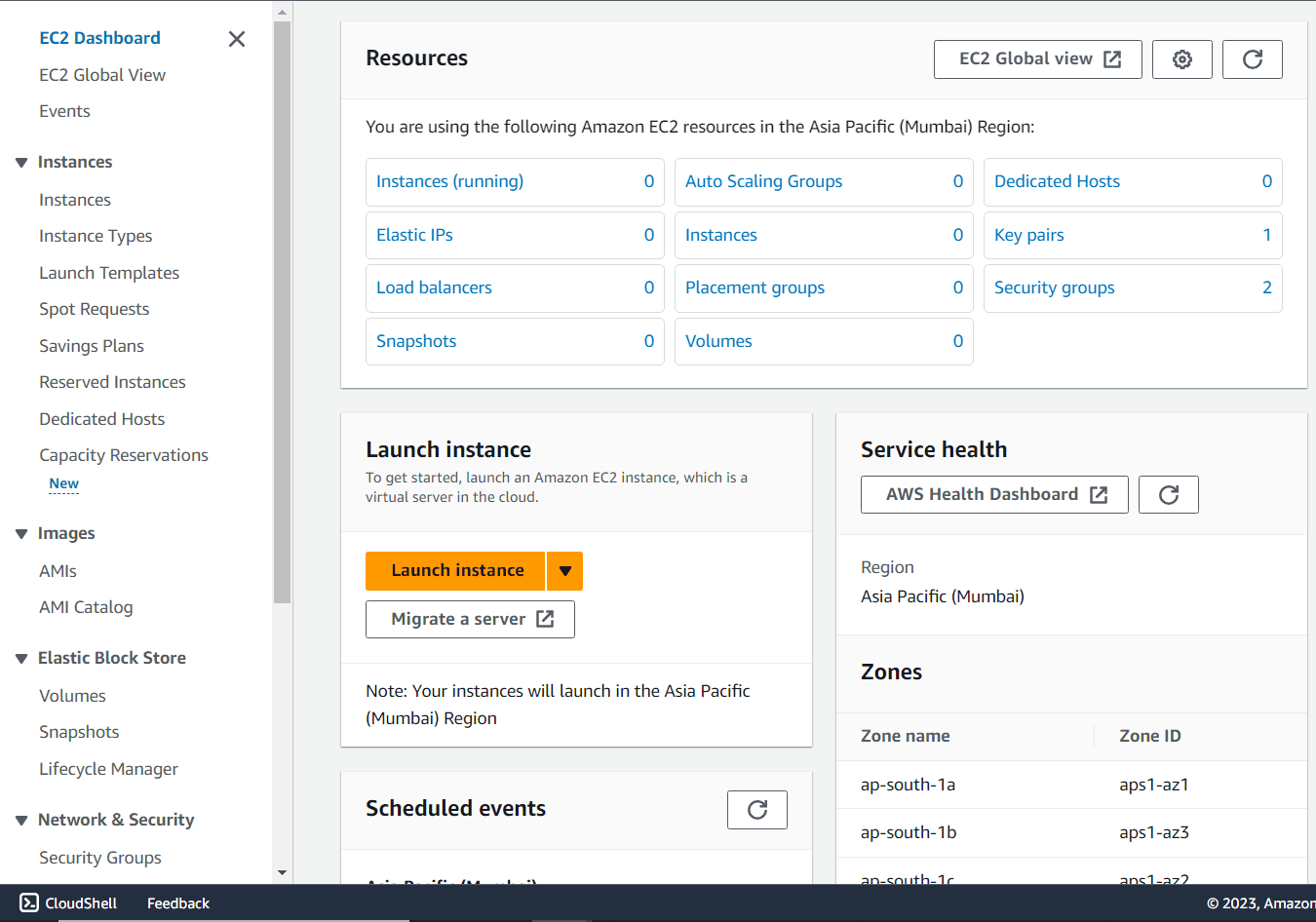
Step 4: Click "Launch Instances"
On the Instances page, click the orange Launch Instances button in the top-right corner. This begins the instance creation wizard.

Step 5: Name Your Instance
In the Name and tags section, give your instance a descriptive name. This helps you identify it later in the EC2 dashboard.
Example:Name: My-First-EC2-Instance
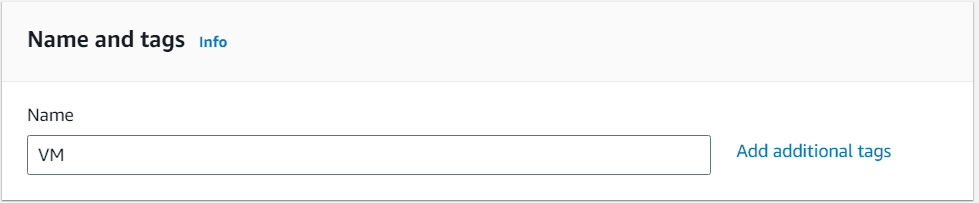
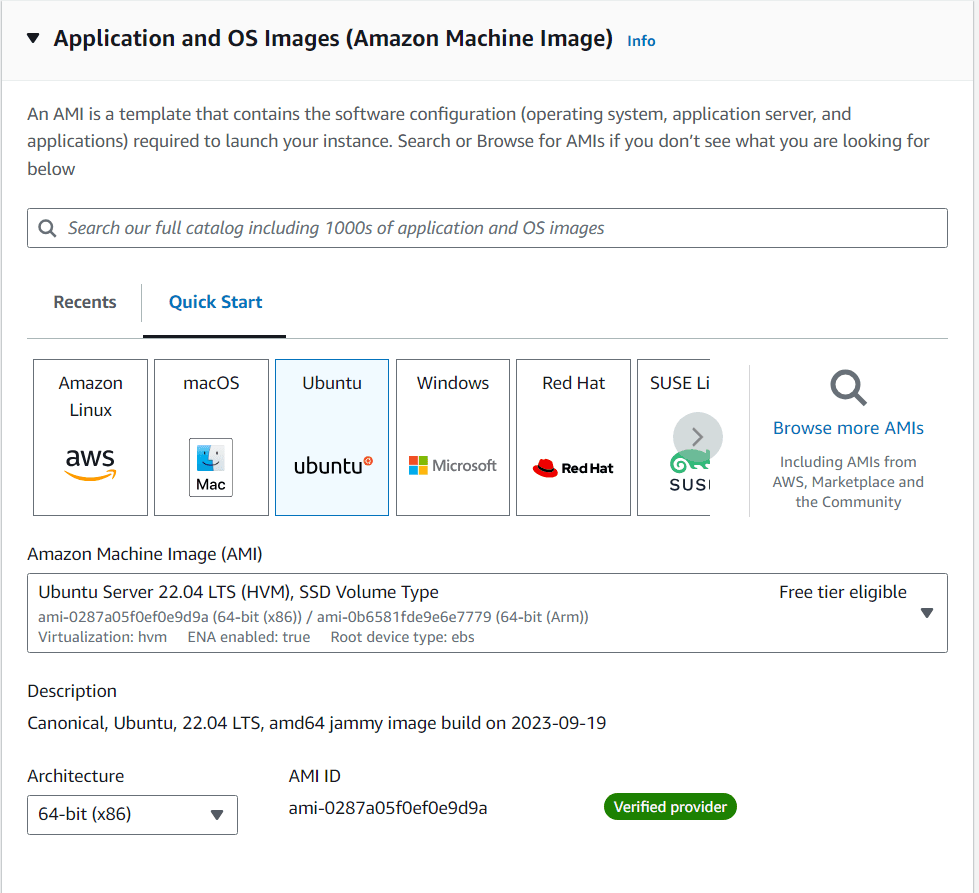
Step 6: Select an AMI (Amazon Machine Image)
An AMI is a template that contains the operating system and software configuration for your instance. Under Application and OS Images, choose an AMI.
For this guide, select:
- Ubuntu Server 22.04 LTS (HVM), SSD Volume Type
You can also search for other AMIs like Amazon Linux, Windows Server, or custom images.
Step 7: Create or Select a Key Pair
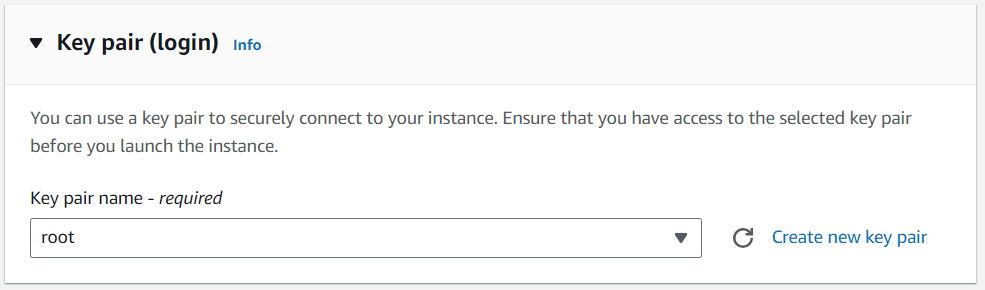
A key pair is used to securely connect to your EC2 instance via SSH. Under Key pair (login), either:
- Choose an existing key pair
- Create a new one by clicking Create new key pair
Name your key pair (e.g., my-ec2-key) and download the .pem file. Store it securely—you’ll need it to connect later.
Step 8: Configure Security Group
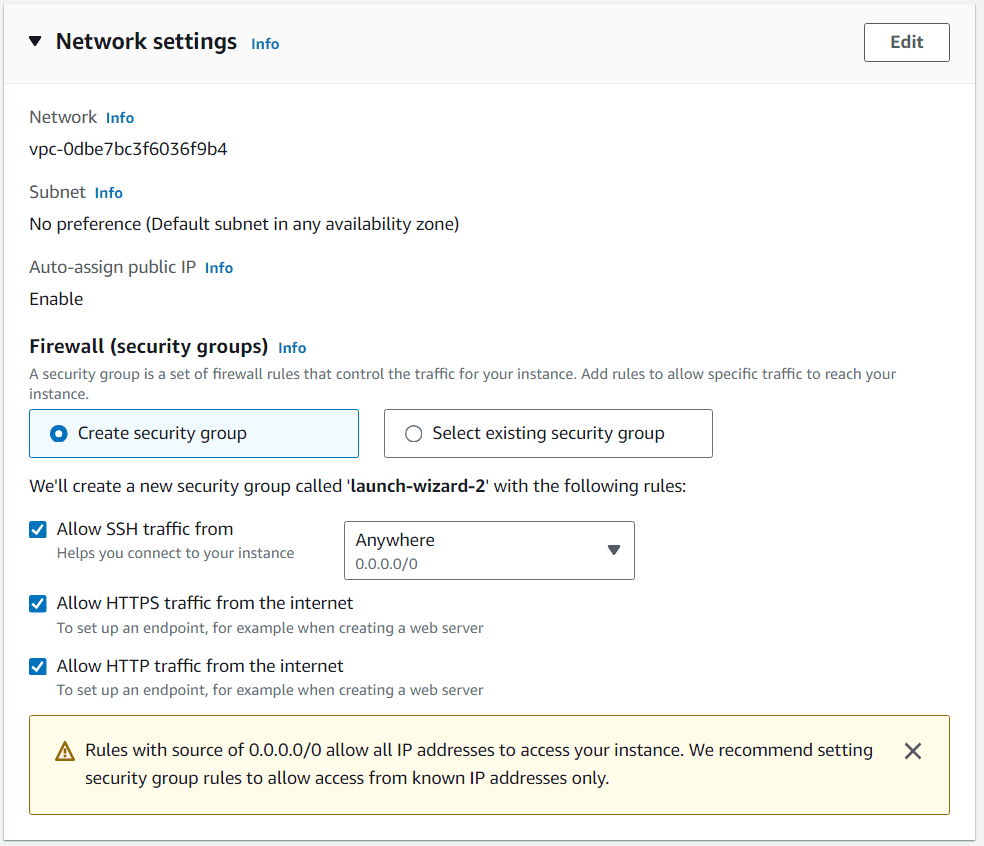
A security group acts as a virtual firewall. Create a new security group or select an existing one. For a basic web server, allow the following inbound rules:
| Type | Protocol | Port Range | Source |
|---|---|---|---|
| SSH | TCP | 22 | My IP |
| HTTP | TCP | 80 | Anywhere |
| HTTPS | TCP | 443 | Anywhere |
This allows SSH access from your IP and web traffic from anywhere.
Step 9: Configure Number of Instances
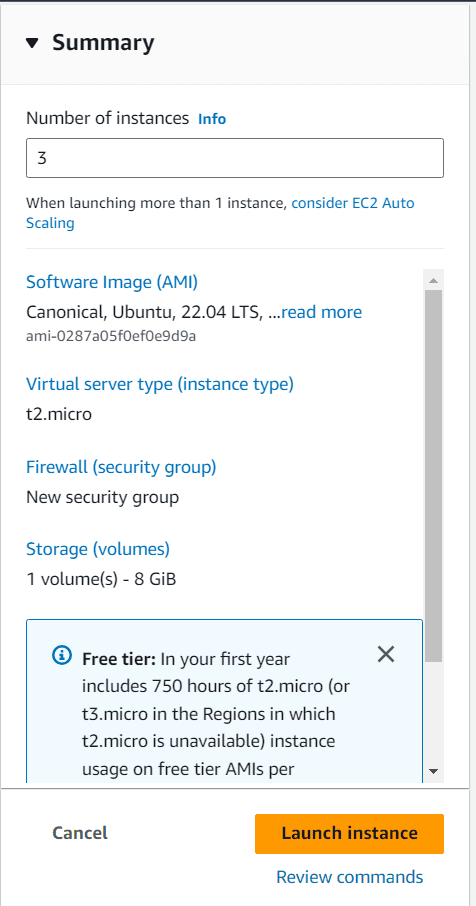
Under Number of instances, specify how many instances to launch. For this tutorial, set it to 1. You can launch multiple instances if needed for scaling.
Step 10: Review and Launch
Review your configuration summary. Ensure the instance type is t2.micro (Free Tier eligible). Then click Launch Instance.
Wait a few minutes until the instance status changes to Running and passes 2/2 status checks.

Step 11: Connect to Your Instance
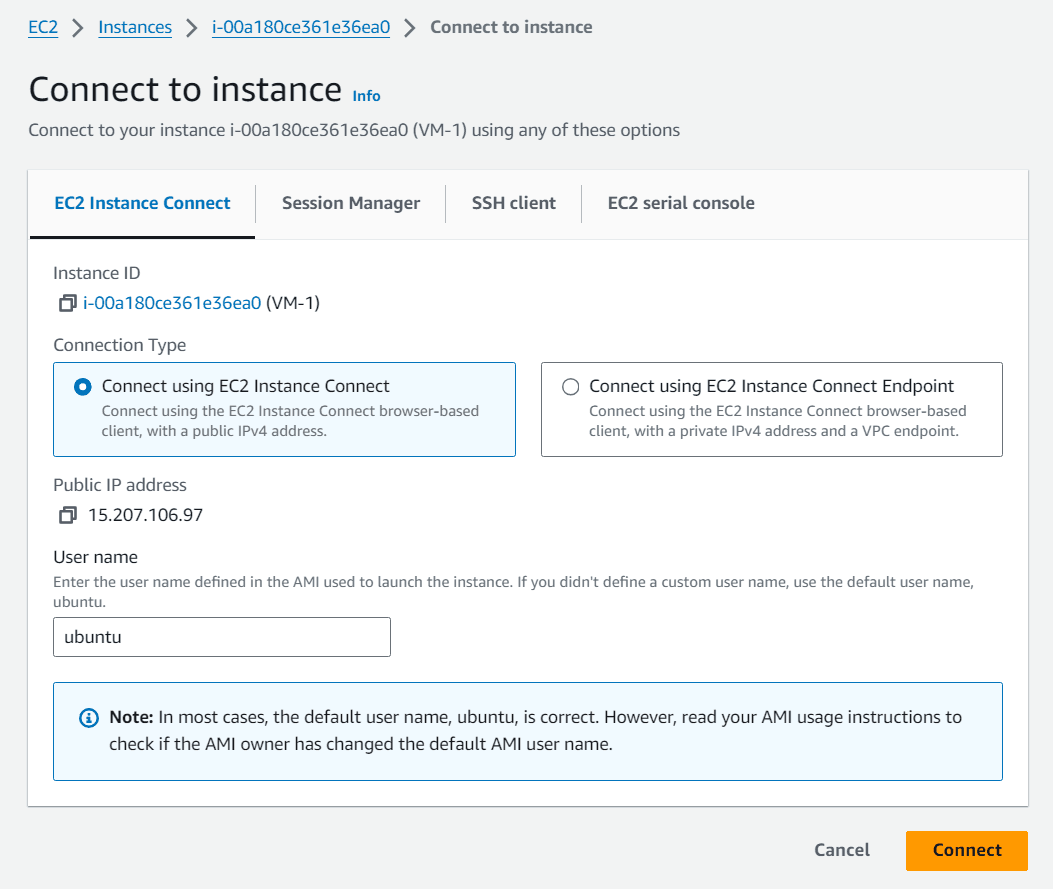
Select your instance from the list and click the Connect button. You’ll see several connection options. For Linux instances, use EC2 Instance Connect or SSH Client.
Step 12: Install Apache and Configure a Test Page
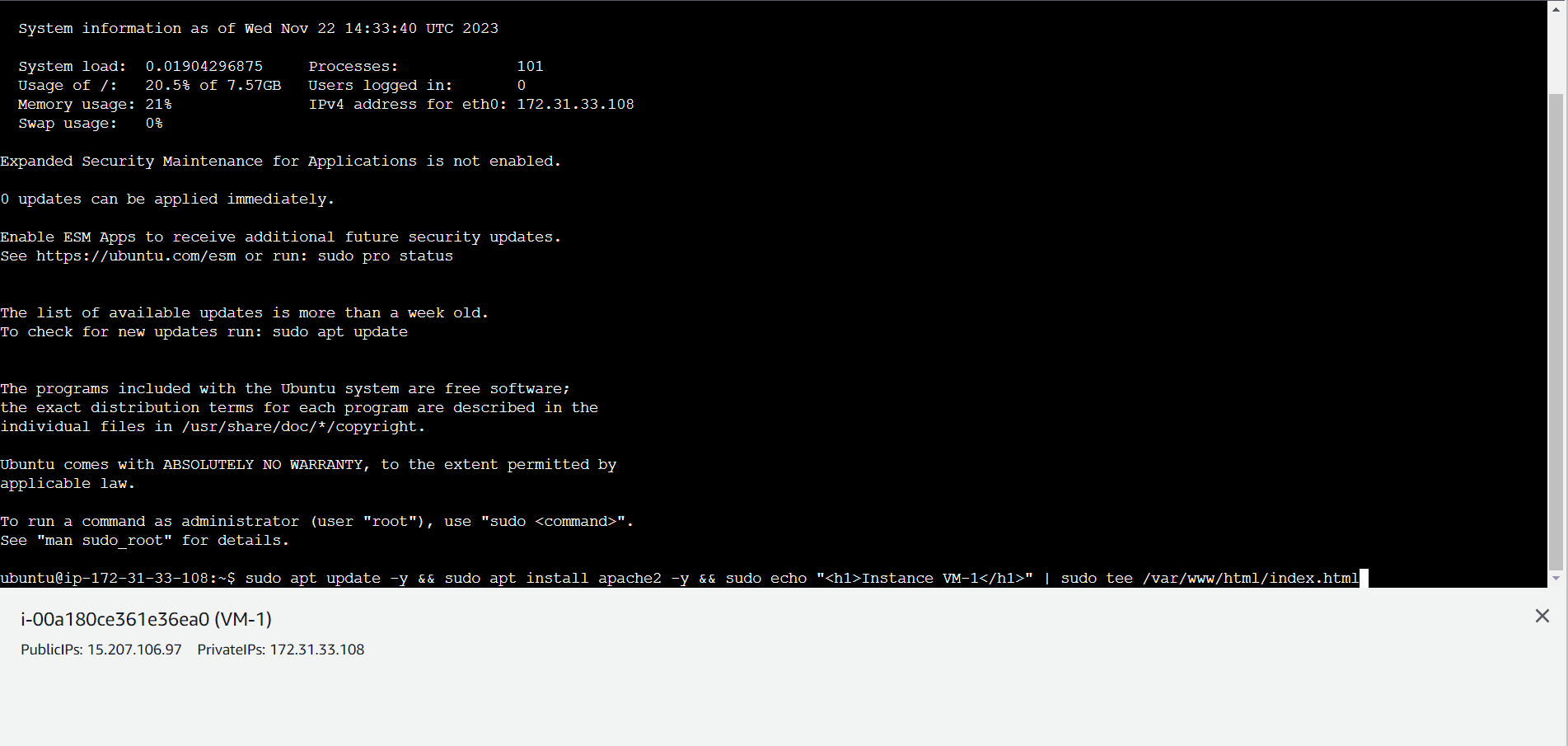
Once connected via SSH or EC2 Instance Connect, run the following commands to update the system, install Apache, and create a custom welcome page:
sudo apt update -y
sudo apt install apache2 -y
sudo echo "<h1>Hello from My-First-EC2-Instance</h1>" | sudo tee /var/www/html/index.html
Now, copy your instance’s Public IPv4 address from the EC2 dashboard, paste it into your browser, and you should see your custom message!
Next Steps
Congratulations! You’ve successfully launched and configured an EC2 instance. From here, you can:
- Host a static website
- Deploy a web application
- Set up a database server
- Configure auto-scaling and load balancing
Remember to stop or terminate your instance when not in use to avoid unnecessary charges (except for Free Tier).
Troubleshooting Tips
- SSH Connection Failed? Ensure your security group allows SSH from your IP and your key pair is correctly set.
- Web Page Not Loading? Check that HTTP/HTTPS rules are added to your security group and Apache is running (
sudo systemctl status apache2). - Instance Not Starting? Verify you’re within your service limits and have sufficient permissions.
Need more help? Check the AWS EC2 Documentation or reach out in the comments below.
Happy cloud computing! ☁️